


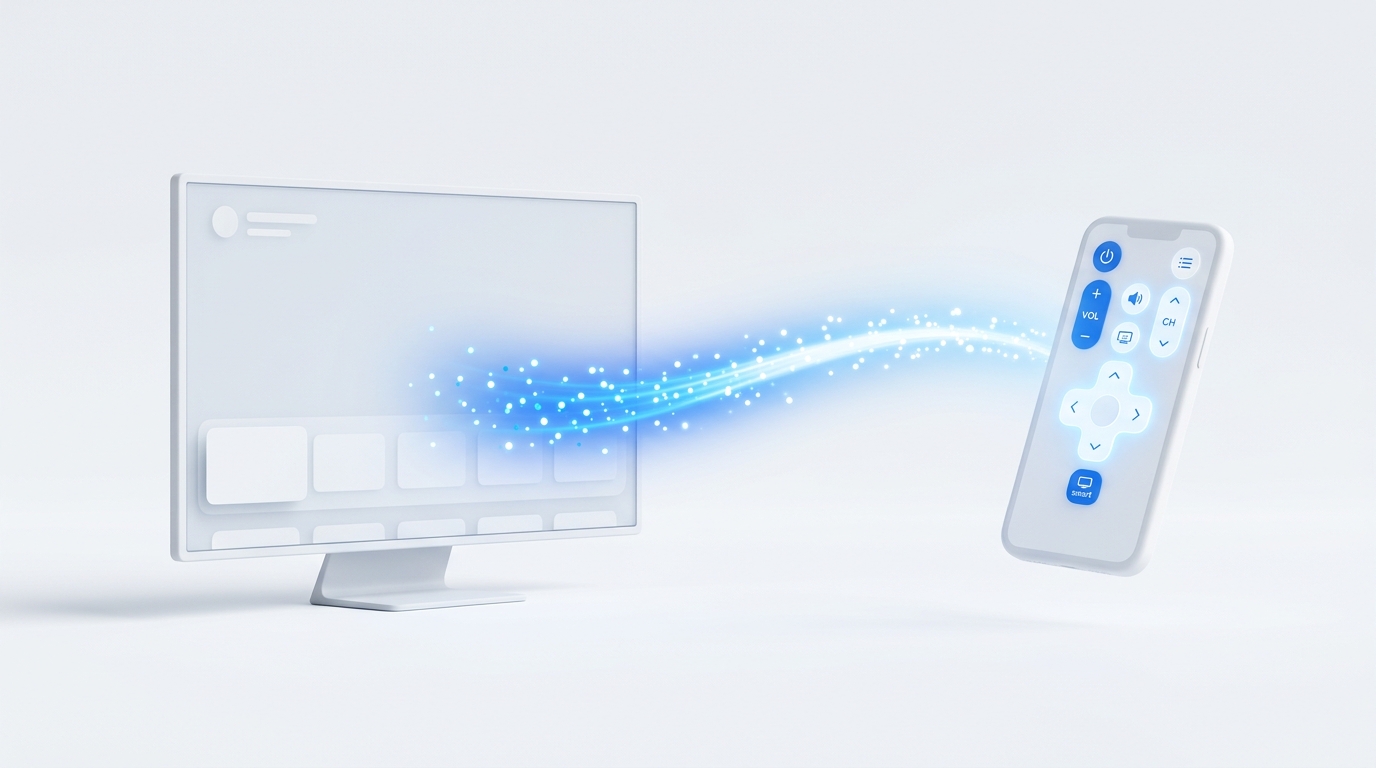
If your TCL or Android TV remote stopped responding: first, remove the batteries and hold the physical Power button on the remote for 20 seconds to drain static charge. Second, if your TV is connected to Wi-Fi, install MotePal on your Android phone to regain immediate control via the Android TV Remote v2 protocol (TLS port 6466/6467) without buying new hardware.
TCL smart TVs (along with Sony Bravia, Xiaomi, Philips, and streaming devices like the Nvidia Shield and Chromecast with Google TV) run on Google’s Android TV or Google TV platform. Unlike older infrared remotes, modern Android TV remotes use a hybrid connection: infrared (IR) for power, and Bluetooth Low Energy (BLE) for menu navigation, typing, and Google Assistant voice input.
When this Bluetooth pairing breaks or the firmware freezes, the remote will suddenly stop controlling the screen, leaving you stranded. Here is how to diagnose, repair, and bypass the problem.
Physical Bluetooth remotes frequently lose pairing after updates. Wi-Fi control over TCP TLS remains rock solid.
Step 1: Perform a Physical Remote Hard Reset
Before assuming your physical remote has permanently died, perform a manual capacitor discharge:
- Open the battery compartment on the back of the TCL remote.
- Remove both AAA batteries.
- With the batteries completely removed, press and hold the Power button for 20 seconds. This drains residual charge from the internal logic board.
- Press every single button on the remote firmly twice (this dislodges dust or stuck contacts that cause the remote to stay awake and drain batteries).
- Insert brand-new, high-quality alkaline batteries (avoid rechargeable batteries, as their 1.2V output is often too low for modern BLE transmitters).
- Point the remote directly at the bottom center sensor of the TV and test.
Step 2: Re-Pair the Remote Over Bluetooth
If the remote turns the TV on and off but will not navigate the menus, the Bluetooth link has disconnected.
Standard TCL Android TV Re-Pairing Combination:
- Turn on your TCL TV manually using the physical button beneath the center frame.
- Stand within 3 feet (1 meter) of the TV screen.
- Press and hold the Home button and the OK button (or on some models, Back and OK) simultaneously for 5 to 10 seconds.
- A pairing graphic will pop up on the TV screen showing a remote connecting.
- Release the buttons once the LED light on the top of the remote begins flashing rapidly.
Step 3: Use MotePal as Your Instant Wi-Fi Remote
If the physical remote refuses to connect or you need to replace it entirely, your Android phone can take over immediately using Google’s native Android TV Remote v2 protocol.
MotePal implements the secure Android TV TLS protocol directly on your device:
- Download MotePal on Google Play.
- Confirm your phone is connected to your home Wi-Fi network.
- Open MotePal. Your TCL TV will appear on the discovery list.
- Tap your TV. A 6-character alphanumeric pairing code will appear on your TV screen.
- Enter the 6-character code into MotePal.
- The connection is permanently paired with a local cryptographic certificate.
Key advantages of MotePal on TCL & Google TVs:
- True keyboard input: Avoid the pain of typing with on-screen D-pad letters. MotePal synchronizes your phone keyboard directly into Android TV text input fields. Learn more in our guide on typing and pasting passwords on Android TV.
- Touchpad mode: Swipe across your phone screen to glide through Netflix and YouTube menus fluidly.
- Zero advertising: Unlike generic Play Store remote apps that blast video commercials on every tap, MotePal contains absolutely no ads and requires no account.
Test the feel and button layouts right now on our interactive web remote simulator.
Step 4: Clear the Android TV Bluetooth Cache
Occasionally, Android TV’s internal Bluetooth daemon gets corrupted after an automatic system software update.
If you have connected MotePal on your phone:
- Use MotePal to navigate to Settings (gear icon) > Apps > See all apps > Show system apps.
- Scroll down to Bluetooth (or Bluetooth Service).
- Select Clear Cache and Clear Data, then choose Force Stop.
- Restart your television from Settings > System > Restart.
- Once rebooted, your physical Bluetooth remote will re-pair effortlessly.
Need an Instant TV Remote on Your Phone?
MotePal connects to your Google TV, Android TV, Roku, Samsung, or LG TV over Wi-Fi in seconds. 100% free with zero ads and no account required.
