


If your Roku and Android phone are already on the same home Wi-Fi network, you do not need to buy a replacement remote. Install a free Wi-Fi remote app like MotePal or the official Roku app. MotePal discovers your Roku player instantly on port 8060 with zero ads and no account sign-up.
Misplacing your Roku remote right when you want to relax can ruin your evening. The standard Roku physical remote is notorious for slipping between couch cushions, and waiting two days for an online delivery is frustrating.
Fortunately, modern Roku devices (including Roku Streaming Sticks, Roku Express, Roku Ultra, and smart TVs running Roku OS like TCL, Hisense, and Onn) communicate over your local network using standard HTTP protocols. Here are four reliable ways to regain total control of your Roku immediately.
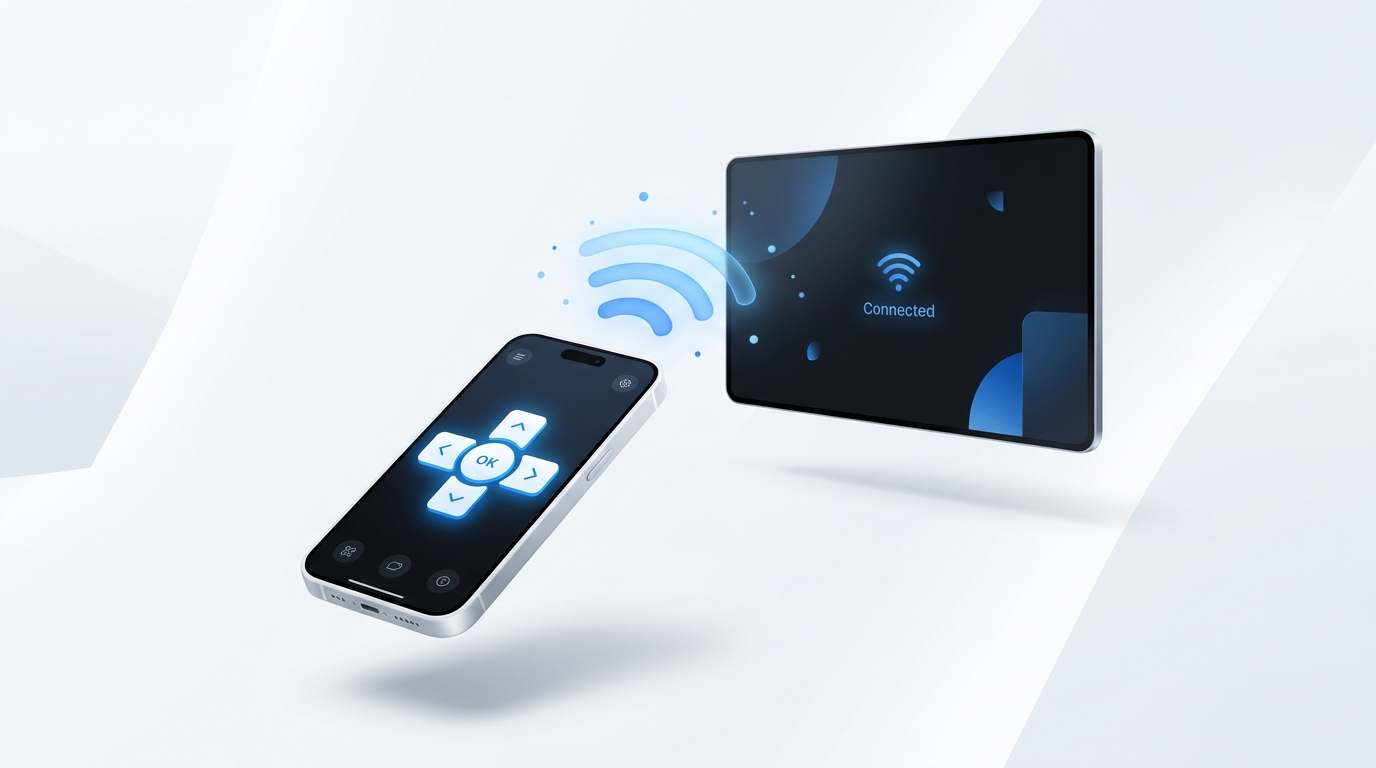
How phone remote apps talk to Roku devices directly over local Wi-Fi via the External Control Protocol (ECP).
Method 1: Use an Ad-Free Wi-Fi Remote App (Best Option)
The fastest and most comfortable replacement is turning your Android smartphone into a dedicated remote.
Roku devices run a built-in server known as the External Control Protocol (ECP) on TCP port 8060. Any application on your local network can send key commands (Home, Back, Select, Up, Down, Left, Right, Volume) directly to the TV without requiring an infrared hardware sensor on your phone.
Why choose MotePal instead of generic store apps?
Most third-party remote apps on the Google Play Store are cluttered with loud video ads, banner ads that cover the D-pad, and requests to track your location.
MotePal was engineered specifically to solve this problem:
- Zero ads: You will never see a pop-up advertisement while trying to pause a movie.
- No account required: You do not need to register an email address or create a password.
- Instant network radar: MotePal sends an SSDP discovery packet across your home subnet and identifies your Roku player automatically.
- Phone keyboard integration: You can type movie titles and passwords on your phone keyboard instead of hunting through on-screen letter grids.
You can also test the layout and button responses right now on our interactive web remote simulator.
Method 2: Check Physical Buttons on Your Roku TV
If your Roku is a standalone smart TV (such as a TCL Roku TV, Hisense Roku TV, Philips, or Onn Roku TV), physical buttons are built into the TV chassis itself.
Look in these three common spots:
- Underneath the bottom bezel: Run your fingers directly under the center front logo or on the bottom right edge. Many models feature a 3-button rocker or a single center joystick.
- On the lower back panel: Reach behind the right or left edge of the television. You will typically find Power, Input, Volume Up, and Volume Down.
- Around the power indicator light: On certain compact TCL models, a tiny circular navigation nipple rests right behind the standby LED.
While physical buttons are too slow for searching libraries, they can turn on the screen and select an input immediately.
Method 3: Use the Official Roku Mobile App
Roku provides an official app on Google Play and Apple App Store. It offers remote controls, private listening through wired headphones or Bluetooth, and voice search.
How to connect:
- Download the official Roku app.
- Ensure your phone is connected to the same 2.4 GHz or 5 GHz Wi-Fi band as the TV.
- Open the app and tap Devices in the bottom navigation bar.
- Select your Roku unit from the detected list.
- Tap the Remote icon to open the virtual navigation pad.
For any Wi-Fi remote app to work, your Roku TV must have network control enabled. On your TV, navigate to Settings > System > Advanced system settings > Control by mobile apps > Network access, and make sure it is set to Default or Permissive rather than Disabled.
Method 4: What if Your Wi-Fi Changed or You Are at a Hotel?
The biggest hurdle with Wi-Fi remotes occurs when your Roku is not yet connected to your current Wi-Fi network (for example, if you recently moved, bought a new router, or lost your remote while traveling).
Because the Roku cannot join a new Wi-Fi network without a remote to enter the password, phone apps cannot find it over the local network.
Here is the secret trick to reconnect:
- Find your old Wi-Fi network name (SSID) and old Wi-Fi password.
- Grab a family member’s phone or secondary device and turn on its Mobile Hotspot.
- Name the hotspot with the exact same SSID and password your Roku used previously.
- Turn on your Roku TV. It will automatically detect the hotspot and connect to it, believing it is your home network.
- Connect your primary smartphone to that same mobile hotspot.
- Open MotePal, connect to the TV, and navigate to Settings > Network > Set up connection to join your permanent home router.
Frequently Asked Questions
Can I control a Roku TV with an Infrared (IR) universal remote?
Yes. Standalone Roku TVs (TCL, Hisense, Sharp, etc.) accept standard IR signals. You can use almost any cheap universal remote from a local hardware store. However, Roku Streaming Sticks (which plug directly into an HDMI port behind the TV) do not have IR receivers and only respond to RF or Wi-Fi commands.
What should I do if my Roku remote app says “Device Not Found”?
Inspect your home router settings. If your router has AP Isolation (Client Isolation) enabled, connected Wi-Fi devices cannot communicate with each other. Disable AP Isolation in your router admin panel. Read our comprehensive guide on fixing TV remote app connection problems for step-by-step instructions.
Need an Instant TV Remote on Your Phone?
MotePal connects to your Google TV, Android TV, Roku, Samsung, or LG TV over Wi-Fi in seconds. 100% free with zero ads and no account required.
