


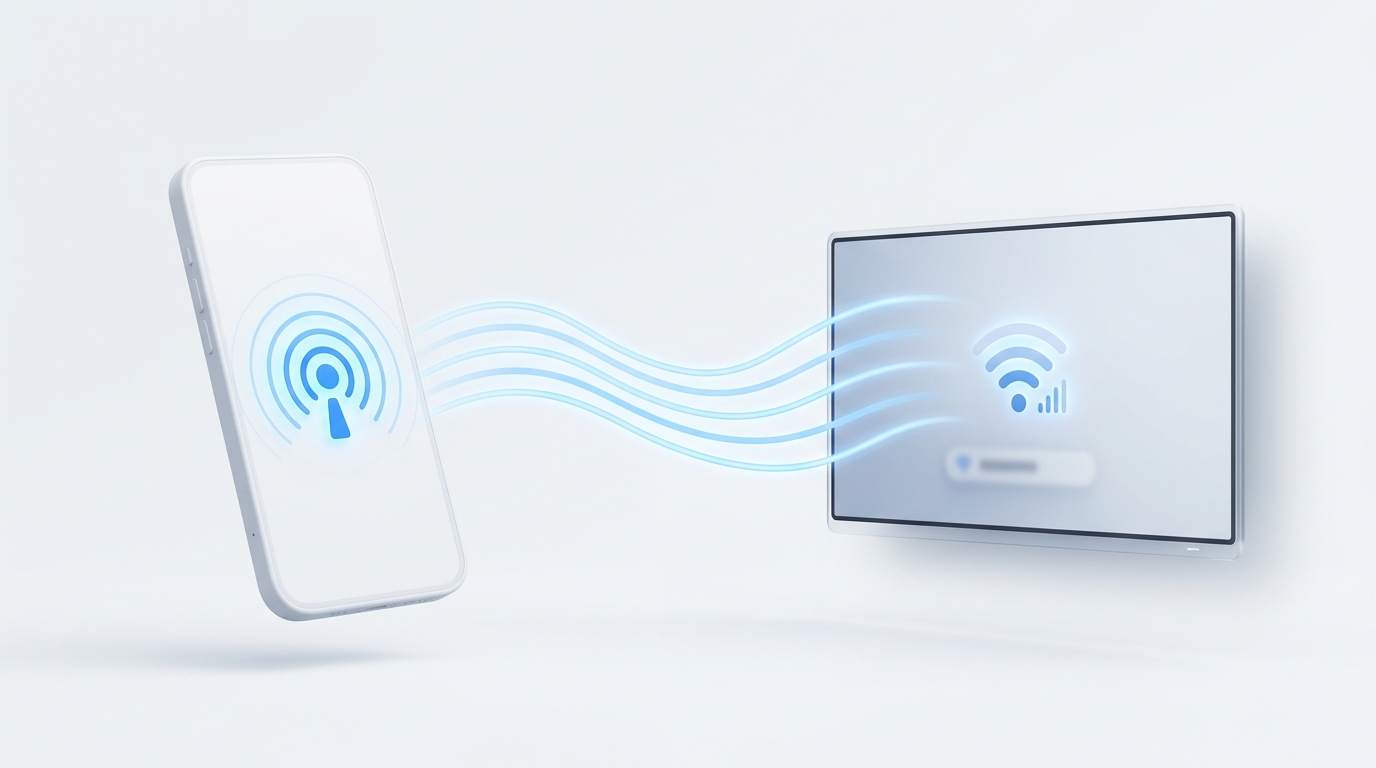
To connect a smart TV to Wi-Fi without a remote: turn on the Mobile Hotspot on a smartphone, and set the hotspot name (SSID) and password to match your old router exactly. Your TV will automatically connect to the hotspot. Connect a second phone with MotePal installed to that same hotspot, open the app to control the TV, and navigate to network settings to join your new router.
Connecting a smart TV to Wi-Fi is easy when you have a physical remote in your hand. But what happens if you recently moved apartments, changed internet providers, upgraded your router, or bought a used TV that does not have a remote?
Because the TV is not yet on your new Wi-Fi network, phone remote apps cannot discover it. And without a remote, you cannot type the new Wi-Fi password onto the screen.
Here are four field-tested engineering solutions to break this deadlock and get your smart TV connected in minutes.
Broadcasting your old Wi-Fi SSID from a smartphone hotspot allows the TV to reconnect automatically.
Method 1: The Old Wi-Fi Hotspot Trick (Fastest & Free)
Smart TVs remember previously saved Wi-Fi network credentials indefinitely. If your TV sees a Wi-Fi network broadcasting the exact same network name (SSID) and security password it used previously, it connects automatically with no user interaction required.
Step-by-step instructions:
- Find the exact Wi-Fi name (SSID) and password of your previous home network.
- Grab a friend’s phone or secondary device.
- Open Settings > Network > Personal Hotspot / Portable Hotspot.
- Configure the hotspot:
- Hotspot Name: Set this to your old Wi-Fi network name (remember that SSIDs are case-sensitive).
- Security: WPA2-Personal.
- Hotspot Password: Set this to your old Wi-Fi password.
- Turn the hotspot ON.
- Turn on your smart TV. Within 60 seconds, the TV will detect the familiar network and connect to the hotspot.
- Connect your primary smartphone to that same phone hotspot.
- Open MotePal. The app will immediately locate your TV on the hotspot network.
- Use MotePal’s virtual D-pad to open the TV’s Settings > Network menu, select your permanent new home router, enter the new password, and confirm.
- Turn off the temporary hotspot. Your TV is now on your new home Wi-Fi!
Method 2: Plug in an Ethernet Cable Temporarily
If your new Wi-Fi router is located within cable reach of the television (or if you can move the TV close to the router for just 5 minutes), use a physical Ethernet cable.
- Connect a standard RJ-45 Ethernet network cable from one of your router’s LAN ports to the Ethernet port on the back of the smart TV.
- Smart TVs automatically prioritize wired Ethernet over Wi-Fi. The TV will acquire an IP address from your router via DHCP within 5 seconds with zero passwords needed.
- Connect your phone to your new router’s Wi-Fi.
- Because the wired LAN and wireless Wi-Fi share the same local subnet, MotePal will detect the TV immediately.
- Use MotePal to navigate into Network Settings > Wireless, choose your new Wi-Fi network, and type the password.
- Unplug the Ethernet cable and return the TV to its permanent location.
Method 3: Plug In a Standard USB Mouse or Keyboard
Almost all modern televisions running Google TV, Android TV, Samsung Tizen, or LG webOS feature standard USB ports that support HID (Human Interface Device) computer accessories.
- Grab any standard USB mouse or keyboard from a home desktop computer. Both wired USB cords and wireless USB dongles (Logitech, etc.) work natively.
- Plug the USB connector into any open USB port on the television.
- Move the mouse or use the keyboard arrow keys:
- On LG & Samsung: A mouse cursor appears on screen. Click through the settings to input your Wi-Fi password.
- On Android TV / Google TV: Use the arrow keys, Enter, and Esc (which acts as Back) to navigate to Wi-Fi settings.
Method 4: Temporarily Rename Your New Home Router
If you cannot create a mobile hotspot and lack an Ethernet cable or USB mouse, change your new router’s settings to match your old router:
- Log into your new router’s admin panel via a web browser (e.g.
192.168.1.1). - Temporarily edit the 2.4 GHz network name and password so they match your old router’s credentials.
- Save settings. Your TV will connect immediately.
- Connect via MotePal or keep the router configured with the familiar credentials so all your smart home devices reconnect without re-entering passwords.
Need an Instant TV Remote on Your Phone?
MotePal connects to your Google TV, Android TV, Roku, Samsung, or LG TV over Wi-Fi in seconds. 100% free with zero ads and no account required.
