


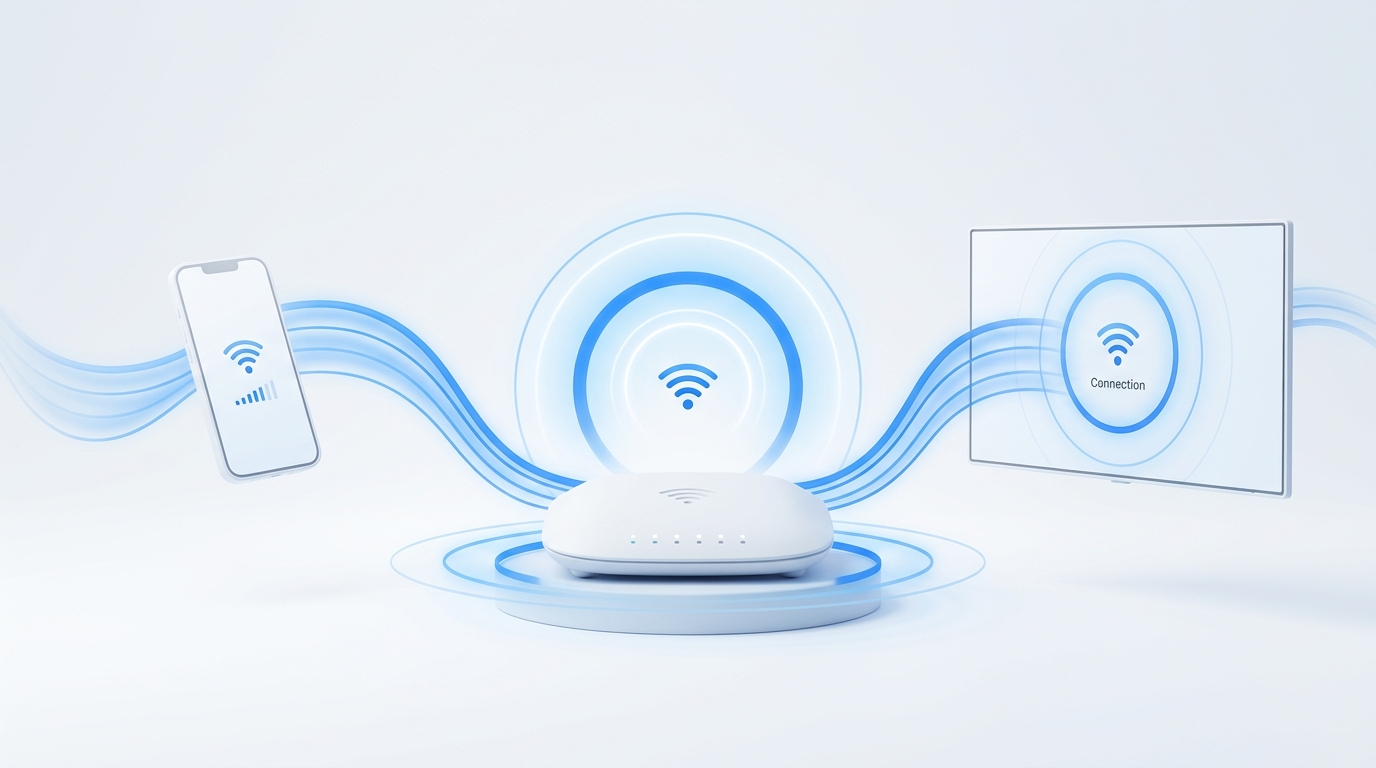
The number one reason phone remote apps fail to find a smart TV is that the phone and TV are separated by a dual-band Wi-Fi split (one on 2.4 GHz and one on 5 GHz) or the phone has an active VPN. Turn off your VPN and verify in your router admin settings that AP Isolation (Client Isolation) is disabled so wireless devices can talk to each other.
You install a TV remote app, tap scan, and stare at a spinning circle followed by the dreaded message: “No TVs found on your network.”
Modern smart TVs from Google TV, Android TV, Roku, Samsung, and LG do not communicate with phones through cellular towers or remote web servers. They communicate strictly over your home local area network (LAN) using broadcast discovery protocols like SSDP (Simple Service Discovery Protocol), mDNS (Multicast DNS), and ZeroConf.
When this local discovery is blocked, the app is effectively blind. Here are the seven proven technical fixes to restore device discovery immediately.
AP Isolation stops local wireless devices from discovering each other across Wi-Fi bands.
Fix 1: Disable “AP Isolation” or “Client Isolation” in Your Router
The most frequent culprit on modern Wi-Fi routers (especially TP-Link, Netgear, Asus, and ISP-provided gateways) is a security feature called AP Isolation (Access Point Isolation, sometimes labeled Client Isolation or Station Isolation).
- What it does: AP Isolation prevents wireless devices connected to the same Wi-Fi network from communicating with one another. It was designed for public coffee shops to prevent guests from hacking each other’s laptops.
- Why it breaks remote apps: When your phone sends a multicast discovery packet to detect the TV, the router drops the packet immediately.
- How to fix it:
- Open a browser on a computer or phone and log into your router admin panel (commonly
192.168.1.1or192.168.0.1). - Navigate to Wireless Settings > Advanced Wireless.
- Look for AP Isolation, Client Isolation, or Guest Isolation.
- Ensure it is set to Disabled. Save and reboot the router.
- Open a browser on a computer or phone and log into your router admin panel (commonly
Fix 2: Disconnect Any Active VPN on Your Smartphone
Virtual Private Networks (VPNs) like ExpressVPN, NordVPN, Proton, or corporate work profiles redirect your phone’s network traffic through an encrypted virtual adapter.
Because all traffic is funneled through an external server, local network discovery is completely bypassed. Your phone cannot send or receive local multicast packets on your home subnet.
- Quick Test: Pull down your Android quick settings tray and disconnect your VPN. Open MotePal again. In almost every case, your TV will appear instantly.
Fix 3: Check Dual-Band Network Splits (2.4 GHz vs 5 GHz)
Many modern Wi-Fi routers broadcast two separate bands under different names (for example, HomeWiFi_2.4G and HomeWiFi_5G).
Most budget smart TVs only contain 2.4 GHz Wi-Fi chipsets, while modern smartphones automatically prefer 5 GHz. While quality routers bridge traffic between bands, cheaper routers occasionally isolate multicast traffic between 2.4 GHz and 5 GHz.
- Fix: Connect your smartphone to the exact same Wi-Fi frequency band (
HomeWiFi_2.4G) that your television uses.
Fix 4: Check if Your TV Entered Deep Sleep (Eco Mode)
When a smart TV is powered off with “Eco Mode” or “Energy Saver” turned on, the internal network card is completely unpowered to consume less than 0.5 Watts of electricity.
If the TV’s Wi-Fi chip is off, no app on Earth can detect it over the network.
- Fix: Turn on the television physically using its power button.
- Permanent Fix: Go to your TV settings and enable network standby:
- LG: Settings > General > Devices > External Devices > TV On With Mobile > Turn on via Wi-Fi.
- Samsung: Settings > General > Network > Expert Settings > Power On with Mobile.
- Roku: Settings > System > Advanced system settings > Control by mobile apps > Network access > Default.
- Learn more about waking powered-down TVs in our Wake-on-LAN guide.
Fix 5: Ensure Your TV Is Not Connected to a “Guest Network”
Guest Wi-Fi networks are pre-configured to isolate clients from the main network for security reasons.
If someone put the TV on Home_Guest to prevent it from accessing office computers, but your phone is on the primary Home network, they exist on different subnets. Confirm both devices are connected to the exact same SSID.
Fix 6: Manually Add Your TV by IP Address in MotePal
If automatic SSDP or mDNS multicast packets are blocked by complex mesh networks (like Google Nest WiFi or Eero), you can bypass automatic discovery entirely by entering the TV’s exact local IP address.
MotePal features a dedicated Add TV by IP tool:
- On your TV, navigate to Settings > Network > Connection Status (or IP Settings).
- Note your TV’s IP address (typically formatted like
192.168.1.120). - Open MotePal on your phone, tap Add TV Manually, and type the IP address.
- MotePal establishes a direct TCP connection to the specific port without relying on network broadcast radar.
Test this feature on our interactive web remote simulator.
Fix 7: Reboot the TV and Home Router
Smart TV network stacks (especially budget Android TV implementations) frequently suffer from memory leaks where the local discovery service stops responding after days of continuous uptime.
- Unplug your TV’s power cord directly from the wall outlet.
- Wait 30 seconds to allow all circuit capacitors to discharge.
- Plug it back in and turn it on.
- Reboot your home Wi-Fi router.
Once both reboot, open MotePal, and your smart TV will connect smoothly.
Need an Instant TV Remote on Your Phone?
MotePal connects to your Google TV, Android TV, Roku, Samsung, or LG TV over Wi-Fi in seconds. 100% free with zero ads and no account required.
