


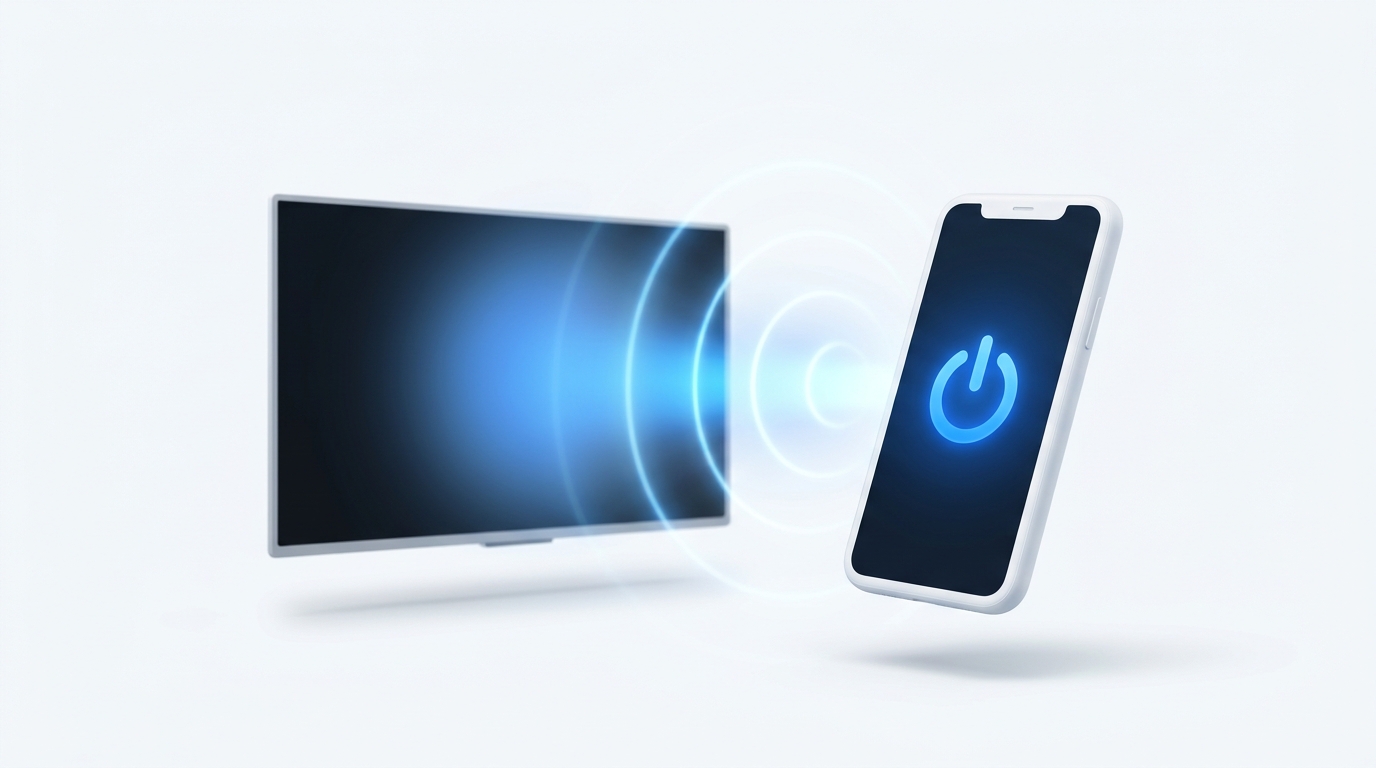
To turn on a powered-off smart TV from your phone, your TV must keep its network card listening in low-power standby mode. When you press Power in an app like MotePal, it broadcasts a UDP "Magic Packet" containing your TV's physical MAC address across port 9, triggering the motherboard to power on immediately.
Most smart TV remote apps can easily adjust volume, launch apps, and navigate menus once the television is already running. But the moment you turn the TV off, the app loses connection and displays: “TV Disconnected.”
If you have to walk across the living room to physically press the power button, a phone remote loses half its convenience.
The solution is an industry standard networking protocol known as Wake-on-LAN (WoL) or Wake-on-Wireless-LAN (WoWLAN). Here is how it functions and how to set it up properly on your television.
A Wake-on-LAN magic packet contains 6 bytes of 0xFF followed by 16 repetitions of the TV's MAC address.
The Anatomy of a Wake-on-LAN Magic Packet
When a television powers down, its main display panel, audio amplifiers, and application processor turn off. However, in modern smart TVs, a tiny auxiliary circuit on the motherboard keeps the Ethernet port or Wi-Fi radio energized in an ultra-low-power listening state.
To wake the television, a remote application constructs a special data frame known as a Magic Packet:
- It begins with a synchronization stream of 6 bytes of all ones:
FF FF FF FF FF FF. - It is immediately followed by the target TV’s 48-bit physical MAC address repeated exactly 16 times in succession.
- This payload is broadcast across the entire subnet as an unacknowledged UDP packet (typically over port 7 or port 9).
- The TV’s network chip detects its own MAC address repeating in the broadcast, trips a hardware interrupt, and powers on the main TV processor.
How to Enable Network Standby on Each TV Brand
By default, out of the box, many TVs ship with aggressive eco energy saving modes enabled to comply with energy conservation ratings. You must toggle network standby on once:
1. Google TV & Android TV (TCL, Sony, Philips, Hisense)
- Press the Settings (gear) icon on your remote.
- Navigate to System > Power & Energy.
- Look for Quick Start or Fast Startup and set it to On.
- Go to Network & Internet and confirm Remote Start or Turn on with Wi-Fi is enabled.
2. Samsung Smart TVs (Tizen OS)
- Open Settings > General (or All Settings).
- Select Network > Expert Settings.
- Toggle Power On with Mobile to On.
- Toggle IP Remote to Enable.
3. LG Smart TVs (webOS)
- Open Settings > All Settings.
- Navigate to General > Devices > External Devices.
- Select TV On With Mobile.
- Toggle Turn on via Wi-Fi to On.
How MotePal Handles Wake-on-LAN Seamlessly
Generic remote apps require you to manually find, type, and configure your TV’s 12-digit hexadecimal MAC address.
MotePal automates this entire engineering workflow:
- When you first pair your TV with MotePal while it is running, the app automatically inspects the network interface, reads the hardware MAC address, and stores it securely inside your local app preferences.
- When your TV is turned off and you tap the power button in MotePal, the app does not fail with an error. Instead, it immediately fires the UDP magic packet to wake the screen.
- Within 3 to 5 seconds, your TV boots, reconnects to the local network, and resumes full interactive control.
Test the remote layout and features on our interactive web simulator.
Important Limitation: Wi-Fi vs. Ethernet Cable
While Wake-on-Wireless-LAN works on most modern premium televisions, certain budget TV models turn off their Wi-Fi radios completely after 15 minutes of deep sleep.
If you find that your TV turns on from your phone only within the first 5 minutes of turning it off, plug a physical Ethernet network cable from your home router into the TV’s RJ-45 LAN port. Physical Ethernet chips maintain power continuously and wake with 100% reliability 24 hours a day.
Need an Instant TV Remote on Your Phone?
MotePal connects to your Google TV, Android TV, Roku, Samsung, or LG TV over Wi-Fi in seconds. 100% free with zero ads and no account required.
