


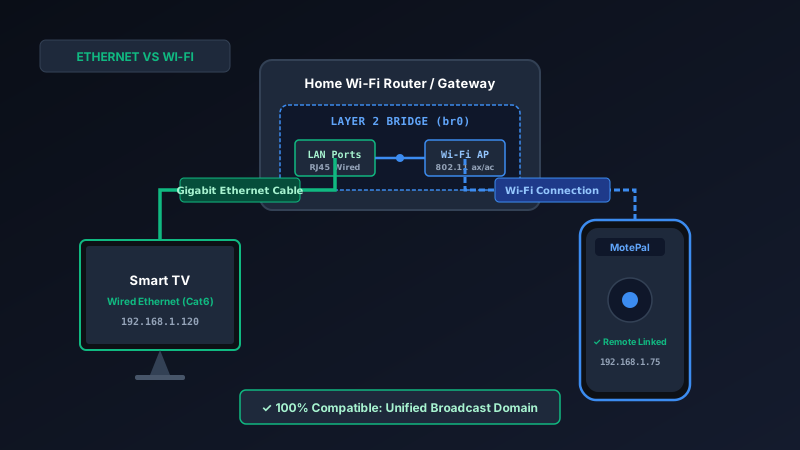
Yes, you can control an Ethernet-wired smart TV using a phone remote app on Wi-Fi. In standard home networks, your router bridges physical RJ45 Ethernet ports and wireless Wi-Fi radios onto the exact same local broadcast domain (subnet). In fact, connecting your television via Ethernet significantly improves remote responsiveness and makes Wake-on-LAN (turning on your TV from your phone) far more reliable than Wi-Fi. If your phone cannot find your wired TV, verify that both devices share the same IP subnet (such as 192.168.1.x) and that your phone is not connected to a Guest Wi-Fi network. Then install MotePal to control your television with zero ads.
A common question among home theater enthusiasts and smart home users is whether hardwiring a television with an Ethernet cable breaks smartphone remote app functionality.
You run a Cat6 Ethernet cable from your living room router directly into your smart TV to guarantee buffer-free 4K HDR streaming. But now you wonder: if your phone is connected wirelessly over Wi-Fi while the television is connected via physical copper, will your phone remote app still be able to discover and control the display?
The short answer is an emphatic yes. On virtually all home networks, an Ethernet-connected television communicates seamlessly with a Wi-Fi-connected smartphone.
Here is how your home router bridges wired and wireless traffic, why Ethernet is actually superior for remote control responsiveness, and how to troubleshoot the few configuration traps that cause connection drops.
Your router's software bridge combines wired LAN ports and wireless Wi-Fi interfaces into a single unified broadcast domain.
The Engineering Reality: How Routers Bridge Wired and Wireless
To understand why this setup works so reliably, look at how a home Wi-Fi router is constructed internally.
A residential router is not a single device. It is a multi-function network appliance that combines three hardware components inside one plastic enclosure:
- A Network Router / Gateway: Handles Network Address Translation (NAT) and routes packets between your external public IP and your private internal home network.
- A 4-Port Gigabit Ethernet Switch: Connects physical RJ45 ports (LAN 1 through LAN 4) at wire speed.
- A Wireless Access Point (WAP): Radiates 802.11 Wi-Fi signals across 2.4 GHz and 5 GHz frequency bands.
Inside the router’s embedded operating system (Linux), the Ethernet switch interface (eth0) and the wireless radio interfaces (wlan0 and wlan1) are tied together by a software construct called Network Bridge br0.
Because both the wired ports and the wireless radios belong to br0, every connected device is assigned an IP address from the same DHCP pool (typically 192.168.1.100 through 192.168.1.250).
At the networking layer, your router treats a wired TV and a wireless smartphone exactly the same as if both devices were plugged into adjacent physical Ethernet jacks. Broadcast packets, multicast discovery queries, and unicast TCP commands flow back and forth with zero friction.
Why Ethernet Is Actually Better for Smart TV Remotes
In fact, plugging your smart television into an Ethernet cable provides substantial advantages over keeping it on Wi-Fi:
1. Superior Wake-on-LAN (WoL) Reliability
The single biggest advantage of an Ethernet connection is reliable Wake-on-LAN.
When a smart television goes into standby mode, its main system board powers down to comply with international energy-efficiency standards (such as Energy Star and EU standby regulations).
On Wi-Fi, the television’s wireless radio frequently goes into a deep sleep state (D3 power state) to save power. Once asleep, the Wi-Fi card cannot maintain association with the router, meaning your phone remote app cannot wake the television up over Wi-Fi.
On Ethernet, however, the television’s physical network controller (PHY chip) draws minimal auxiliary standby power (less than 0.5 watts) and remains continuously listening at 10 Mbps or 100 Mbps. When MotePal transmits a Wake-on-LAN magic packet (a UDP datagram containing 6 bytes of 0xFF followed by the TV’s MAC address repeated 16 times) to UDP port 9, the physical Ethernet controller detects the sequence instantly and boots the television.
2. Zero Radio Interference or Channel Congestion
In dense apartment buildings and modern neighborhoods, 2.4 GHz and 5 GHz Wi-Fi bands suffer from severe radio frequency congestion from microwave ovens, Bluetooth devices, and dozens of neighboring routers.
This interference causes packet drops and latency spikes. On Ethernet, transmission is shielded inside twisted copper pairs, providing consistent sub-millisecond response times for directional pad navigation and volume adjustments.
3. Dedicated Bandwidth for 4K Video
Taking your high-bandwidth 4K television off your wireless spectrum frees up precious Wi-Fi airtime for your smartphone, tablet, and laptop.
When Ethernet TV + Wi-Fi Phone Fails: 3 Edge Cases
While wired TV to wireless phone works automatically on 99% of networks, there are three architectural configurations where communication breaks:
Case 1: The “Double Router” Setup (Double NAT)
This is the most common reason users fail to connect to a wired TV.
If you have an Internet Service Provider modem/router combo in your basement, and a secondary Wi-Fi mesh system (such as Eero, Google Nest, or TP-Link Deco) in your living room:
- Your smart TV might be plugged into the Ethernet port on the ISP modem (Subnet
192.168.0.x). - Your smartphone is connected to the Wi-Fi on the Mesh router (Subnet
192.168.1.x).
Because these two devices are located on completely different subnets behind two separate NAT firewalls, the phone cannot discover or control the TV.
The Fix: Plug the TV’s Ethernet cable directly into a LAN port on the secondary mesh router, or configure your ISP modem into Bridge Mode so the entire home operates under a single subnet.
Case 2: Phone Connected to Guest Wi-Fi
If your phone is connected to your router’s “Guest” Wi-Fi network, the router intentionally enforces client isolation. Guest Wi-Fi networks block wireless clients from reaching wired LAN ports to protect office computers and NAS file servers from outside visitors.
The Fix: Ensure your smartphone is connected to your primary private Wi-Fi network, not the Guest SSID.
Case 3: Managed Switch VLAN Isolation
If your home network utilizes a managed commercial switch (such as Ubiquiti UniFi, Cisco, or Netgear ProSafe) and you have partitioned your network into Virtual LANs (e.g., VLAN 10 for trusted computers and VLAN 20 for IoT devices):
If the TV’s Ethernet switch port is assigned to the IoT VLAN while your phone’s Wi-Fi SSID is assigned to the default VLAN, inter-VLAN multicast traffic will be blocked unless you configure an mDNS Repeater or IGMP Proxy on your gateway.
Comparison: Wi-Fi TV vs Wired Ethernet TV
| Metric | Wi-Fi Connected TV | Ethernet Connected TV |
|---|---|---|
| Phone Remote Compatibility | 100% Compatible | 100% Compatible |
| Wake-on-LAN Reliability | Poor (Wi-Fi radio sleeps in standby) | Excellent (PHY chip maintains listening state) |
| Command Response Latency | 15 to 80 ms (subject to airtime) | < 2 ms (instantaneous wire speed) |
| Susceptibility to Radio Jitter | High (microwave, baby monitors, neighbor Wi-Fi) | Zero (shielded twisted pair copper) |
| Setup Convenience | Wireless (no cables required) | Requires physical cable run to router or switch |
Verifying Your Setup with MotePal
Testing whether your wired TV and wireless phone can communicate takes less than 30 seconds:
- Check your smart TV’s IP address in Settings > Network > Status (e.g.,
192.168.1.120). - Check your phone’s Wi-Fi IP address in Android Settings > Network > Wi-Fi > Details (e.g.,
192.168.1.75). - If the first three sets of numbers match (
192.168.1), both devices reside on the same broadcast domain. - Launch MotePal. The app automatically scans the subnet and pairs with your wired Roku, Android TV, Samsung, or LG television within seconds.
Frequently Asked Questions
Can I plug my TV into an Ethernet powerline adapter or Wi-Fi extender?
Yes. Powerline adapters and Wi-Fi extenders bridge Layer 2 traffic back to your main router. Your smart TV will receive a standard IP address from your router’s DHCP server and will be fully controllable from your smartphone remote app.
What if my TV only has a 100 Mbps Ethernet port instead of Gigabit?
Almost all modern smart televisions (even flagship OLED displays) are equipped with 10/100 Mbps Fast Ethernet ports rather than 1000 Mbps Gigabit ports to minimize manufacturing costs. This has zero impact on remote control responsiveness. A 100 Mbps port handles remote control packets in microseconds and provides more than enough bandwidth for 4K streaming (which tops out around 25 to 50 Mbps on Netflix).
Can I control my TV if my phone is using mobile cellular data?
No. Standard smart TV remote apps require both devices to communicate across the local area network. Cellular data connects your phone directly to your carrier’s public mobile network, isolating it from your home LAN. Your phone must have Wi-Fi turned on and be connected to your home network.
Does Wake-on-LAN work if my TV is completely unplugged from power?
No. Wake-on-LAN requires the television to be in “Soft Standby” mode with its power cord plugged into an active electrical outlet. The standby transformer delivers low-voltage electricity to the Ethernet controller so it can listen for the incoming wake command.
Need an Instant TV Remote on Your Phone?
MotePal connects to your Google TV, Android TV, Roku, Samsung, or LG TV over Wi-Fi in seconds. 100% free with zero ads and no account required.
