


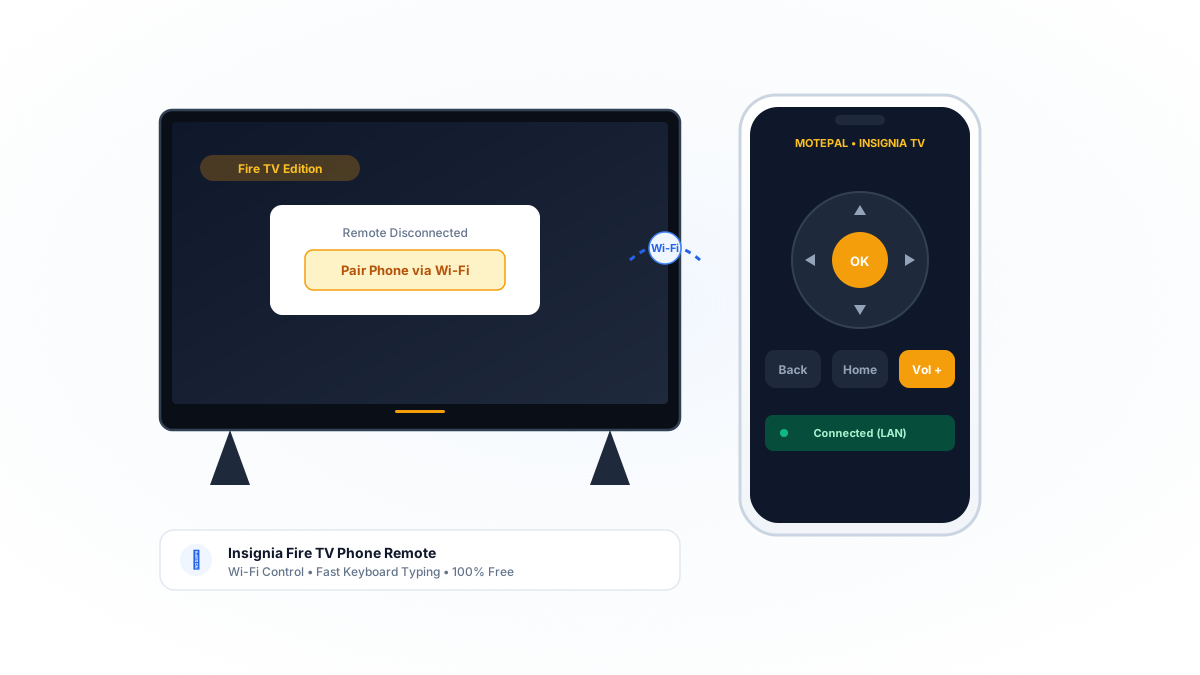
Insignia Fire TV Edition televisions integrate Amazon's Fire OS platform directly into the display hardware. If your physical voice remote is lost or suffering from battery drain, you can control the television immediately using an Android smartphone. Download MotePal, connect your phone to the same local Wi-Fi network, and pair directly. You get instant access to directional D-pad navigation, volume control, and fast mobile keyboard typing without annoying video commercials.
Insignia (Best Buy’s house brand) has sold millions of televisions across North America by combining affordable 4K LED panels with Amazon’s powerful Fire TV streaming interface.
However, the bundled Alexa Voice Remote is one of the most frequently replaced accessories in modern streaming. Because it relies on continuous Bluetooth Low Energy beaconing for voice search, AAA batteries drain rapidly. Furthermore, when batteries die, the remote frequently fails to re-pair with the television automatically.
If you are stuck on the Fire TV home screen with a missing or unresponsive remote, you do not need to order a $30 replacement hardware remote.
Here is how Insignia Fire TV remote communication works, how to reconnect your physical remote, and how to use your Android smartphone as an instant replacement.
When physical Alexa Bluetooth remotes disconnect, local Wi-Fi control provides immediate, uninterrupted navigation.
Step 1: Re-Pairing the Physical Insignia Alexa Remote
If you still have the physical remote but it stopped controlling the screen:
- Unplug the Insignia TV power cord from the wall outlet for 60 seconds, then plug it back in.
- Wait for the Fire TV home screen to load completely.
- Stand within 3 feet (1 meter) of the television.
- Press and hold the physical Home button on the remote for a full 10 to 15 seconds.
- Watch the small LED indicator at the top of the remote: it will flash amber rapidly, then pulse blue.
- A notification reading “Remote connected” will appear in the lower right corner of the screen.
- If the LED fails to flash, replace both AAA batteries with fresh 1.5V alkaline cells.
Step 2: Use MotePal for Immediate Phone Control
If your physical remote is lost, broken, or suffering from persistent disconnects, your Android smartphone can act as an instant replacement over your local Wi-Fi network.
MotePal connects directly over your home router:
- Download MotePal on Google Play.
- Confirm your Android smartphone is on the same local Wi-Fi network as your Insignia TV.
- Open MotePal. The discovery engine scans your local subnet and detects your Insignia television.
- Tap your TV in the list.
- Confirm connection on screen.
- You now have immediate D-pad navigation, volume control, and direct keyboard input.
You can preview the interface and test touch controls right now on our interactive web remote simulator.
To ensure mobile power and volume commands control your connected soundbar or audio receiver: open Settings > Display & Sounds > HDMI CEC Device Control on your Insignia TV and toggle CEC to On.
Comparing Remote Solutions for Insignia Fire TVs
| Solution | Cost | Latency | Ad Experience | Setup Time |
|---|---|---|---|---|
| MotePal Phone App | $0 (Free) | < 15ms (Local Wi-Fi) | 100% Ad-Free | 30 Seconds |
| Amazon Fire TV App | $0 | 100ms to 300ms | Amazon Account Required | 3 to 5 Minutes |
| Replacement Hardware Remote | $25 to $35 | Instant | Hardware cost & shipping delay | 3 to 5 Days |
| Generic Play Store Apps | $0 with Ads | Variable | Intrusive Video Commercials | 1 Minute |
While Amazon provides the official Fire TV mobile app, it forces users to sign into their Amazon retail accounts and frequently drops connection when switching between background apps. Generic remote apps from the Google Play store bombard users with 30-second commercial interruptions before registering directional inputs.
MotePal provides a dedicated, clean, ad-free control surface designed specifically for seamless television viewing.
Frequently Asked Questions
Where is the physical power button on Insignia Fire TVs?
On modern Insignia Fire TV Edition displays, the single physical control button is located underneath the center Insignia logo on the bottom edge of the frame, or on the lower left rear corner of the panel. Pressing it once turns on the TV or cycles through HDMI inputs.
Can I control my Insignia TV if Wi-Fi credentials changed?
If your home Wi-Fi name or password changed and your physical remote is lost, the Insignia TV cannot connect to the new network. To fix this: configure your phone’s mobile hotspot to match your previous home network name (SSID) and password. The Insignia TV will connect automatically to the hotspot. Then connect a second phone running MotePal to the hotspot and update the Wi-Fi settings in Fire OS to your new home router.
Does MotePal collect personal data or Alexa voice recordings?
No. MotePal does not record voice audio, collect personal data, or transmit telemetry to cloud servers. All network commands travel directly between your phone and your TV over your local network.
Need an Instant TV Remote on Your Phone?
MotePal connects to your Google TV, Android TV, Roku, Samsung, or LG TV over Wi-Fi in seconds. 100% free with zero ads and no account required.
