


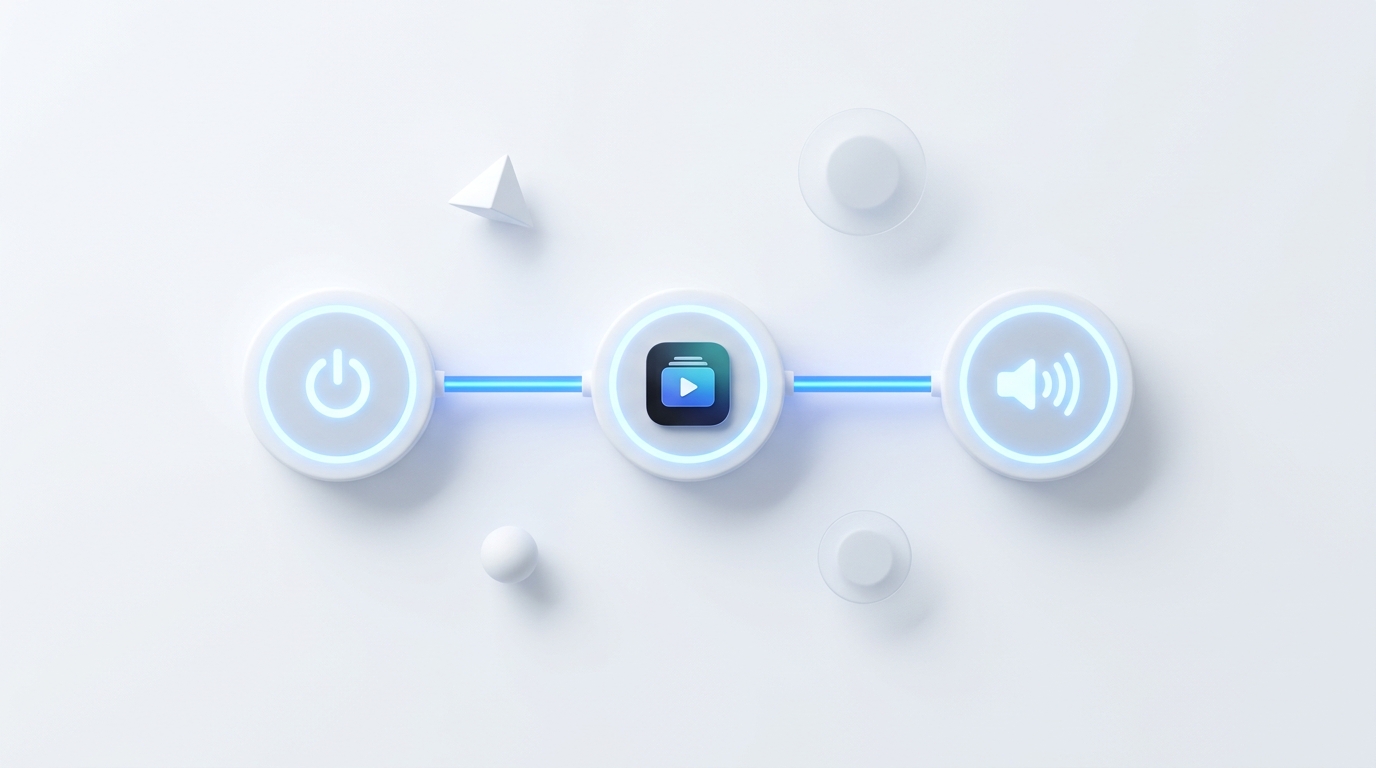
A TV Scene is a custom macro sequence that executes multiple actions with one tap. Instead of turning on your TV, waiting for the home screen, scrolling to YouTube, launching the app, and turning the volume down, MotePal executes all these steps automatically in order.
Every evening in households around the world, people repeat the exact same ritual:
- Press Power to turn on the TV.
- Wait 5 seconds for the operating system to boot.
- Tap the arrow keys 4 times to highlight the Netflix or YouTube app.
- Press Enter to launch the app.
- Wait for the profile selector.
- Mash the Volume Down key 8 times because the audio was left blasting from the afternoon sports game.
Repeating these steps night after night is tedious. Modern universal remote apps solve this with Macro Sequences (Scenes). Here is how smart TV automation works and how you can configure custom scenes on your phone.
Scenes chain power, delays, app launches, and volume adjustments into a single automated pipeline.
The 4 Best TV Scenes to Create Today
1. The “Movie Night” Scene
- Goal: Boot the TV, open your primary streaming platform, and set comfortable evening audio levels.
- Steps:
- Power On (sends Wake-on-LAN magic packet).
- Wait 3 seconds (allows HDMI and operating system services to initialize).
- Launch Netflix (or Disney+ / Prime Video).
- Volume Level: Preset to 15.
2. The “YouTube Chill” Scene
- Goal: Instantly start background music or vlogs while cooking or relaxing.
- Steps:
- Power On.
- Wait 2 seconds.
- Launch YouTube directly into search results.
3. The “Kids Time” Scene
- Goal: Direct your children to their approved educational profile without them getting distracted by other streaming apps.
- Steps:
- Power On.
- Launch YouTube Kids or Disney+.
- Volume Level: Cap at 10 to avoid loud noise.
4. The “Bedtime Shutdown” Scene
- Goal: Wind down the evening smoothly.
- Steps:
- Volume Down 5 times.
- Wait 30 seconds.
- Power Off TV.
How to Configure Scenes in MotePal
MotePal features a dedicated Apps & Scenes engine:
- Open MotePal on Android.
- Swipe or tap to the Apps tab.
- At the top of the screen, you will see pre-configured scene cards (Movie Night, YouTube Time, Bedtime).
- Tap + Add Scene to build your own custom sequence:
- Give your scene a descriptive name (e.g. “Gaming Mode” or “Morning News”).
- Add up to 12 sequential action steps.
- Add customizable pauses (between 1 and 10 seconds) between actions to accommodate your TV’s boot speed.
- Tap Save. Your new scene appears as a quick-action card right on your remote screen.
Test the scene cards right now on our interactive web simulator.
Why Pauses (Delays) Are Crucial in TV Automation
The most common mistake when building smart TV macros is forgetting that televisions are embedded computers with boot times.
If you send a “Launch Netflix” command 0.1 seconds after sending the “Power On” command, the TV’s network receiver will register the packet, but the application manager is not yet loaded in RAM, causing the launch command to be dropped silently.
Always include a 2 to 4 second delay step after a power command. This guarantees that your TV’s operating system has loaded before your phone dispatches the app launch instruction.
Need an Instant TV Remote on Your Phone?
MotePal connects to your Google TV, Android TV, Roku, Samsung, or LG TV over Wi-Fi in seconds. 100% free with zero ads and no account required.
