


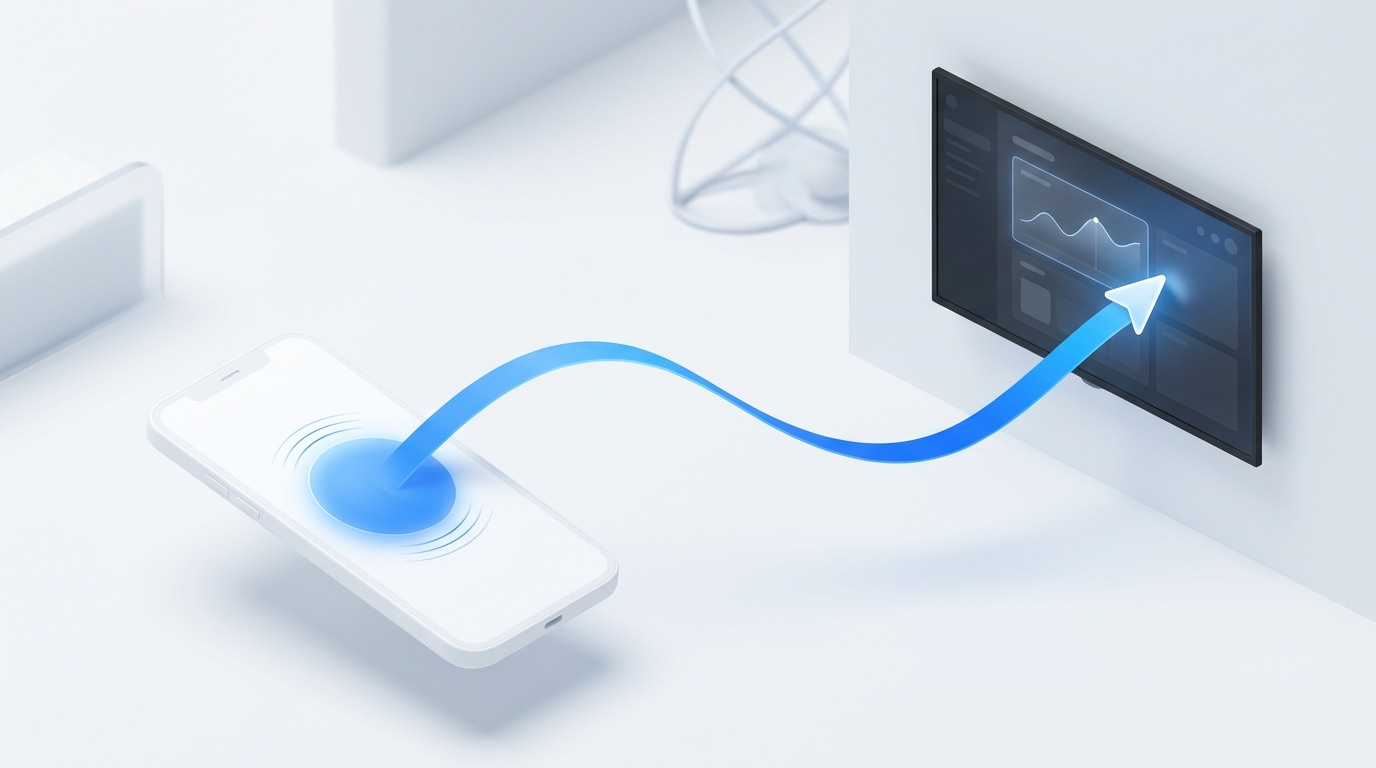
Samsung Tizen Smart TVs feature a hidden mouse cursor mode that makes web browsing and app navigation significantly faster than clicking arrow buttons. Using MotePal on Android, swipe across the full-screen touchpad tab to glide the cursor across your screen, tap to select, and use your phone keyboard to type searches and passwords instantly.
The standard Samsung physical remote relies on a traditional four-way directional pad. While clicking Up, Down, Left, and Right works for simple menus, it is awkward and frustrating when using the built-in Samsung Internet web browser, selecting small video thumbnails on YouTube, or adjusting sliders in settings.
Samsung’s Tizen operating system natively supports relative pointer coordinates and full keyboard text input over its local WebSocket API. Here is how to unlock smooth touchpad and keyboard control from your Android smartphone.
MotePal transmits continuous delta displacement vectors to glide the Samsung TV pointer smoothly.
Why Touchpad Navigation Outperforms Traditional D-Pads
Directional pads are constrained by grid structures: to reach an item 5 columns over and 4 rows down, you must click physical buttons 9 consecutive times.
When using touchpad mode:
- Natural Inertia: A single finger flick glides the focus cursor across the entire screen in one motion.
- Precise Web Browsing: In Samsung’s built-in Internet browser, web links, video players, and small drop-down menus do not align neatly to grid points. Touchpad mode renders a full mouse cursor that moves with pixel-level precision.
- Subtle Haptic Feedback: MotePal triggers gentle Android haptic vibrations on your phone as your finger moves, giving you tangible physical feedback without looking down at the screen.
Setting Up MotePal Touchpad Mode on Samsung TV
- Install MotePal on Google Play.
- Confirm your smartphone is on the same Wi-Fi network as your Samsung TV.
- Tap your Samsung TV in the discovery radar and accept the one-time pairing prompt on your TV screen.
- In MotePal, tap the Touchpad tab in the top navigation bar.
Touchpad Gestures:
- Swipe: Drag your thumb anywhere across the pad to move the on-screen cursor or scroll menus.
- Tap: Tap once gently to perform a “Select” or “Enter” click.
- Long Press: Hold your finger down on the pad to trigger context menus or information overlays.
- Bottom Controls: Dedicated Back, Home, Volume, and Mute buttons remain positioned directly below the pad so you never have to switch tabs to adjust volume.
You can experience the touchpad swipe feel right now on our interactive web remote simulator.
Keyboard Text Input on Samsung Smart TVs
Typing search queries into YouTube, Spotify, or Netflix on a Samsung TV is notoriously clunky with the OneRemote.
With MotePal connected:
- Tap any search bar or text input box on your Samsung television.
- Open MotePal’s Typing Sheet.
- Your native Android keyboard slides up automatically.
- Type your query naturally with autocorrect, voice dictation, or clipboard paste.
- Tap Send to beam the characters directly into the Tizen text buffer.
Troubleshooting Samsung Mouse Pointer Lag
If your touchpad cursor feels sluggish or stutters:
- Wi-Fi Congestion: Ensure your phone and TV are connected to the 5 GHz Wi-Fi band on your router rather than crowded 2.4 GHz channels.
- Eco Mode Delay: Check your TV settings (Settings > General > Eco Solution) and disable Ambient Light Detection or Auto Power Saving, which can occasionally throttle the TV CPU during background tasks.
- For additional network optimization tips, consult our guide on fixing smart TV remote app connectivity.
Need an Instant TV Remote on Your Phone?
MotePal connects to your Google TV, Android TV, Roku, Samsung, or LG TV over Wi-Fi in seconds. 100% free with zero ads and no account required.
