


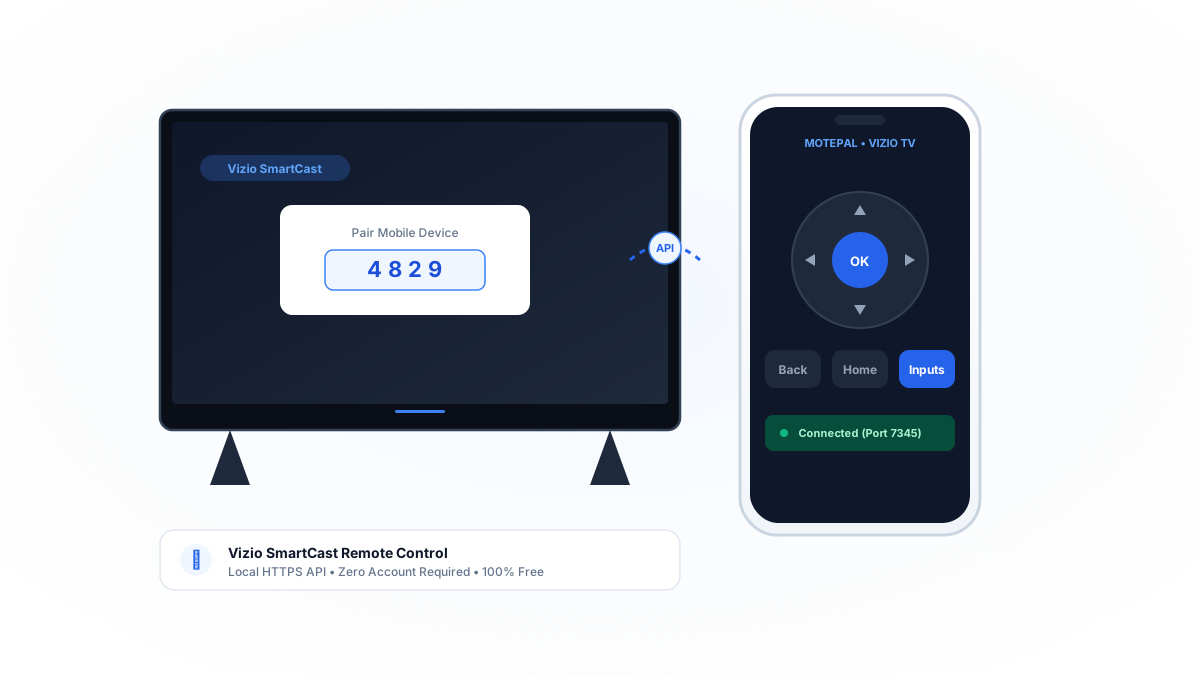
Vizio smart televisions (D-Series, V-Series, M-Series, and P-Series) run Vizio SmartCast, powered by an internal local REST API operating over HTTPS port 7345 (or 9000). While Vizio provides the official Vizio Mobile app, it requires account sign-in, location tracking, and frequently disconnects. Universal Wi-Fi remotes like MotePal connect directly over your local Wi-Fi network, providing instant D-pad navigation, volume control, and fast text typing with zero ads and complete privacy.
Vizio has long been a staple in North American living rooms, providing high-contrast Quantum Color displays and integrated Dolby Vision HDR at competitive price points. With the evolution of SmartCast (now known as Vizio Home), the TV acts as an all-in-one entertainment station featuring built-in Chromecast, Apple AirPlay, and free WatchFree+ channels.
However, Vizio physical remotes (particularly the slim XRT140 and voice-enabled XRT260) are notoriously fragile. Dropping the remote frequently loosens the battery terminals, and button contacts wear down over time.
When the physical remote fails, users are often left frustrated by the official Vizio Mobile app, which demands user account registration, cloud syncing, and aggressive tracking permissions before allowing basic volume control.
Here is an architectural comparison of how Vizio smart TV control operates, why universal Wi-Fi remotes offer a superior experience, and how to control your TV from your phone.
Universal Wi-Fi remotes connect directly to Vizio's internal API over your home network, bypassing cloud servers and privacy tracking.
Comparing Official Vizio App vs Universal Wi-Fi Remotes
| Feature | Official Vizio Mobile App | Generic Play Store Apps | MotePal |
|---|---|---|---|
| Account Required | Yes (Vizio account forced) | No | No (Zero Sign-in) |
| Latency | 150ms to 400ms (Cloud dependent) | Variable | < 15ms (Direct Local Wi-Fi) |
| Ad Interruptions | Sponsored banners / Promos | Intrusive 30s video popups | 100% Ad-Free |
| Data Collection | Location, viewing habits, email | Tracking SDKs, device IDs | Zero Data Collected |
| App Storage Size | 120 MB | 45 MB | Lightweight (< 10 MB) |
The official Vizio application routes commands through Vizio’s cloud infrastructure. When Vizio servers experience high traffic or when your internet connection drops, pressing the volume or power button can lag by multiple seconds.
In contrast, universal Wi-Fi controllers speak directly to the TV’s internal API on your home router, guaranteeing instantaneous response with complete privacy.
Step 1: Connect to Your Vizio SmartCast TV Over Wi-Fi
Every Vizio SmartCast television features an internal HTTPS server operating on port 7345 (and port 9000 on older firmware):
- Download MotePal on Google Play.
- Confirm your smartphone is on the same local Wi-Fi router as your Vizio TV.
- Open MotePal. The discovery scanner detects your Vizio SmartCast TV automatically.
- Tap your Vizio TV in the list.
- A 4-digit pairing PIN will appear on your television screen.
- Enter the 4-digit PIN in MotePal and tap Pair.
- An encrypted authorization token is exchanged with SmartCast and stored securely on your phone.
From this point on, MotePal reconnects automatically without asking for a PIN again. You can preview the interface and test key layouts on our interactive web remote simulator.
Step 2: Accessing WatchFree+ and SmartCast Menus
Controlling Vizio SmartCast from your smartphone unlocks several major advantages over the physical remote:
- Instant WatchFree+ Navigation: Browse through hundreds of live streaming channels fluidly with high-precision digital arrows.
- Fast Input Switching: Easily toggle between HDMI 1 (eARC Soundbar), HDMI 2 (PlayStation 5 / Xbox), and streaming apps without navigating slow submenus.
- Effortless Typing: Typing passwords and search queries using a physical D-pad takes multiple minutes. MotePal allows you to type or paste text directly from your phone keyboard.
To turn your Vizio TV on from your phone while it is in standby: open Settings > System > Power Mode and toggle it from Eco Mode to Quick Start. In Quick Start mode, the TV keeps its Wi-Fi card active to receive wake packets.
Frequently Asked Questions
Where is the physical power button on Vizio Smart TVs?
On modern Vizio D-Series, V-Series, and M-Series TVs, the physical control button is located on the lower left or lower right rear side of the television panel. Press it once to turn on the TV, or hold it down to switch inputs.
Why does my Vizio TV remote stop responding intermittently?
Physical Vizio remotes use infrared light for basic functions. If dust covers the IR receiver bubble at the bottom corner of the TV, or if battery terminals loosen inside the remote, commands fail. Controlling the TV over Wi-Fi eliminates all optical interference.
Does MotePal collect any viewing telemetry from my Vizio TV?
No. MotePal contains no tracking scripts, analytics SDKs, or advertisements. All network commands travel directly between your phone and your TV over your local network.
Need an Instant TV Remote on Your Phone?
MotePal connects to your Google TV, Android TV, Roku, Samsung, or LG TV over Wi-Fi in seconds. 100% free with zero ads and no account required.
