


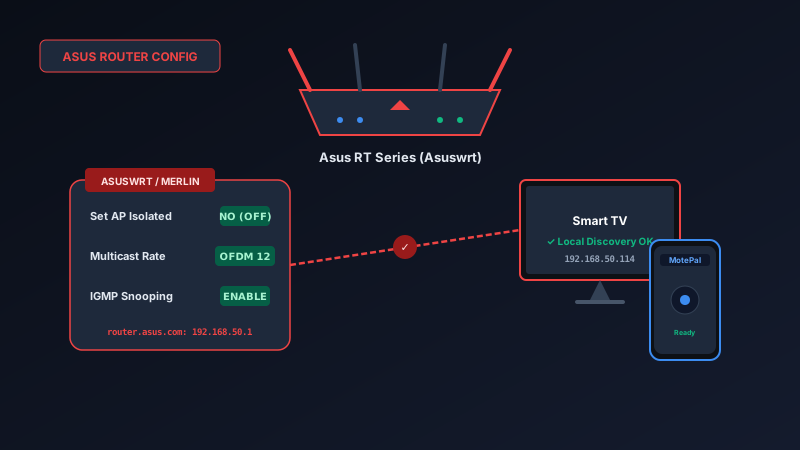
If your smart TV remote app fails to discover your television on an Asus RT router, Asuswrt's Set AP Isolated setting or a disabled Multicast Rate is dropping peer-to-peer traffic. To fix this: open router.asus.com (or 192.168.50.1), navigate to Wireless > Professional, ensure the frequency dropdown is checked for both 2.4 GHz and 5 GHz, and set Set AP Isolated to No. Then set Multicast Rate to OFDM 12 (or Auto) and enable IGMP Snooping under LAN > IPTV. Once saved, launch MotePal or test the interactive web demo for instant TV pairing.
Asus RT routers (such as the RT-AX86U, RT-AX58U, RT-AX88U, and ROG Rapture GT-AX11000) are widely celebrated among networking power users for their robust Asuswrt firmware and granular configuration controls.
However, the very depth of Asuswrt’s settings can sometimes cause smart home and smart TV remote discovery to fail out of the box.
If you open a TV remote app on your Android smartphone and it spins endlessly without finding your television, Asuswrt is likely enforcing AP Isolation or restricting wireless multicast packet rates across its radio bands.
Here is the exact step-by-step procedure to unblock smart TV discovery across all Asus RT routers running official Asuswrt or Asuswrt-Merlin firmware.
Configuring Set AP Isolated to No and adjusting Multicast Rate in Asuswrt enables reliable smart TV control across all wireless bands.
The Asuswrt Discovery Trap: Dual-Band Isolation
In Asuswrt, Client Isolation is controlled by an explicit setting named Set AP Isolated.
What catches most Asus users off guard is that Asuswrt separates its configuration tabs per physical radio. If your smart TV is connected to the 2.4 GHz band and your smartphone is connected to the 5 GHz band:
- Turning off AP Isolation on 2.4 GHz alone is not enough.
- If “Set AP Isolated” is left set to “Yes” on the 5 GHz tab, your smartphone is blocked from broadcasting out to the local network bridge.
Furthermore, Asus routers provide granular controls over Multicast Rate. If the Multicast Rate is disabled or set to a legacy basic rate (such as 1 or 2 Mbps) that conflicts with modern 802.11ax hardware, SSDP (port 1900) and mDNS (port 5353) discovery packets are dropped silently before reaching your television.
Step-by-Step Configuration in Asuswrt
Follow these steps to configure your Asus RT router:
Step 1: Log into the Asuswrt Management Portal
- Connect your computer or phone to your Asus Wi-Fi network.
- In your web browser, enter
http://router.asus.comorhttp://192.168.50.1(Asus routers default to subnet192.168.50.x). - Enter your administrator username and password.
Step 2: Configure “Set AP Isolated” on Both Frequencies
- In the left-hand navigation menu under Advanced Settings, click on Wireless.
- Click on the Professional tab at the top right of the screen.
- At the top of the page, check the Frequency dropdown menu. It will initially show 2.4GHz.
- Scroll down to find the setting named Set AP Isolated.
- Set this dropdown to No.
- Scroll down to the bottom of the page and click Apply.
- Now, return to the top of the Professional tab and change the Frequency dropdown to 5GHz (and 5GHz-2 if you own a tri-band router).
- Verify that Set AP Isolated is set to No on the 5 GHz band as well.
- Click Apply.
Step 3: Optimize the Wireless Multicast Rate
While still inside Wireless > Professional:
- Check the setting labeled Multicast Rate.
- For the 2.4GHz band, set the Multicast Rate to OFDM 12 or Auto (avoid selecting “Disable”).
- For the 5GHz band, set the Multicast Rate to OFDM 24 or Auto.
- Locate the setting named Enable IGMP Snooping (available on certain Asuswrt builds) and set it to Enable.
- Click Apply.
Step 4: Enable Multicast Routing Under LAN IPTV
- In the left-hand menu under Advanced Settings, click on LAN.
- Click on the IPTV tab at the top.
- Scroll down to the Special Applications section.
- Locate Enable multicast routing (IGMP Proxy) and set it to Enable.
- Locate Enable efficient multicast forwarding (IGMP Snooping) and set it to Enable.
- Click Apply at the bottom of the page.
Asus RT Recommended Settings Matrix
| Asuswrt Menu | Setting Name | Optimal Value | Purpose for TV Remote Apps |
|---|---|---|---|
| Wireless > Professional (2.4GHz) | Set AP Isolated | No | Allows 2.4 GHz smart TVs to talk to other network devices |
| Wireless > Professional (5GHz) | Set AP Isolated | No | Allows 5 GHz phones to talk to 2.4 GHz smart TVs |
| Wireless > Professional | Multicast Rate | OFDM 12 / Auto | Prevents router from dropping SSDP and mDNS broadcast packets |
| LAN > IPTV | Enable multicast routing | Enable | Routes IGMP groups across internal switch ports |
| LAN > IPTV | Enable efficient multicast | Enable | Optimizes packet delivery to TV without flooding Wi-Fi |
Asus AiMesh Considerations
If your home uses Asus AiMesh (where two or more Asus routers are linked to cover a large house):
When you change the “Set AP Isolated” and “Multicast Rate” settings on your primary AiMesh router, Asuswrt automatically synchronizes these changes to all connected AiMesh node routers.
However, if your smart TV is connected to a remote AiMesh node and your phone is connected to the main router, ensure that your AiMesh nodes are updated to the latest official firmware. Older AiMesh node firmware builds had a known bug where multicast frames were dropped when traversing wireless backhauls. Updating your AiMesh firmware or utilizing an Ethernet Backhaul completely eliminates this issue.
Instant Control with MotePal
Once your Asus RT router applies the updated settings:
- Open MotePal on your Android device.
- Tap the TV selector at the top of the remote interface.
- MotePal dispatches local UDP discovery probes across the network.
- Your Roku, Android TV, Google TV, Samsung, or LG television will appear in the device list within seconds. Tap it to pair immediately with zero advertisements and no subscription requirements.
Frequently Asked Questions
Does setting AP Isolated to No expose my Asus router to hackers?
No. Setting AP Isolated to No only affects traffic inside your private local network. It allows your family’s personal devices (phones, televisions, computers, game consoles) to exchange local data. It does not open any external ports to the public internet, nor does it lower your router’s external SPI firewall defenses.
Why is my Asus router default IP 192.168.50.1 instead of 192.168.1.1?
Asus configured its modern routers to use 192.168.50.1 by default specifically to prevent IP subnet conflicts. Many broadband ISP modems and fiber optical terminal units (ONTs) already use 192.168.1.1. By using 192.168.50.1, Asus prevents double-NAT gateway conflicts.
Does Asuswrt-Merlin handle TV remote discovery differently than official Asuswrt?
Asuswrt-Merlin is a custom third-party firmware based directly on official Asuswrt code. The menu locations for “Set AP Isolated” and “Multicast Rate” are identical. Merlin includes enhanced system logs, making it easy to confirm that IGMP Snooping and UPnP services are running properly.
Which Asus router models support these configuration options?
These settings are available across all Asus RT, TUF Gaming, and ROG Rapture models running Asuswrt 3.0.0.4 or 388+, including the RT-AX55, RT-AX58U, RT-AX86U, RT-AX88U, GT-AX6000, GT-AX11000, RT-AC68U, and RT-AC86U.
Need an Instant TV Remote on Your Phone?
MotePal connects to your Google TV, Android TV, Roku, Samsung, or LG TV over Wi-Fi in seconds. 100% free with zero ads and no account required.
