


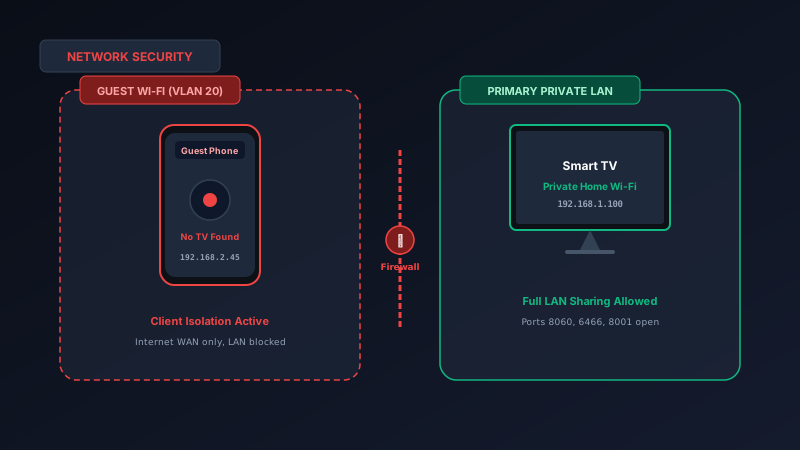
Smart TV remote apps fail on Guest Wi-Fi networks because guest networks are specifically engineered with Client Isolation and VLAN firewall rules that block devices from communicating with one another. To fix this: disconnect both your smartphone and your smart TV from the guest network (e.g., Home_Guest) and connect them both to your primary private Wi-Fi network. Once both devices share your primary private LAN, install MotePal or test the interactive web demo to pair and control your TV instantly with zero ads.
Guest Wi-Fi networks are standard features on modern routers, providing a convenient way to grant internet access to visiting friends, dinner guests, or Airbnb renters without handing out your main household Wi-Fi password.
Many security-conscious users also place smart televisions, streaming sticks, and smart plugs onto their Guest Wi-Fi network, believing it is an effective way to isolate smart appliances from sensitive home computers and work laptops.
However, the moment you attempt to use a smartphone remote application on a guest network, everything breaks down.
Even if both your phone and your smart TV are connected to the exact same guest Wi-Fi SSID with perfect signal bars, your remote app will report that no television exists.
Here is the technical reality of why Guest Wi-Fi networks actively block smart TV remote protocols by design, and how to configure your devices for seamless control without compromising your home network security.
Guest networks utilize isolated VLANs and firewall drop rules, preventing any local peer-to-peer traffic from reaching your smart TV.
The Networking Architecture of Guest Wi-Fi
To understand why remote apps cannot function on guest networks, look at how router manufacturers implement guest access.
A guest network is not simply an extra Wi-Fi password. It is a separate, sandboxed virtual network with strict security boundaries:
1. Dedicated VLAN and IP Subnet Segmentation
When you enable a guest network, your router creates an independent Virtual Local Area Network (such as VLAN 20 or VLAN 50). The router’s DHCP server assigns guest devices IP addresses on a completely different subnet:
- Primary Private Network:
192.168.1.xwith subnet mask255.255.255.0 - Guest Network:
192.168.2.xwith subnet mask255.255.255.0
Your router’s internal firewall is programmed with an absolute drop rule: any packet originating from the guest subnet (192.168.2.x) directed at private RFC 1918 local addresses (192.168.1.x) is discarded immediately. The only outbound destination permitted is the public internet gateway (WAN).
2. Mandatory Client / Station Isolation
Even if you connect both your smartphone and your smart TV to the guest network, remote apps still will not work.
By design, guest networks enforce strict Client Isolation (Station Isolation). This means devices on the guest network are invisible to other devices on that same guest network.
The router prevents wireless client A from communicating with wireless client B. Even though your phone and television sit on the same 192.168.2.x subnet, the router blocks the Address Resolution Protocol (ARP) frames and drops all multicast and unicast packets crossing between them.
The Three Most Common Guest Network Mistakes
Scenario A: Smart TV on Guest Network, Phone on Main Network
You placed your smart TV on Home_Guest to prevent it from collecting data or accessing your work computers. Your phone remains on Home_Private.
- The Result: The router’s internal firewall treats your phone and TV as two separate entities on different subnets. SSDP and mDNS discovery packets cannot cross the firewall barrier.
Scenario B: Both Phone and Smart TV on Guest Network
You connected both devices to Home_Guest so they share the same network name.
- The Result: While both devices can stream Netflix over the internet, Client Isolation prevents your phone from discovering the television over local ports (ports 8060, 6466, 8001, and 3000).
Scenario C: Visiting a Friend or Staying at an Airbnb
You visit a friend’s house or stay at a vacation rental where the host only provides a Guest Wi-Fi network password.
- The Result: Because the router locks down peer-to-peer communication, phone remote apps cannot discover the rental’s Roku, Samsung, or LG television.
Primary Network vs Guest Network for Smart TVs
| Feature | Primary Home Wi-Fi | Guest Wi-Fi Network |
|---|---|---|
| Internet Access (Netflix, YouTube) | Allowed (Full Speed) | Allowed (Full Speed) |
| Local Peer-to-Peer Communication | Allowed (Unrestricted) | Blocked by Client Isolation |
| Smart TV Remote Apps (MotePal) | 100% Functional | 0% Functional (Packets Dropped) |
| Wake-on-LAN (Turn TV On) | Supported (UDP Port 9) | Blocked by Firewall |
| Keyboard Typing & Touchpad | Sub-millisecond latency | Unreachable |
How to Fix Smart TV Control Immediately
Method 1: Move Both Devices to Your Primary Wi-Fi Network (Recommended)
The cleanest, most reliable solution is to place both your television and your phone onto your primary private Wi-Fi network.
- On your smart television, open Settings > Network > Set up connection > Wireless.
- Select your primary private network name (e.g.,
Home_Private) and enter your password. - On your smartphone, open Settings > Network > Wi-Fi and ensure you are connected to the exact same
Home_Privatenetwork. - Launch MotePal. The app will discover your TV within 1 to 2 seconds and connect immediately.
Method 2: Enable “Local Network Access” in Router Guest Settings
Certain advanced routers (including Asus Asuswrt and TP-Link Archer) offer an optional toggle in their guest network settings called Access Intranet or Allow guests to see each other:
- Log into your router’s web admin console (e.g.,
192.168.1.1ortplinkwifi.net). - Navigate to Guest Network.
- Look for the setting named Access Intranet (Asus) or Allow guests to access each other (TP-Link).
- Set the toggle to Enabled.
- Note: While this enables remote apps to function on the guest network, it reduces the security isolation benefits of having a guest network.
Method 3: The Dedicated IoT VLAN (For Advanced Users)
If you are an advanced user with a prosumer router (such as Ubiquiti UniFi, pfSense, or OPNsense) and insist on keeping your smart TV separated from personal computers:
- Create a dedicated IoT VLAN for your smart televisions and streaming boxes.
- Keep your smartphone on your trusted LAN VLAN.
- Configure an mDNS Repeater / Avahi daemon and IGMP Proxy on your router to repeat discovery packets between the LAN and IoT VLANs.
- Add firewall rules allowing established and related TCP/UDP connections from your phone to TV ports 8060, 6466, 8001, and 3000.
Complete Control with MotePal
Once both devices communicate across your primary private network:
- Open MotePal on your Android phone.
- Tap the TV selector at the top of the interface.
- MotePal instantly pairs with your Roku, Android TV, Google TV, Samsung Tizen, or LG webOS display.
- Enjoy smooth, uninterrupted TV control with zero ads, no accounts, and complete privacy.
Frequently Asked Questions
Does placing my smart TV on the primary network create a security risk?
For the vast majority of households, connecting a smart television from a major manufacturer (Roku, Sony, Samsung, LG, TCL) to your primary Wi-Fi is completely safe. These devices receive regular verified firmware updates and do not scan or attack other local devices. Security concerns typically apply to obscure, unbranded smart gadgets with unpatched security vulnerabilities.
Can I control my TV from a hotel or dorm room guest Wi-Fi?
In commercial environments like hotels, dorms, and hospitals, network administrators enforce non-configurable client isolation to protect guest privacy. Phone remote apps cannot discover commercial TVs over hotel Wi-Fi. In these environments, your best alternative is using physical TV bezel buttons or a portable travel router.
Why does YouTube casting work on guest networks when remote apps fail?
Google YouTube casting can communicate through cloud relay servers on the public internet. When your phone taps cast, Google’s cloud server can push the video stream directly to your TV’s YouTube app via internet WAN ports. Local TV remote apps, in contrast, require direct local LAN packet exchanges with your television for zero-latency button presses.
What ports are blocked on guest Wi-Fi networks?
Guest networks block all private RFC 1918 traffic, including: SSDP discovery on UDP port 1900, mDNS on UDP port 5353, Roku ECP on TCP port 8060, Android TV TLS on TCP ports 6466 and 6467, Samsung WebSocket on TCP ports 8001 and 8002, and LG webOS on TCP ports 3000 and 3001.
Need an Instant TV Remote on Your Phone?
MotePal connects to your Google TV, Android TV, Roku, Samsung, or LG TV over Wi-Fi in seconds. 100% free with zero ads and no account required.
