


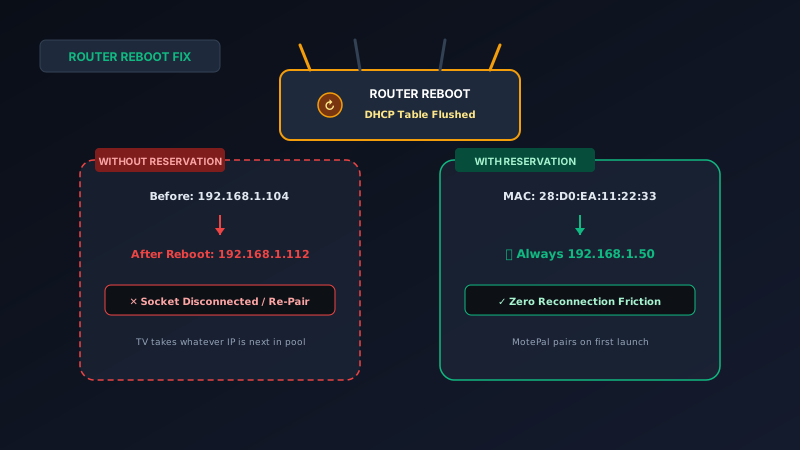
If your smart TV remote app frequently forgets your television or disconnects every time your Wi-Fi router restarts, your TV's dynamic IP address is changing. When a router reboots, it flushes its dynamic DHCP table and assigns fresh IP addresses in the order devices reconnect. To fix this permanently: log into your router console, navigate to DHCP Server > Address Reservation, and bind your TV's 12-character physical MAC address to a permanent, fixed IP address (e.g. 192.168.1.50). Once anchored, your television maintains the same address forever, allowing MotePal or the interactive web demo to pair instantly without re-scanning.
It is a scenario familiar to anyone using a smartphone remote control app: yesterday, your app controlled your living room television effortlessly. Today, after a brief power outage or router reboot, you tap the remote buttons and nothing happens.
You open the TV connection screen, and your remote app is stuck in an endless scanning loop, or it insists your television is offline even though you are actively watching Netflix on it.
The culprit is IP address churn. When your router restarts, its dynamic IP assignment engine scrambles the local network addresses assigned to your household devices.
Here is why your smart TV changes its IP address on reboot, the networking problems this causes for remote apps, and the five-minute fix that anchors your television permanently.
When a router reboots, its DHCP table clears. Devices reconnect in random order and receive new IP addresses, breaking existing remote app socket connections.
The Mechanics of DHCP: Why IP Addresses Shift
Your home router operates a software service known as a DHCP (Dynamic Host Configuration Protocol) Server.
The DHCP server maintains a dynamic pool of available IP addresses (typically 192.168.1.100 through 192.168.1.250). When a television, smartphone, or laptop connects to Wi-Fi, it negotiates an IP lease through the four-step DORA process:
- Discover: The television broadcasts a message asking for an IP address.
- Offer: The router offers the next available IP address in its pool.
- Request: The television accepts the offered address.
- Acknowledge: The router marks that IP address as leased for 24 hours.
When your router reboots (whether from a momentary power cut, manual restart, or automatic ISP firmware upgrade), its temporary DHCP lease table stored in volatile RAM memory is completely erased.
Upon restarting, dozens of wireless devices in your home race to reconnect. Whichever device connects first receives the lowest available IP address:
- Your smart TV previously had
192.168.1.104. - But an iPad or smart speaker reconnects slightly faster and claims
192.168.1.104. - When the television reconnects five seconds later, the router assigns it
192.168.1.118.
Why This Breaks Smart TV Remote Applications
When you pair MotePal or an official remote app with your television, the app opens an encrypted socket connection or WebSocket tunnel targeting your TV’s specific IP address:
- Roku ECP:
http://192.168.1.104:8060 - Android TV / Google TV TLS:
tls://192.168.1.104:6466 - Samsung Tizen WebSocket:
ws://192.168.1.104:8001 - LG webOS WebSocket:
ws://192.168.1.104:3000
When you press a directional button or volume key the next morning:
- The remote app dispatches the command packet directly to
192.168.1.104. - Because the television has moved to
.118, the packet arrives at the iPad or drops into a black hole. - The socket times out after several seconds, displaying an error message or forcing you to delete and re-add your television.
The Permanent Solution: DHCP MAC Address Reservation
The professional, industry-standard solution to this problem is configuring a DHCP Address Reservation (also known as a Static DHCP Lease or MAC IP Binding) inside your router.
Every network interface in the world has a permanently assigned 12-character physical hardware address called a MAC (Media Access Control) Address (formatted as AA:BB:CC:DD:EE:FF).
When you set up a DHCP reservation, you tell your router: “Whenever you see this specific TV’s MAC address, always assign it 192.168.1.50, and never lease that address to any other device.”
The television continues using automatic DHCP, but its IP address is permanently locked in place forever.
Step-by-Step Guide for Popular Router Brands
1. TP-Link Archer Routers
- Log into your router dashboard at
tplinkwifi.netor192.168.0.1. - Click the Advanced tab at the top.
- In the left menu, navigate to Network > DHCP Server.
- Scroll down to the Address Reservation section and click Add.
- Click Scan to select your smart TV from the active client list (or manually enter its MAC address).
- Enter a reserved IP address (e.g.,
192.168.0.50). - Check Enable This Entry and click Save.
2. Netgear Nighthawk Routers
- Go to
routerlogin.netor192.168.1.1in your browser. - Click the ADVANCED tab.
- In the left-hand column, click Setup > LAN Setup.
- Scroll down to Address Reservation and click Add.
- Select your television’s radio button from the table.
- Click Add to lock the IP address permanently.
3. Asus RT Routers (Asuswrt)
- Open
router.asus.comor192.168.50.1. - In the left menu under Advanced Settings, click LAN.
- Click the DHCP Server tab at the top.
- Locate the setting named Enable Manual Assignment and toggle it to Yes.
- Under Manually Assigned IP around the DHCP List, select your TV’s MAC address from the dropdown.
- Enter your chosen IP address (e.g.,
192.168.50.50) and click the Plus (+) icon. - Click Apply.
4. Amazon Eero Systems
- Open the Eero mobile app.
- Tap Settings > Network settings.
- Tap Reservations & port forwarding.
- Tap Add a reservation.
- Tap your smart TV from the device list.
- Confirm the reserved IP address and tap Save.
5. Google Nest WiFi / Google Home
- Open the Google Home app.
- Tap Favorites > Wi-Fi > Settings (gear icon).
- Tap Advanced networking > DHCP IP reservations.
- Tap the Add (+) button and select your smart television.
- Save the reservation.
Benefits of Anchoring Your Smart TV IP
| Feature | Dynamic DHCP (Default) | Reserved Static IP |
|---|---|---|
| Remote App Connection Speed | 3 to 10 seconds (scan required) | Instant (< 200 milliseconds) |
| Connection Stability After Reboot | Frequently lost | 100% Retained |
| Wake-on-LAN (Turn TV On) | Unreliable (target moves) | Rock-Solid Reliability |
| Manual IP Direct-Connect | Fails when IP shifts | Permanently Available |
Instant Reconnection with MotePal
Once your smart TV has a permanent reserved IP:
- Open MotePal on your Android smartphone.
- Pair your television once.
- Because the IP never shifts, MotePal reconnects instantly upon every future app launch with zero scanning delay, no account sign-in, and zero banner ads.
Frequently Asked Questions
What if my TV has two different MAC addresses?
All smart televisions equipped with both Wi-Fi and an Ethernet port possess two distinct MAC addresses: one for the wireless radio and one for the physical wired port. Check your TV’s network status menu to confirm which connection type you are using, and bind the MAC address that matches your active connection.
Can I set a static IP directly in the TV settings instead of the router?
While smart televisions permit manual IP configuration in their network menus, doing so carries the risk of IP address collisions. If your router’s DHCP server is unaware of the manual assignment, it may lease that same IP to another gadget, crashing both devices. Router-side DHCP reservation is significantly safer and easier to maintain.
Does a DHCP reservation expire if the TV is turned off for weeks?
No. DHCP reservations are permanent configuration rules stored in the router’s non-volatile flash memory. Even if your smart television is unplugged while you go on vacation for a month, the router will hold that specific IP address indefinitely and reassign it the moment the television powers back on.
How do I know what IP address to assign?
Look at your router’s DHCP pool range in LAN settings. If your router hands out dynamic addresses between 192.168.1.100 and 192.168.1.250, pick an address in the lower unallocated range, such as 192.168.1.50. This keeps your permanent smart appliances separate from transient guest devices.
Need an Instant TV Remote on Your Phone?
MotePal connects to your Google TV, Android TV, Roku, Samsung, or LG TV over Wi-Fi in seconds. 100% free with zero ads and no account required.
