


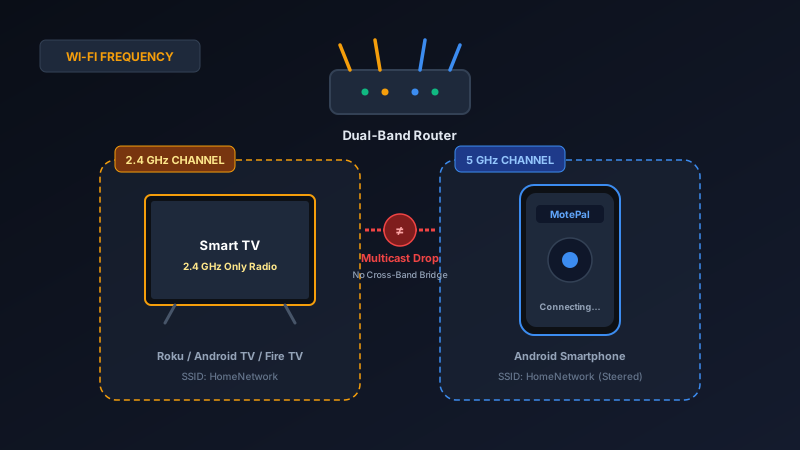
When your smart TV is connected to the 2.4 GHz Wi-Fi band and your smartphone is connected to the 5 GHz band under the same network name, faulty router multicast bridging or aggressive band steering often prevents the devices from seeing each other. To fix this immediately: temporarily disable 5 GHz on your phone or separate your router's Wi-Fi network into two distinct names (such as Home_2.4G and Home_5G), then connect both devices to the 2.4 GHz band. Alternatively, install MotePal and connect directly via your television's manual IP address to bypass discovery drops.
Dual-band Wi-Fi is standard in modern homes. High-performance routers broadcast simultaneously on two wireless radio frequencies: the longer-range 2.4 GHz band and the higher-throughput 5 GHz band.
Most homeowners use smart routers that combine both frequencies under a single unified network name (SSID). As you walk around your home, the router automatically steers your phone between 2.4 GHz and 5 GHz to balance signal strength and bandwidth.
However, smart TVs and streaming sticks (including Roku Express, Onn Google TV boxes, and budget Fire TV models) often contain basic 2.4 GHz-only Wi-Fi radios to reduce hardware production costs.
When your television operates on 2.4 GHz while your modern smartphone latches onto the faster 5 GHz frequency, discovery breakdowns frequently occur. Here is why this happens and how to fix it in minutes.
Faulty router IGMP snooping treats 2.4 GHz and 5 GHz as isolated segments, discarding discovery multicasts crossing between bands.
The Core Technical Problem: Cross-Band Multicast Pruning
In theory, your router’s internal operating system (typically based on an embedded Linux kernel) creates a network bridge interface (usually named br0).
This software bridge is designed to link the physical 2.4 GHz wireless interface (wl0 or wlan0) and the 5 GHz wireless interface (wl1 or wlan1) into a single unified broadcast domain. Under perfect conditions, any data packet sent by a phone on 5 GHz should effortlessly reach a television on 2.4 GHz.
In practice, discovery protocols rely on multicast UDP datagrams:
- SSDP (Simple Service Discovery Protocol): Transmitted to IP
239.255.255.250on port 1900 (used by Roku, LG webOS, and Samsung Tizen). - mDNS (Multicast DNS): Transmitted to IP
224.0.0.251on port 5353 (used by Android TV and Google TV).
Because multicast packets can saturate wireless networks if broadcast indiscriminately, modern routers utilize a feature called IGMP Snooping and Multicast Rate Limiting.
When IGMP snooping is poorly implemented in router firmware, the router fails to bridge multicast packets between its 2.4 GHz radio chip and its 5 GHz radio chip. The phone transmits the discovery packet on 5 GHz, but the router never rebroadcasts it onto the 2.4 GHz frequency. Consequently, the smart TV never receives the inquiry and never sends an answer back.
Aggressive Band Steering and Sticky Clients
A related issue stems from Band Steering. Routers with band steering monitor client signal strength. If a phone supports 5 GHz and is within reasonable range, the router aggressively sends 802.11v BSS Transition Management frames or deauthenticates the phone on 2.4 GHz to force it onto the faster 5 GHz band.
Meanwhile, smart televisions mounted against walls or inside entertainment cabinets often struggle with 5 GHz signal penetration. The television remains stuck on the slower, longer-wavelength 2.4 GHz band.
When you walk closer to your television to control it, your phone automatically shifts to 5 GHz. If cross-band bridging drops packets, the remote app immediately loses connection the moment you walk into the living room.
Comparison: 2.4 GHz vs 5 GHz for Smart TV Control
| Characteristic | 2.4 GHz Wi-Fi Band | 5 GHz Wi-Fi Band | Impact on Smart TV Remotes |
|---|---|---|---|
| Radio Wavelength | Longer (~12 cm) | Shorter (~6 cm) | 2.4 GHz penetrates thick walls and cabinets better |
| Smart TV Adoption | Supported on 100% of smart TVs | Missing on budget streaming sticks and TVs | Causes frequency mismatch between phone and TV |
| Multicast Reliability | Subject to microwave and Bluetooth interference | Higher throughput, but prone to router bridging bugs | Discovery packets dropped when crossing frequencies |
| Unicast Latency | 20 to 60 ms jitter | 2 to 10 ms ultra-low latency | 5 GHz provides snappier directional pad clicks |
3 Quick Methods to Fix Dual-Band Remote Discovery
Method 1: Split Your Wi-Fi SSIDs into Separate Names
The cleanest, most permanent fix for dual-band communication drops is to disable unified smart naming and split your bands into two distinct network names.
- Access your router admin dashboard (usually
192.168.1.1or192.168.0.1in your browser). - Go to Wireless Settings.
- Locate the setting called Smart Connect, Whole Home Wi-Fi, or Band Steering, and set it to Disabled.
- Rename your 2.4 GHz network to
HomeNetwork_2.4Gand your 5 GHz network toHomeNetwork_5G. - Connect both your smart TV and your smartphone to
HomeNetwork_2.4G.
By placing both devices on the exact same physical radio frequency, multicast packets never have to cross the router’s internal software bridge. Discovery will succeed every time.
Method 2: Enable Multicast Routing and IGMP Snooping in Router Settings
If you prefer to keep a single combined Wi-Fi name for convenience, you can adjust your router’s multicast forwarding behavior:
- In your router admin console, navigate to Advanced > Network / LAN > IPTV / Multicast.
- Look for IGMP Snooping and toggle it to Enabled (or if already enabled, test toggling it to Disabled to force broadcast flooding across all ports).
- Look for IGMP Proxy and enable it.
- On Asus routers, navigate to Wireless > Professional > Modulation Scheme / Multicast Rate and ensure OFDM 12 or Auto is selected rather than Disabled.
- Click Apply to restart the network stack.
Method 3: Bypass Discovery via Direct IP Connection in MotePal
If you do not want to alter router settings or reboot the family Wi-Fi, you can bypass multicast discovery completely using unicast TCP addressing.
While routers frequently drop cross-band multicast packets (239.255.255.250), they almost never drop cross-band unicast packets directed at a specific IP address (192.168.1.88).
- On your smart TV, open Settings > Network > About / Connection Status and note the TV’s IP address.
- Launch MotePal on your Android smartphone.
- If auto-scan times out, tap Add TV Manually by IP.
- Enter the TV’s IP address.
- MotePal initiates a direct unicast handshake directly over Roku port 8060, Android TV TLS port 6466, or Samsung port 8001. Unicast traffic routes across 2.4 GHz and 5 GHz without being blocked by multicast filters.
Frequently Asked Questions
Can my phone control my TV if one is on 2.4 GHz and the other is on 5 GHz?
Yes, under normal network conditions. As long as your router properly bridges Layer 2 traffic between its 2.4 GHz and 5 GHz wireless radios, both devices exist on the same local subnet (e.g., 192.168.1.x) and can exchange remote control commands. Issues only arise when router firmware drops cross-band multicast discovery packets.
Does connecting my TV to 2.4 GHz cause lag when clicking remote buttons?
No. Standard remote control commands (such as volume up, directional arrows, and play/pause) require less than 1 kilobyte of data per click. The bandwidth limitations of 2.4 GHz Wi-Fi have zero impact on remote responsiveness. However, if your 2.4 GHz band suffers from extreme radio interference from neighbors or Bluetooth devices, you may notice slight latency.
Why does airplay or casting fail when on different bands?
Apple AirPlay, Google Cast, and Spotify Connect rely on the exact same mDNS and SSDP discovery protocols that smart TV remote apps use. If your router prunes multicast packets between 2.4 GHz and 5 GHz, all local discovery services will fail simultaneously.
Should I connect my smart TV to 5 GHz if it supports it?
Yes. If your television or streaming device includes a dual-band 5 GHz Wi-Fi antenna, connecting it to the 5 GHz band is generally recommended. This avoids the crowded 2.4 GHz spectrum, eliminates cross-band bridging bugs with modern phones, and provides significantly higher streaming bitrates for 4K HDR content.
Need an Instant TV Remote on Your Phone?
MotePal connects to your Google TV, Android TV, Roku, Samsung, or LG TV over Wi-Fi in seconds. 100% free with zero ads and no account required.
