


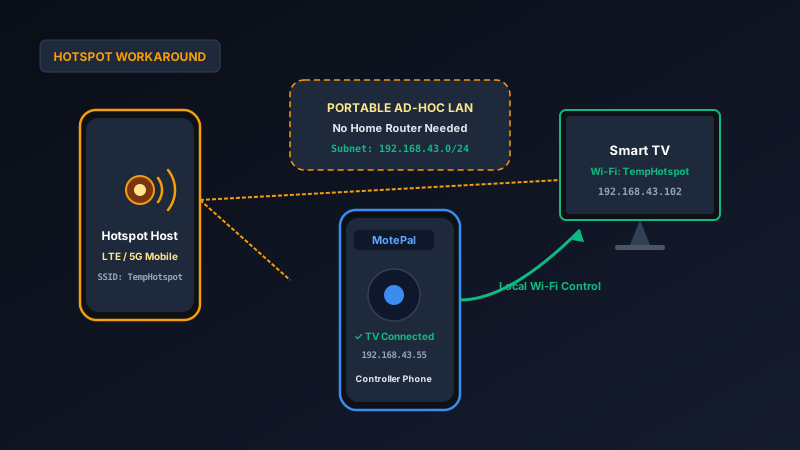
To control a smart TV without a physical remote when you have no home Wi-Fi (such as in a new apartment, vacation rental, or during an ISP outage), use the Two-Phone Hotspot Method. Phone A turns on a portable mobile hotspot. Phone B connects to Phone A's hotspot and runs MotePal. If your TV was previously connected to an old home router, name Phone A's hotspot SSID and password to match that exact previous Wi-Fi network; your TV will automatically reconnect without needing a physical remote. Once connected, control your television instantly with zero subscription fees.
Losing your smart TV remote is frustrating enough on a regular evening. But when your home Wi-Fi is down, or when you move into a new house before your internet service is installed, losing your remote feels like a total lockout.
Standard Wi-Fi remote apps require your smartphone and television to reside on the same local area network. When you do not have a home broadband router, standard advice tells you to buy a replacement remote at a retail store and wait days for shipping.
However, you can turn your smartphone’s cellular data connection into a portable local area network using a mobile hotspot.
Here is the complete engineering breakdown of how mobile hotspot tethering interacts with smart TV protocols, why single-phone setups frequently fail, and the step-by-step two-phone workaround that works on every TV platform.
Phone A creates an ad-hoc private network. Phone B and the TV join as clients, allowing local port communication without a broadband router.
Why Single-Phone Hotspots Usually Fail
Many users attempt to turn on a mobile hotspot on their smartphone, connect their smart TV to that hotspot, and open a TV remote app on the same smartphone. Almost invariably, the remote app reports that no TV is found.
This occurs due to cellular operating system architecture:
- Network Interface Binding: When an Android or iOS smartphone acts as a Wi-Fi hotspot, it creates a virtual wireless access point interface (such as
ap0). However, local user applications running on the smartphone bind their outbound sockets to the active internet interface (such as cellular modemrmnet_data0). - Host-to-Client Firewall Restrictions: To protect phone security and battery life, smartphone kernels routinely filter local broadcast and multicast traffic (ports 1900 and 5353) originating from local apps directed toward connected hotspot clients.
- Loopback Routing Disconnect: Even if the app knows the TV’s IP address, many mobile operating systems prevent loopback packet routing from the host phone’s internal application layer directly into the tethered client subnet (
192.168.43.0/24).
Because of these low-level operating system boundaries, a single phone cannot reliably serve as both the network router and the remote control simultaneously.
The Two-Phone Hotspot Solution
The reliable workaround is to decouple the router role from the controller role by using two phones (or a phone and a tablet, or a laptop with hotspot sharing):
- Device A (The Access Point): Any smartphone with cellular data and a mobile hotspot feature. This phone functions strictly as the portable Wi-Fi router.
- Device B (The Remote Controller): Your daily smartphone or tablet with MotePal installed.
- The Smart TV: Roku, Android TV / Google TV, Samsung Tizen, or LG webOS.
Both the smart TV and Device B connect to Device A’s hotspot. Because Device B is a standard wireless client on the hotspot subnet, it can send broadcast discovery packets and establish direct TCP/WebSocket sessions with the television without hitting kernel firewall limits.
The “Old SSID Matching Trick” (No Remote Needed)
What if your television is currently disconnected from Wi-Fi because you moved to a new home, and you cannot use the physical remote to navigate to the TV’s Wi-Fi settings menu?
Smart televisions store the SSID (network name) and WPA2 security passphrase of their last known Wi-Fi network in non-volatile flash memory. Whenever a television powers on and detects an access point broadcasting its saved credentials, it automatically authenticates and connects without requiring any user confirmation.
How to execute the matching trick:
- Recall the exact Wi-Fi name and password of your previous home router (or check the label on your old router if you still have it).
- On Phone A, open Settings > Network & internet > Hotspot & tethering > Wi-Fi hotspot.
- Set the Hotspot name (SSID) to match your old router’s network name exactly. Note that capitalization and special characters are case-sensitive.
- Set the Security to WPA2-Personal.
- Set the Hotspot password to match your old Wi-Fi password exactly.
- Turn on the hotspot on Phone A.
- Power on your smart television using the physical power button located on the bottom or back of the display chassis.
- Within 30 to 60 seconds, check the Connected devices list on Phone A’s hotspot screen. You will see your TV (e.g.,
Roku-TV,BRAVIA-4K, orLGwebOSTV) appear as an active client with an assigned IP address (typically192.168.43.xxx).
Step-by-Step: Setting Up MotePal on the Hotspot LAN
Once your television is connected to Phone A’s hotspot:
Step 1: Connect Phone B to the Hotspot
- On your second phone (Phone B), open Wi-Fi settings.
- Select Phone A’s hotspot network and enter the password.
- Confirm that Phone B displays a valid Wi-Fi connection icon.
Step 2: Launch MotePal on Phone B
- Open MotePal on Phone B.
- The app will automatically query the hotspot subnet using native discovery protocols.
- If your TV appears in the discovery list, tap it to pair immediately.
- If your TV does not appear automatically within 5 seconds (hotspot routers sometimes throttle multicast packets), look at Phone A’s connected client list to get your TV’s exact IP address (e.g.,
192.168.43.105). - In MotePal, tap Connect by IP, enter
192.168.43.105, and press Connect.
Step 3: Pair and Control
- Roku TVs: Connects instantly over port 8060 with zero pairing PINs required.
- Android TV / Google TV: A 4-character or 6-character pairing code will pop up on your television screen. Type the code into MotePal to establish secure TLS encryption over port 6466.
- Samsung Tizen: A permission prompt (“Allow MotePal to connect?”) will appear on your TV screen. If you have no remote to press “Allow”, some newer Samsung models accept auto-approval if the device was previously paired.
- LG webOS: An on-screen pairing key will display. Type the numbers into MotePal.
Once paired, you have full remote control functionality: directional buttons, volume, home, back, and direct input switching.
Moving to a New Permanent Wi-Fi Network
Now that you have full remote control over your television via Phone B, you can permanently solve the problem:
- Use MotePal’s directional arrows to open the TV’s on-screen Settings > Network > Set up connection > Wireless.
- Scan for your new permanent home Wi-Fi network.
- Use MotePal’s mobile keyboard to paste your new home Wi-Fi password effortlessly without tedious on-screen cursor typing.
- Connect the TV to your permanent home Wi-Fi.
- Finally, connect Phone B back to your permanent home Wi-Fi. You can now turn off the mobile hotspot on Phone A; your TV is permanently restored.
Frequently Asked Questions
Does controlling my TV over a mobile hotspot consume my cellular data?
The remote control commands sent from your phone to your TV (directional clicks, volume, power) travel strictly across the local Wi-Fi layer and consume zero cellular data. However, if your smart TV is connected to the internet-enabled hotspot, background apps on the TV (such as firmware updaters or video thumbnails) will consume cellular data. To prevent this, disable “Background app refresh” or monitor data usage on Phone A.
Can I use a laptop mobile hotspot instead of a second phone?
Yes. Both Windows 10 and Windows 11 feature a built-in “Mobile Hotspot” toggle in the network settings. You can broadcast a Wi-Fi hotspot from your laptop, connect your smart TV and your smartphone to the laptop’s Wi-Fi network, and use MotePal on your smartphone to control the television.
Why does my hotspot disconnect after a few minutes?
Most Android phones and iPhones have an aggressive “Turn off hotspot automatically” power-saving setting that disables the hotspot if it perceives low traffic. In Phone A’s hotspot settings, disable the auto-turnoff timer to maintain an uninterrupted connection while controlling your television.
What if I only have one phone and no second device?
If you have only one smartphone and no physical remote, you cannot use the hotspot remote workaround. Your best alternatives are: connecting a standard USB computer mouse or USB keyboard directly into the USB port on the back of your television (works on Android TV, Google TV, and Samsung), or using the physical control jog button on the television bezel to navigate to basic inputs.
Need an Instant TV Remote on Your Phone?
MotePal connects to your Google TV, Android TV, Roku, Samsung, or LG TV over Wi-Fi in seconds. 100% free with zero ads and no account required.
