


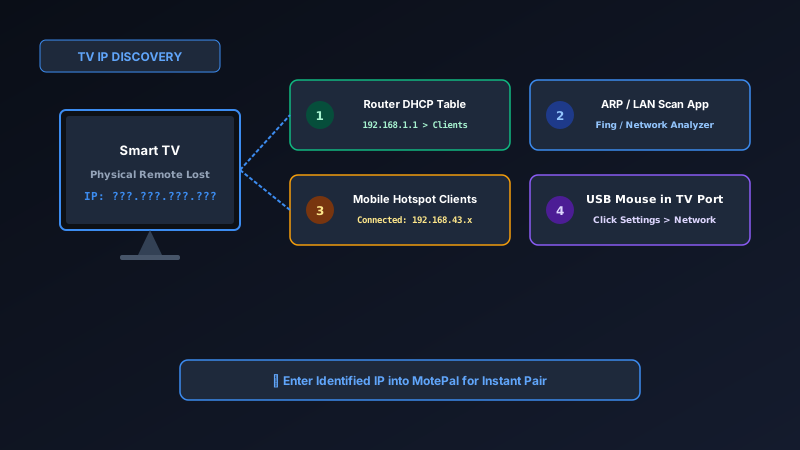
If your physical remote is lost or broken and your remote app fails to auto-discover your television, you need your TV's local IP address to connect manually. You can find your smart TV's IP in under two minutes without a physical remote: log into your router's web admin portal (or router mobile app) and check the Connected Devices / DHCP Client Table for hostnames like Roku-TV, LGwebOSTV, or BRAVIA. Alternatively, run a free network scanner app (such as Fing) on your phone, or plug a standard USB computer mouse into your TV's USB port to click into network settings. Once you have the IP, enter it into MotePal or test the interactive web demo for instant control.
When your smart TV remote is lost or broken, smartphone remote applications are a lifesaver.
Under normal circumstances, remote apps automatically scan your local Wi-Fi and detect your television using SSDP or mDNS discovery protocols.
However, if your router enforces AP Isolation, if your TV is stuck on 2.4 GHz while your phone is on 5 GHz, or if a temporary network glitch prevents broadcast packets from crossing, auto-discovery fails.
The standard fallback is using Manual Direct Connect by IP. But this introduces a frustrating dilemma: how do you find your smart TV’s local IP address when you don’t have a remote to navigate to the on-screen Settings menu?
Here are four proven methods to retrieve your smart TV’s IP address in minutes, even with a completely dead or missing physical remote.
Four simple methods allow you to discover your smart TV's local IP address without needing a physical remote control.
Method 1: Check Your Router’s Connected Device List (Fastest)
Your home Wi-Fi router keeps a real-time table of every device connected to your network, along with its assigned IP address and device name.
How to check:
- Open Chrome, Safari, or Edge on your smartphone or laptop.
- In the address bar, type your router’s default gateway address (most commonly
http://192.168.1.1,http://192.168.0.1, orhttp://192.168.50.1). - Enter your administrative credentials (often printed on the physical sticker underneath your router).
- Navigate to Connected Devices, DHCP Client List, or Device Map.
- Look through the list for your television brand:
- Roku TV: Typically displays as
Roku-TV,RokuPlayer, orRokuStreamingStick. - LG webOS: Displays as
[LG] webOS TV,LGwebOSTV, orLG-SmartTV. - Samsung Smart TV: Displays as
[TV] Samsung,Samsung-Tizen, orSamsung_DTV. - Google TV / Android TV: Displays as
BRAVIA-4K(Sony),TCL-GoogleTV,Shield-Android-TV, or genericAndroid-TV.
- Roku TV: Typically displays as
- Note the numerical IPv4 address displayed next to your television (such as
192.168.1.104).
Method 2: Use a Free Network Scanner App on Your Phone
If you do not remember your router password, you can scan your entire local network in five seconds directly from your Android phone using a free network discovery utility like Fing or Network Analyzer.
How to execute an ARP scan:
- Download Fing - Network Tools (or Network Analyzer) from the Google Play Store.
- Make sure your smartphone is connected to your home Wi-Fi.
- Open Fing and tap Scan for devices.
- Fing sweeps your local subnet (from
192.168.1.1to192.168.1.254) using rapid ARP (Address Resolution Protocol) pinging. - In the results list, Fing identifies devices by their MAC hardware vendor prefix (OUI). Look for entries labeled Roku, Inc., Samsung Electronics, LG Electronics, Sony, or TCL.
- Tap the television entry to view its exact local IP address.
Method 3: Plug a Standard USB Mouse into Your Smart TV
Did you know that almost all modern smart televisions support standard plug-and-play USB computer accessories?
If your television has an accessible USB port on the back or side panel (where you normally insert flash drives), you can control the on-screen cursor directly using a computer mouse:
- Grab any standard wired USB computer mouse (or a wireless mouse with a small USB dongle).
- Plug the mouse into an open USB port on your television.
- Move the mouse. A standard mouse cursor arrow will immediately appear on your TV screen.
- Left-click to select, and right-click to go back.
- Click into your television’s on-screen Settings > Network > Connection Status or About.
- Read the assigned IP address right off the screen.
Note: USB mouse navigation works on 100% of Android TV, Google TV, Samsung Tizen, and LG webOS televisions. Certain budget Roku TV models do not support mouse navigation, in which case Method 1 or Method 2 should be used.
Method 4: Check Mobile Hotspot Client Screen
If you are using the mobile hotspot workaround (because you have no home Wi-Fi or just moved into a new apartment):
- On the host phone broadcasting the mobile hotspot, open Settings > Network & internet > Hotspot & tethering > Wi-Fi hotspot.
- Scroll down to Connected devices or Manage devices.
- Tap on the connected smart television.
- The hotspot management screen will display the TV’s leased IP address (typically in the
192.168.43.xxxrange).
Common TV Manufacturer Hostname and MAC Identifiers
When inspecting router client lists, devices do not always display clear consumer names. Use this reference table to spot your television:
| TV Platform | Common Hostname in Router List | Hardware MAC Address Vendor (OUI) |
|---|---|---|
| Roku TVs & Players | Roku-TV, Roku-Streaming-Stick |
28:D0:EA, AC:AE:19, B0:EE:45, D8:31:34 |
| Samsung Smart TVs | [TV] Samsung, Samsung_DTV |
00:12:FB, 30:CD:A7, 64:1C:AE, B8:5E:7B |
| LG webOS TVs | LGwebOSTV, [LG] SmartTV |
00:1C:62, 20:3D:66, 58:24:29, A8:23:FE |
| Sony Bravia (Google TV) | BRAVIA-4K, Sony-TV |
00:01:4A, 00:1D:BA, 70:2C:1F, F0:F5:64 |
| TCL / Hisense (Android TV) | AndroidTV, TCL-Smart-TV |
00:1E:DE, 44:27:F3, 88:82:79, A4:5E:60 |
Connecting Instantly with MotePal
Once you have identified your smart TV’s local IP address:
- Open MotePal on your Android smartphone.
- In the television selection modal, tap Connect Manually by IP.
- Enter the TV’s IP address (e.g.,
192.168.1.104). - Tap Connect.
- MotePal dispatches an instantaneous direct handshake to the TV’s native control port (port 8060 for Roku, port 6466 for Android TV, port 8001 for Samsung, port 3000 for LG).
Your television pairs immediately, giving you full remote control functionality: directional buttons, volume, home, back, and full keyboard typing with zero advertisements and complete privacy.
Frequently Asked Questions
What if my TV is not connected to Wi-Fi at all?
If your TV was never connected to your home Wi-Fi (or its network settings were wiped) and you have no remote, your TV does not have an IP address. To fix this, plug a physical Ethernet cable from your router into your TV’s RJ45 Ethernet port. The TV will automatically negotiate a connection and obtain an IP address via DHCP without requiring remote confirmation.
Can I find my TV’s IP address using the physical TV buttons?
Most smart televisions have a single physical jog button located beneath the front bezel or on the rear panel. Pressing this button typically displays a basic on-screen menu for Power, Input, and Volume. However, on most modern sets, you cannot navigate all the way into advanced Network menus using the single jog button alone; plugging in a USB mouse (Method 3) is much easier.
Does my TV IP address change if I switch from Wi-Fi to Ethernet?
Yes. Every smart television has two separate physical network adapters: one for Wi-Fi and one for wired Ethernet. Each adapter has its own unique MAC address and receives its own separate IP address from your router’s DHCP server.
What should I do once I connect to prevent losing the IP again?
Once connected with MotePal, log into your router dashboard and set up a DHCP Address Reservation for your television’s MAC address. This locks your TV to a fixed IP forever, ensuring your remote app connects instantly upon every future launch.
Need an Instant TV Remote on Your Phone?
MotePal connects to your Google TV, Android TV, Roku, Samsung, or LG TV over Wi-Fi in seconds. 100% free with zero ads and no account required.
