


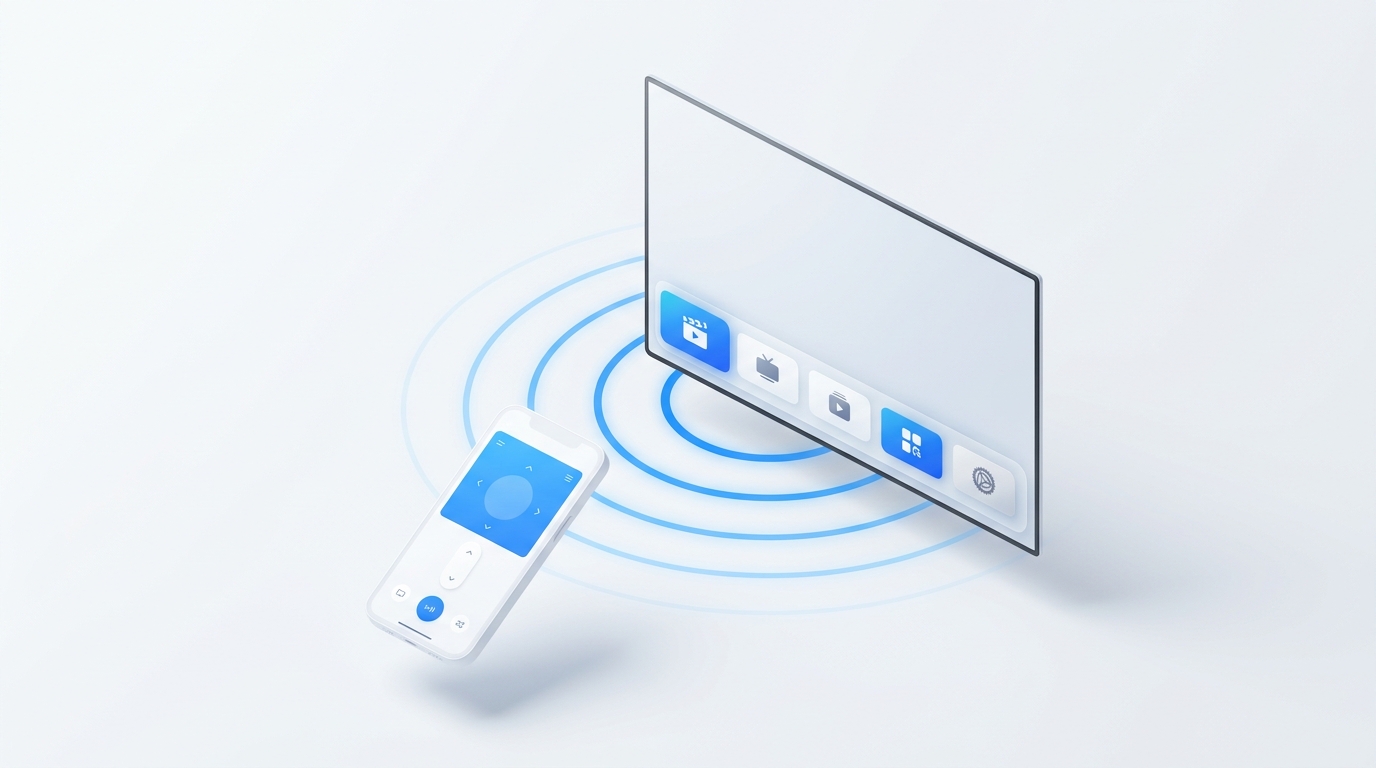
If your LG Magic Remote (MR22GN, MR23GN, or MR24GN) stopped clicking, lost its cursor, or vanished into the couch: you can control your LG OLED C2, C3, or C4 immediately using an Android smartphone. Download MotePal, ensure your phone is connected to the same Wi-Fi network, tap your LG OLED TV, and select "Accept" on the on-screen prompt. You get instant access to D-pad navigation, volume, inputs, and numeric keypad controls without subscriptions or ads.
The LG OLED series (specifically the benchmark C2, C3, and C4 models) delivers industry-leading contrast, 4K 120Hz gaming, and vibrant HDR. However, the bundled LG Magic Remote remains one of the most vulnerable accessories in modern home theaters.
Owners frequently encounter two major hardware failures: the center click wheel mechanism snaps internally after heavy usage, or the Bluetooth cursor refuses to register after standby wake-up. Furthermore, genuine OEM replacement Magic Remotes cost upwards of $50 to $70.
Instead of waiting days for a replacement remote or dealing with cheap knockoff remotes that lack pointer functions, you can turn your Android phone into a high-performance LG webOS controller in under 60 seconds.
LG webOS provides native local WebSocket communication (ports 3000 and 3001), enabling instant zero-latency smartphone remote control.
Common Causes of LG Magic Remote Failure
Before ditching your physical remote, determine which type of failure you are facing:
- Center Scroll Wheel Axle Breakage: The center scroll wheel doubles as the “Enter” button. A thin plastic spindle connects the wheel to an internal rotary encoder. Under firm pressure, this spindle often snaps, causing the wheel to spin freely without clicking.
- De-Registration of Bluetooth: The Magic Remote uses IR exclusively for the Power toggle, while all pointer tracking and menu navigation run via Bluetooth. If your remote powers the TV but displays “Magic Remote is disconnected” or fails to show the pointer, the Bluetooth pairing has detached.
- RF Signal Jamming: Soundbars placed right in front of the TV’s lower bezel can block the RF receiver module mounted at the base of the LG OLED screen.
How to Force Re-Pair the Physical Magic Remote:
- Turn on your LG OLED TV.
- Stand 3 feet away and point the remote at the center bottom edge of the screen.
- Press and hold both the HOME button and the BACK (Arrow) button simultaneously for 5 to 7 seconds.
- The red power LED on top of the remote will blink three times, indicating the remote has cleared its registration.
- Press the center Wheel (OK) button.
- A message will appear on your TV: “Registering new Magic Remote… Magic Remote has been successfully registered.”
If this process fails or the physical scroll wheel is broken, proceed to the phone solution below.
Step 1: Connect to Your LG OLED Using MotePal
Every LG Smart TV running webOS (from webOS 4.5 through webOS 24 on modern C2, C3, and C4 OLEDs) includes a built-in Secure WebSocket control daemon operating on TCP ports 3000 and 3001.
MotePal establishes a direct, unmediated session with this daemon:
- Download MotePal on Google Play.
- Verify that your Android smartphone is on the same local Wi-Fi network as your LG OLED TV.
- Launch MotePal. The app will immediately discover your TV using SSDP discovery.
- Tap your LG OLED TV in the discovery list.
- Look at your television screen. A prompt will appear in the top-right corner: “A mobile device is requesting permission to connect to this TV.”
- Select Accept using the physical power joystick underneath the center of the LG OLED panel (or a connected USB mouse).
- MotePal exchanges a client security key with webOS and stores it securely on your smartphone.
From this point on, MotePal connects instantly without requesting approval again. You can test how the buttons feel on our interactive web remote simulator.
Step 2: Navigating webOS 22, 23, and 24 Features
Modern LG OLEDs feature a comprehensive Home Hub layout, Quick Settings panel, and Game Optimizer overlays. MotePal maps directly to each of these webOS navigation targets:
- Fast Input Switching: Instantly toggle between HDMI 1 (PlayStation 5 / Xbox Series X), HDMI 2 (eARC Soundbar), and streaming apps without navigating multiple menus.
- Game Optimizer Access: Tap the Settings button to pull up the Game Dashboard directly during gameplay sessions.
- Hassle-Free Text Search: Finding movies on LG’s native YouTube and Prime Video apps is notoriously clunky with the Magic Remote’s jittery pointer. MotePal allows you to type searches directly from your mobile keyboard.
To turn your LG OLED on directly from your phone while it is in standby mode, you must enable network wake-up inside webOS. Open Settings > All Settings > General > External Devices > TV On With Mobile and toggle Turn on via Wi-Fi to On. Now, MotePal can send a standard Wake-on-LAN UDP magic packet to power up your OLED instantly.
Comparing Your Options: Phone App vs Replacement Remotes
| Solution | Cost | Latency | Ad Experience | Setup Time |
|---|---|---|---|---|
| MotePal Phone Remote | $0 (Free) | < 15ms (Local Wi-Fi) | 100% Ad-Free | 30 Seconds |
| LG ThinQ App | $0 | 120ms to 400ms (Cloud) | Account Required / Heavy | 3 to 5 Minutes |
| OEM Replacement Remote | $50 to $70 | Instant | Physical Hardware | 3 to 5 Days (Shipping) |
| Generic Store Remote Apps | $0 with Ads | Variable | Intrusive Video Ads | 1 Minute |
While LG offers its own ThinQ application, many TV owners find it excessively bloated: it demands account registration, cloud sign-in, location permissions, and frequently loses connection when cloud servers experience latency.
MotePal requires no login, collects zero user telemetry, and operates 100 percent locally on your internal home network.
Frequently Asked Questions
Can I control my LG OLED TV without the pointer cursor?
Yes. The pointer is completely optional. In MotePal, you can navigate webOS using high-precision digital D-pad arrows (Up, Down, Left, Right, OK). Many users actually prefer D-pad arrow navigation over the Magic Remote pointer because it prevents erratic pointer jitter while selecting menu items.
What should I do if the LG TV does not show the connection prompt?
If your LG OLED fails to display the connection prompt when tapping your TV in MotePal, navigate to Settings > All Settings > General > External Devices > Connect to Mobile Phone and ensure Mobile TV On and Screen Share permissions are active. For comprehensive connection troubleshooting, check our guide on fixing LG webOS pairing prompts and connection issues.
Does MotePal support LG OLED C1 and older models?
Yes. MotePal supports all LG Smart TVs running webOS 3.0 and newer, including the popular CX, C1, C2, C3, and C4 OLED lineups, as well as LG QNED and NanoCell televisions.
Need an Instant TV Remote on Your Phone?
MotePal connects to your Google TV, Android TV, Roku, Samsung, or LG TV over Wi-Fi in seconds. 100% free with zero ads and no account required.
