


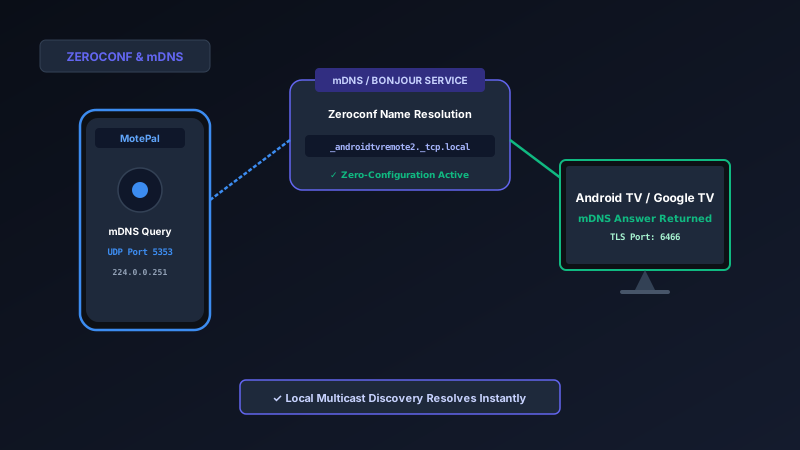
If your smart TV remote app cannot find your Android TV or Google TV on your local network, mDNS (Multicast DNS) discovery packets are being dropped by your router. Android TV relies on mDNS over UDP port 5353 to advertise its remote control service (_androidtvremote2._tcp.local). To resolve this: enable IGMP Snooping and Multicast Forwarding in your router dashboard, disable aggressive battery optimization for your remote app on your phone, or bypass mDNS completely by entering your TV's manual IP address directly into MotePal or testing the interactive web demo.
Zero-configuration networking (often called Zeroconf, Bonjour by Apple, or Avahi in Linux) is the invisible foundation of the modern smart home.
In the early days of personal computing, connecting two devices required typing numerical IP addresses, configuring subnet masks, and managing manual host tables. Today, devices discover each other automatically the moment they connect to Wi-Fi.
When you open a TV remote application on your Android phone, you expect your Sony Bravia, TCL Google TV, Philips Android TV, or Nvidia Shield to appear instantly in a clickable list.
Behind the scenes, this instant discovery relies on mDNS (Multicast DNS). When routers, network extenders, or smartphone battery savers throttle or discard mDNS packets, smart TV discovery breaks completely.
Here is an engineering deep-dive into how mDNS operates, why it fails on modern Wi-Fi networks, and how to troubleshoot discovery problems step-by-step.
The smartphone queries UDP port 5353. The smart TV's mDNS responder replies with its hostname, IP address, and TLS control port.
How mDNS Works on Smart TVs
Standard Domain Name System (DNS) queries require a central server (such as your router’s DNS cache or Google Public DNS 8.8.8.8) to translate a web address into an IP address.
In a home local network, there is no centralized DNS server cataloging every connected TV, phone, and speaker. This is where mDNS (defined in IETF RFC 6762) takes over:
- Multicast Broadcast: Instead of sending a query to a dedicated server, the smartphone sends an mDNS query packet to the reserved local multicast IP address
224.0.0.251over UDP port 5353. - Service Discovery Query: On Android TV and Google TV platforms, the remote app searches for the service type
_androidtvremote2._tcp.local. - Local Response: Every device on the local network receives the multicast query. Other devices (like laptops or iPhones) ignore it. The Android TV’s built-in mDNS daemon recognizes the service request and broadcasts back an answer containing:
- PTR Record: Points to the television’s specific service instance name (e.g.,
Sony-BRAVIA-4K._androidtvremote2._tcp.local). - SRV Record: Provides the target hostname and listening port (TCP port 6466 for encrypted TLS control).
- TXT Record: Contains metadata including model name, manufacturer, and protocol version.
- A Record: Maps the television’s
.localhostname directly to its IPv4 address (e.g.,192.168.1.100).
- PTR Record: Points to the television’s specific service instance name (e.g.,
Within milliseconds, the remote application receives all necessary connection parameters without any user intervention.
Why mDNS Fails on Home Wi-Fi Networks
When mDNS works, it is seamless. When it fails, devices become completely invisible. Here are the four primary failure points:
1. Wi-Fi Multicast Rate Limiting and Dropping
Multicast packets do not receive transmission acknowledgments (ACKs) from receiving devices at the Wi-Fi MAC layer. To prevent rogue multicast packets from slowing down wireless speeds, many home routers feature aggressive Multicast Filtering that drops UDP port 5353 datagrams.
2. Cross-Band Bridging Glitches (2.4 GHz vs 5 GHz)
If your television is connected to the 2.4 GHz band and your smartphone is connected to the 5 GHz band, routers with buggy IGMP Snooping code fail to forward multicast packets between the two physical radio chips. The phone broadcasts on 5 GHz, but the television on 2.4 GHz never receives the query.
3. Android Battery Optimization (Doze Mode)
To maximize battery life, modern Android operating systems (Android 12, 13, 14, and 15) place background apps into deep sleep.
When battery optimization is set to “Restricted”, Android closes the multicast lock on your phone’s Wi-Fi chip. When you launch a remote app, the operating system kernel prevents the app from receiving incoming UDP port 5353 multicast responses.
4. Separate Subnets and Virtual LANs
mDNS packets are configured with a Time-to-Live (TTL) of 1, meaning they are strictly prohibited from crossing between different subnets or VLANs unless an mDNS Repeater (such as Avahi) is actively configured on your router.
4 Proven Fixes for mDNS Smart TV Discovery
Fix 1: Enable IGMP Snooping and Multicast on Your Router
- Log into your router’s web console (e.g.,
192.168.1.1or192.168.0.1). - Navigate to Advanced > Network > LAN / IPTV.
- Locate IGMP Snooping and toggle it to Enabled.
- On Asus routers, navigate to Wireless > Professional and verify that Multicast Rate is set to OFDM 12 or Auto (never “Disable”).
- Save your settings and reboot the router.
Fix 2: Disable Battery Restrictions for Your Remote App
Ensure Android’s power manager does not block incoming multicast sockets:
- On your phone, go to Settings > Apps > See all apps.
- Select MotePal (or your remote app).
- Tap Battery (or App battery usage).
- Change the setting from Optimized or Restricted to Unrestricted.
- This allows the app to acquire a temporary
MulticastLockand listen for mDNS replies without interference from Android’s power saver.
Fix 3: Test with a Local Network Scanner App
To verify whether your smart TV is broadcasting mDNS properly:
- Download a free network tool like Service Browser or Network Analyzer from the Google Play Store.
- Scan your local network under the mDNS / Bonjour tab.
- Look for the
_androidtvremote2._tcpor_googlecast._tcpservice groups. - If your TV does not appear in the scanner, reboot the television by unplugging its power cord for 15 seconds to restart its internal network daemon.
Fix 4: Bypass mDNS with Direct IP Connection in MotePal
If your router firmware stubbornly refuses to forward multicast discovery packets across bands, you do not have to buy a new router.
While mDNS is required for automatic discovery, it is not required for remote control operation.
- On your Android TV, open Settings > Network & Internet and note the IP address (e.g.,
192.168.1.100). - Open MotePal.
- Tap Connect Manually by IP.
- Enter
192.168.1.100. - MotePal opens a direct unicast TCP handshake to port 6466, completely bypassing mDNS and multicast filters. A pairing PIN will immediately appear on your TV screen.
Frequently Asked Questions
Is mDNS the same as Apple Bonjour?
Yes. Apple created Bonjour (originally named Rendezvous) as an open-source implementation of Zeroconf and mDNS. Google’s Android TV, Roku, Linux Avahi, and modern Windows operating systems all adhere to the exact same IETF RFC 6762 standards for multicast name resolution.
What is the difference between mDNS and SSDP?
Both are zero-configuration discovery protocols. mDNS operates over UDP port 5353 using DNS-formatted packets (used by Google TV, Android TV, and Apple AirPlay). SSDP (Simple Service Discovery Protocol) operates over UDP port 1900 using HTTP-like text headers (used by Roku, Samsung Tizen, and LG webOS). Both require multicast support on your home router.
Can mDNS discovery work across an Ethernet TV and Wi-Fi phone?
Yes. On standard home routers, physical Ethernet ports and wireless Wi-Fi interfaces share the same internal Layer 2 software bridge (br0). mDNS discovery packets pass between wired televisions and wireless phones seamlessly.
Why does my TV disappear from mDNS when it goes to sleep?
When smart TVs enter low-power standby mode, the main processor sleeps, which terminates the mDNS responder service. The television stops answering UDP port 5353 queries. To wake the television from sleep, your phone remote app must dispatch a Wake-on-LAN (WoL) packet to UDP port 9 rather than an mDNS query.
Need an Instant TV Remote on Your Phone?
MotePal connects to your Google TV, Android TV, Roku, Samsung, or LG TV over Wi-Fi in seconds. 100% free with zero ads and no account required.
