


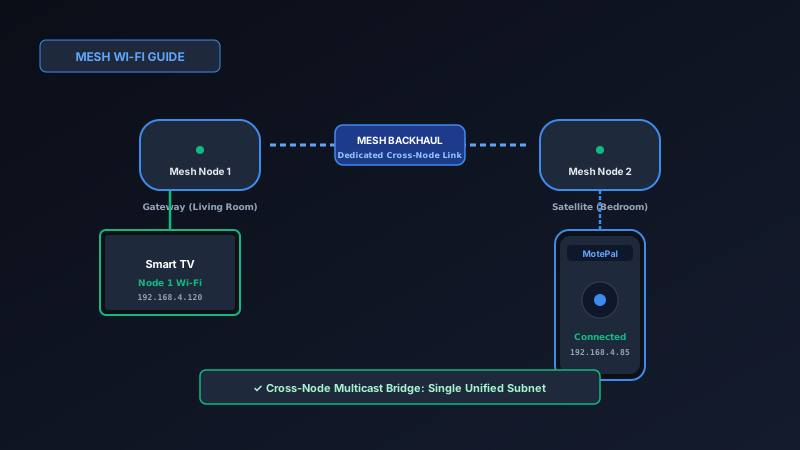
If your smart TV remote app works when you are in the living room next to your television but disconnects or fails to find your TV when you walk to another room, your Mesh Wi-Fi system (such as Amazon Eero, Google Nest WiFi, or TP-Link Deco) is dropping discovery packets across its mesh nodes. To fix this: verify that both devices share the exact same subnet IP prefix (e.g. 192.168.4.x or 192.168.86.x) to eliminate Double NAT conflicts. Then enable Ethernet Backhaul or toggle off Fast Roaming (802.11r) in your mesh app. Once stabilized, install MotePal to control your television with zero ads.
Whole-home mesh Wi-Fi systems have revolutionized residential internet coverage. By placing multiple synchronized wireless pods throughout your home, systems like Amazon Eero, Google Nest WiFi, and TP-Link Deco eliminate dead spots and provide seamless roaming across floors and patios.
Yet mesh networks introduce unique routing complexities for local smart home gadgets and TV remote applications.
A frequent scenario reported by mesh owners: your phone remote app connects to your TV perfectly while standing in front of the screen. But the moment you walk into the kitchen or upstairs to a bedroom, the remote app reports “Connection Lost” or “Scanning for TV…”.
Here is an architectural breakdown of why cross-node mesh routing disrupts smart TV discovery protocols, and how to configure your mesh system for uninterrupted TV control throughout your entire home.
When mesh backhauls are configured properly, devices connected to satellite pods communicate with gateway devices on a single unified subnet.
How Mesh Networks Function Internally
In a traditional router setup, a single access point manages all connected devices. In a mesh network, your system consists of a Gateway Node (plugged directly into your modem) and one or more Satellite Nodes placed in other rooms.
These nodes communicate with each other over a dedicated communication channel called the Mesh Backhaul. The backhaul can operate wirelessly (using a dedicated 5 GHz or 6 GHz wireless radio) or wired (using physical Ethernet cables running between pods).
Under ideal conditions, the mesh operating system bridges all nodes together at Layer 2. Regardless of which pod your phone or television connects to, both devices receive IP addresses from the primary gateway node’s DHCP server (for example, 192.168.4.x on Eero or 192.168.86.x on Google Nest).
However, two common technical hurdles can disrupt cross-node smart TV control:
1. The Double NAT Trap (Two Active Routers)
This is by far the most frequent configuration error in homes with mesh Wi-Fi.
When your internet service provider installs their equipment, they typically provide a combined modem/router gateway (such as a Comcast Xfinity Gateway or AT&T BGW320). If you then plug your Eero, Nest WiFi, or Deco system into the ISP box without turning off the ISP box’s router functions, you create a Double NAT (Network Address Translation):
- The ISP box creates Subnet A:
192.168.1.x - The Mesh system creates Subnet B:
192.168.4.x
If your smart TV is plugged into the Ethernet port on the ISP box or connects to the ISP box’s old Wi-Fi, while your smartphone connects to the new Mesh Wi-Fi, the devices are located on two completely isolated networks separated by an internal firewall. Your phone remote app will never find the TV.
2. Cross-Node Multicast Filtering Over Wireless Backhauls
When mesh pods communicate wirelessly, airtime bandwidth is precious. Some mesh firmware intentionally deprioritizes or filters broadcast and multicast packets crossing the wireless backhaul to maximize bandwidth for unicast Netflix and YouTube streams.
Because smart TV discovery relies on SSDP (UDP 1900) and mDNS (UDP 5353) multicast datagrams, a phone connected to Satellite Node 2 may send discovery packets that the mesh backhaul drops before reaching Gateway Node 1 where the TV is connected.
How to Fix Mesh TV Remote Issues on Top Systems
Fix 1: Eliminate Double NAT (Bridge Mode)
To ensure all devices in your home belong to the exact same broadcast domain:
- Log into your ISP modem/router’s administrative console (usually
192.168.1.254or192.168.0.1). - Locate the setting for Router Mode or NAT Mode.
- Switch the ISP device to Bridge Mode or IP Passthrough.
- Disable the Wi-Fi radios on the ISP device so it acts solely as a transparent broadband modem.
- Ensure that all wired devices (including your television or switch) are plugged into your primary mesh gateway node, not the ISP modem.
Fix 2: Optimizing Amazon Eero Systems
Amazon Eero is designed for simplicity, but certain advanced features can affect device discovery:
- Open the Eero app on your phone.
- Go to Settings > Network settings.
- Under UPnP, ensure that Universal Plug and Play is toggled ON.
- If you have Eero Plus with Client Steering, leave it on, but if discovery drops persist when moving between rooms, go to Troubleshooting > Restart Network to force the Eero cloud controller to rebuild its multicast routing tables.
- Never connect your television or phone to the Eero “Guest Network”, as Eero enforces strict client isolation on guest connections.
Fix 3: Optimizing Google Nest WiFi / Google Home
- Open the Google Home app.
- Tap Wi-Fi > Settings (gear icon).
- Under Advanced networking, verify that UPnP is toggled ON.
- If your TV frequently drops connection, check the Devices list in the Google Home app. Tap your smart TV and verify its IP address matches your phone’s subnet prefix (e.g., both start with
192.168.86.xxx).
Fix 4: Optimizing TP-Link Deco Mesh
TP-Link Deco systems feature specific toggles for local device discovery:
- Open the Deco app on your smartphone.
- Tap the More tab in the bottom right corner.
- Tap Advanced.
- Locate Fast Roaming (802.11r). If an older smart TV frequently drops offline when you walk nearby with your phone, temporarily toggle Fast Roaming to OFF (some older television Wi-Fi chips do not support 802.11r handshakes).
- Locate Beamforming and ensure it is ON.
- Under IPTV/VLAN, verify that IGMP Snooping is enabled.
Wireless Backhaul vs Ethernet Backhaul
| Backhaul Type | Cross-Node Discovery Latency | Multicast Packet Drop Rate | Wake-on-LAN Reliability |
|---|---|---|---|
| Ethernet Backhaul (Wired Cat6) | < 1 millisecond | 0.0% (Zero dropped frames) | 100% Reliable |
| Tri-Band Wireless Backhaul | 5 to 15 milliseconds | < 0.5% (Very stable) | Highly Reliable |
| Dual-Band Wireless Backhaul | 20 to 60 milliseconds | 2% to 5% (Subject to airtime traffic) | Moderate |
If your home has internal Ethernet cabling, connecting your mesh satellite pods via Ethernet Backhaul converts your mesh system into a series of wired access points. This completely eliminates multicast drop rates across nodes.
Connecting with MotePal
Once your mesh nodes share a unified subnet:
- Open MotePal on your Android smartphone.
- Tap the TV selector at the top of the remote interface.
- MotePal scans the subnet and locates your smart TV regardless of whether your phone is linked to the primary gateway node or a distant satellite pod.
- Enjoy instant, low-latency control with full touchpad navigation, fast keyboard typing, and zero full-screen advertisements.
Frequently Asked Questions
Why does my phone remote work in the living room but fail in the bedroom?
When you move to the bedroom, your phone automatically roams to the nearest satellite mesh pod. If your mesh system drops multicast discovery packets across its wireless backhaul, your phone can no longer discover the television connected to the living room pod. Resolving double NAT or connecting satellite pods via Ethernet backhaul permanently fixes this.
Can I assign a static IP to my TV on a mesh network?
Yes. Inside the Eero, Google Home, or Deco mobile app, navigate to Network Settings > DHCP & NAT > Reservations. Select your smart TV and assign it a permanent static IP. This ensures the TV’s IP address never changes when mesh nodes reboot.
Do mesh Wi-Fi extenders support smart TV Wake-on-LAN?
Standard mesh pods from reputable brands (Eero, Nest, Deco) forward Wake-on-LAN UDP port 9 magic packets across nodes reliably. However, cheap third-party plug-in Wi-Fi repeaters often strip broadcast packets. Use native mesh hardware rather than generic Wi-Fi boosters for best results.
Does turning off Fast Roaming make my mesh Wi-Fi slower?
No. Fast Roaming (802.11r) simply speeds up the authentication handshake when moving between access points. Disabling it adds only a few milliseconds when your phone switches pods, but it dramatically improves compatibility with smart TVs and IoT appliances that lack 802.11r support.
Need an Instant TV Remote on Your Phone?
MotePal connects to your Google TV, Android TV, Roku, Samsung, or LG TV over Wi-Fi in seconds. 100% free with zero ads and no account required.
