


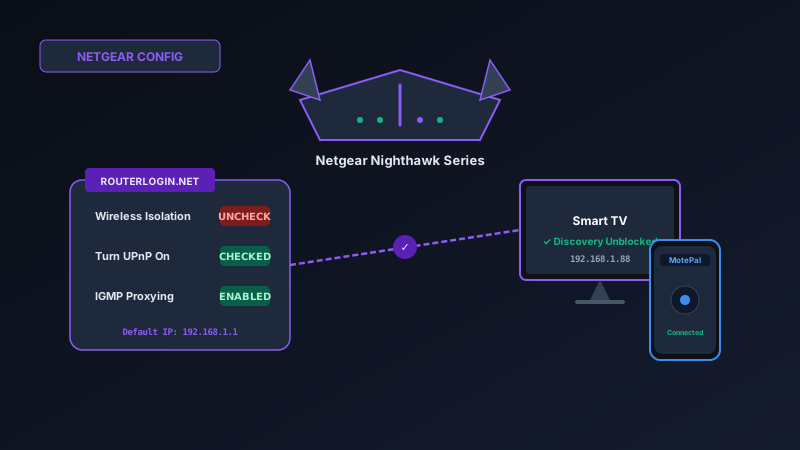
If your smart TV remote app fails to discover your television on a Netgear Nighthawk router, Netgear's Wireless Isolation or Netgear Armor security filter is preventing local peer-to-peer communication. To fix this: log into your router console at routerlogin.net (or 192.168.1.1), navigate to ADVANCED > Setup > Wireless Setup, and uncheck Enable Wireless Isolation on both 2.4 GHz and 5 GHz radios. Next, open ADVANCED > Advanced Setup > UPnP and ensure UPnP is turned on. Once applied, launch MotePal or test the interactive web demo to pair your TV instantly with zero ads.
Netgear Nighthawk routers (such as the RAX43, RAX50, RAX120, and older R7000 models) are recognized for high-performance throughput, aggressive beamforming, and dedicated gaming optimizations.
However, many Nighthawk owners encounter an infuriating issue when setting up smart home controls: their smartphone remote app cannot find their Roku, Android TV, Samsung, or LG television, even though both devices are sitting in the same room connected to the same Wi-Fi.
This discovery failure is typically caused by two Netgear-specific firmware settings: Wireless Isolation and IGMP Proxy filtering, occasionally compounded by Netgear Armor’s automated device shielding.
Here is how to configure your Netgear Nighthawk router to permit local smart TV remote communication while keeping your overall network secure.
Disabling Wireless Isolation in Netgear Nighthawk firmware permits SSDP and mDNS packets to route between wireless stations.
The Culprit: Wireless Isolation on Netgear Firmware
Netgear routers feature a security setting called Wireless Isolation. When checked, Wireless Isolation creates an internal firewall rule that segregates every wireless client into its own private sub-network.
Although both your phone and television connect to the same Wi-Fi SSID and receive valid IP addresses from the router’s DHCP server, the router drops all Layer 2 frames (including ARP, SSDP, and mDNS) attempting to pass between wireless stations.
Netgear occasionally enables this setting by default on the secondary guest network, but certain automated firmware updates have been known to turn on Wireless Isolation across standard 2.4 GHz and 5 GHz networks unintentionally.
Step-by-Step Configuration on Netgear Nighthawk
To restore local TV discovery, open a desktop browser or mobile browser connected to your Nighthawk Wi-Fi:
Step 1: Access routerlogin.net
- Open Chrome, Edge, or Safari on your phone or laptop.
- Type
http://www.routerlogin.netorhttp://192.168.1.1into the address bar. - Enter your admin credentials. (The default username is
admin, and the password is the custom password you set during initial setup, orpasswordon older models).
Step 2: Disable Wireless Isolation
- Click the ADVANCED tab at the top of the Netgear Genie / Nighthawk dashboard.
- In the left menu, expand Setup and click Wireless Setup.
- Scroll down to the Wireless Network (2.4GHz b/g/n/ax) section.
- Locate the checkbox labeled Enable Wireless Isolation.
- Ensure the box is UNCHECKED.
- Scroll down to the Wireless Network (5GHz a/n/ac/ax) section.
- Ensure the checkbox for Enable Wireless Isolation is also UNCHECKED.
- Click the Apply button at the top or bottom of the screen.
Step 3: Turn On UPnP (Universal Plug and Play)
- In the left-hand navigation column under ADVANCED, expand Advanced Setup.
- Click on UPnP.
- Verify that the checkbox for Turn UPnP On is CHECKED.
- Set the Advertisement Period to 30 minutes and Advertisement Time to Live (hops) to 4.
- Click Apply.
Step 4: Verify IGMP Proxying Under WAN Setup
- In the left menu under Advanced Setup, click on WAN Setup.
- Locate the setting labeled Disable IGMP Proxying.
- Make sure the checkbox for Disable IGMP Proxying is UNCHECKED.
- Note the wording carefully: because the setting is named “Disable”, leaving it unchecked means that IGMP Proxying is active, allowing multicast discovery streams to route properly between devices.
- Click Apply.
Netgear Armor / Bitdefender IoT Shielding Traps
If you have Netgear Armor (powered by Bitdefender) active on your Nighthawk router, its automated vulnerability scanner can sometimes flag the local communication between your phone and your smart TV.
When an app like MotePal scans your local network for open ports (port 8060 for Roku, port 6466 for Android TV, port 8001 for Samsung), Netgear Armor may misinterpret this as a port-scanning attack and temporarily block your phone’s IP address from communicating with the TV.
How to whitelist your smart TV in Netgear Armor:
- Open the Nighthawk app on your smartphone.
- Tap the Security tile (Netgear Armor).
- Tap Devices and locate your smart television (e.g.,
Roku TVorSony Bravia). - Check if the television has an active alert or is set to “Blocked”.
- If an alert exists regarding port scanning or unauthorized connections, select the alert and tap Allow or Trust Device.
Recommended Configuration Matrix for Netgear Routers
| Setting Menu | Required State | Why It Matters for TV Remotes |
|---|---|---|
| ADVANCED > Setup > Wireless Setup > Wireless Isolation | Unchecked (Disabled) | Removes the barrier preventing phone and TV from talking over Wi-Fi |
| ADVANCED > Advanced Setup > UPnP | Checked (Enabled) | Permits dynamic service discovery and media control callbacks |
| ADVANCED > Advanced Setup > WAN Setup > Disable IGMP Proxying | Unchecked (Active) | Enables multicast packet forwarding across the internal network switch |
| Nighthawk Mobile App > Netgear Armor | Trust TV Device | Prevents automated security shielding from blocking remote control ports |
Pairing with MotePal After Setup
After applying these changes, your Netgear Nighthawk router will restart its wireless radios (taking approximately 20 to 30 seconds):
- Open MotePal on your Android phone.
- Tap the TV selector at the top of the remote screen.
- Your smart TV will immediately appear in the device list.
- Tap your TV to connect instantly over Roku ECP (port 8060), Android TV TLS (port 6466), or Samsung Tizen (port 8001) with zero ads and no account registration.
Frequently Asked Questions
Does unchecking Wireless Isolation make my Netgear router less safe?
On your private primary home Wi-Fi network where all connected devices belong to your household, leaving Wireless Isolation disabled is completely safe and is the standard industry configuration. It allows smart home gadgets, wireless printers, and TV remotes to function. You should only enable Wireless Isolation on your Guest Wi-Fi network.
Why does routerlogin.net fail to open on my browser?
If typing routerlogin.net shows an error page, your browser is likely routing the request to a public DNS search engine instead of your local router gateway. To fix this, enter your router’s direct IP address into your browser address bar: http://192.168.1.1 or http://192.168.0.1.
Does Smart Connect on Netgear Nighthawk interfere with TV remotes?
Netgear’s Smart Connect automatically assigns devices to the 2.4 GHz or 5 GHz band based on signal strength. On modern Nighthawk firmware, Smart Connect bridges multicast packets across bands reliably once Wireless Isolation is disabled. However, if your TV is 2.4 GHz-only and your phone is on 5 GHz and drops connection, turning off Smart Connect to create separate SSIDs will permanently fix the issue.
Which Netgear Nighthawk models include these settings?
These settings are present across virtually all Nighthawk models running Netgear Genie or modern Nighthawk OS, including the Nighthawk R6700, R7000, R8000, RAX20, RAX40, RAX50, RAX70, RAX120, and Nighthawk Pro Gaming XR500/XR1000 models.
Need an Instant TV Remote on Your Phone?
MotePal connects to your Google TV, Android TV, Roku, Samsung, or LG TV over Wi-Fi in seconds. 100% free with zero ads and no account required.
