


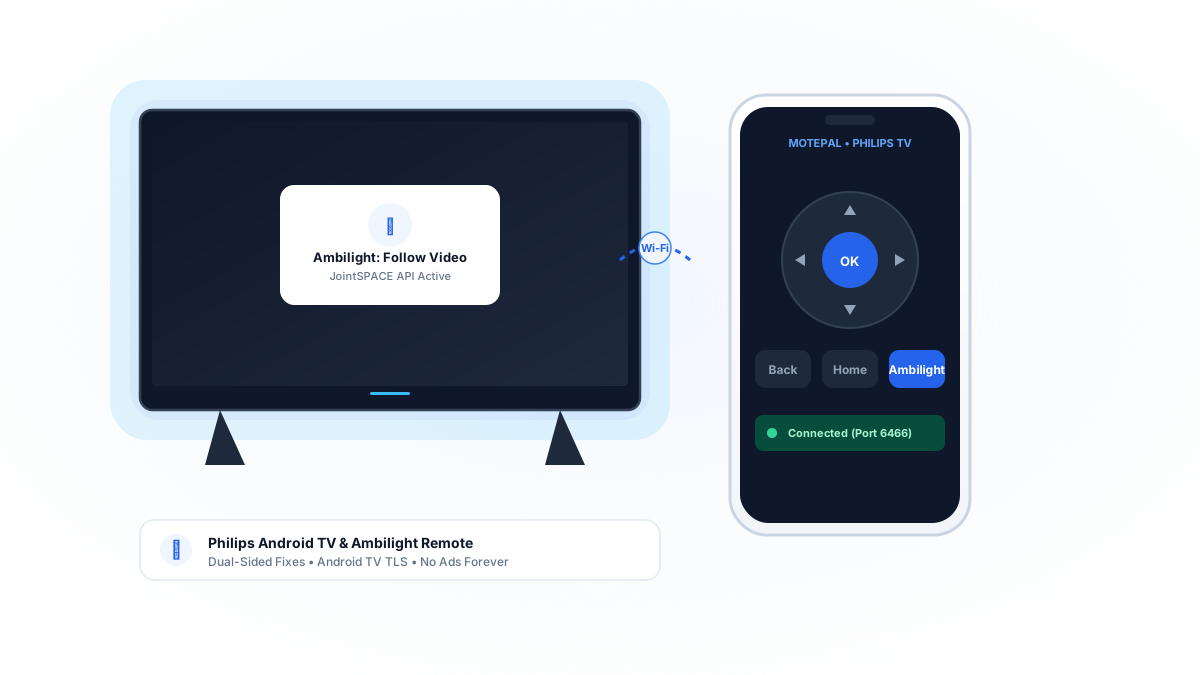
If your Philips Android TV or Google TV (including OLED707, OLED807, The One, and PUS8507 series) remote stops responding: first, stand within 3 feet of the TV and press both the PAIR button (or Home and Back) for 5 seconds until the LED ring pulses. Second, if your dual-sided keyboard remote has stopped typing, install MotePal on your Android phone to regain instant Wi-Fi control over secure Android TV TLS (port 6466) with zero ads and no account required.
Philips smart televisions (manufactured by TP Vision across Europe, the UK, Latin America, and Asia) have earned widespread praise for their distinctive Ambilight rear-projected LED backlighting. Running official Android TV or Google TV operating systems, these televisions offer excellent visual immersion.
However, Philips remotes are notably complex: many flagship models ship with a dual-sided physical remote featuring standard navigation buttons on the front and a miniature full QWERTY keyboard on the reverse side.
Because of this dual-sided layout, the remote utilizes both an optical gyroscope to disable whichever side faces downward and an RF Bluetooth transceiver. When orientation sensors glitch or Bluetooth pairings disconnect, buttons frequently freeze.
Here is how to resolve Philips remote unresponsiveness, configure Ambilight controls, and maintain seamless control from your Android phone.
MotePal connects directly to Philips Android TV and Google TV over local Wi-Fi port 6466 with zero cloud delay.
Step 1: Re-Pairing the Philips Remote via Bluetooth
When the infrared Power button works but the D-pad arrows and rear keyboard fail to register:
- Stand within 3 feet (1 meter) of the television.
- Look at the lower front edge of the TV where the Philips logo and blue standby LED are located.
- On your physical remote, locate the PAIR button (on older models, hold both SOURCES and PAIR, or hold Home and Back simultaneously).
- Hold for 5 seconds until the blue LED ring around the microphone or standby key flashes rapidly.
- An on-screen prompt reading “Pairing remote control…” will appear on your TV.
- Once the message “Pairing successful” displays, test the directional pad.
Step 2: Gyroscope Reset on Dual-Sided Remotes
Philips dual-sided remotes contain an internal tilt switch to prevent accidental button presses on the underside while typing:
- Remove both AAA alkaline batteries from the remote compartment.
- Place the remote completely flat on a table face up for 30 seconds.
- Firmly press all front-facing buttons twice to discharge residual capacitance.
- Flip the remote completely flat face down on the table for 30 seconds.
- Insert fresh 1.5V alkaline batteries.
- Pick up the remote horizontally: the gyroscope will recalibrate its operational axes automatically.
Step 3: Connect MotePal for Rock-Solid Control
If your physical remote hardware has failed or you want an effortless typing experience, your Android phone can take over immediately using Google’s native Android TV Remote v2 protocol.
MotePal speaks directly to your Philips TV over your internal home Wi-Fi:
- Download MotePal on Google Play.
- Confirm your smartphone is on the same local Wi-Fi network as your Philips Android TV.
- Open MotePal. The discovery engine detects your Philips TV automatically.
- Tap your TV in the list.
- A 6-character alphanumeric pairing code will appear on your television screen.
- Enter the pairing code in MotePal and tap Pair.
- The connection is authenticated and saved locally on your phone.
You can preview the interface and test touch controls right now on our interactive web remote simulator.
Using MotePal on your phone, you can access the quick TV settings menu by tapping the Settings icon to toggle Ambilight between Follow Video, Follow Audio, and static Lounge Light modes without interrupting your movie.
Frequently Asked Questions
Where is the physical joystick button on Philips Smart TVs?
On modern Philips Android TVs (such as the PUS8507 and OLED series), the physical control joystick is located on the lower right or lower left rear of the television panel. Press the joystick inward to display the quick menu, and toggle directions to adjust Power, Volume, and Sources.
Why does my Philips TV remote lose pairing after updating software?
When Philips pushes firmware updates to the TV, the system’s Bluetooth daemon often wipes stored pairing keys. Using MotePal to navigate into Settings > Wireless and Networks > Bluetooth and deleting old remote entries before re-pairing fixes repeated disconnection bugs.
Does MotePal contain ads while controlling my Philips TV?
No. MotePal is 100 percent free with zero ads, zero tracking scripts, and no user registration requirements.
Need an Instant TV Remote on Your Phone?
MotePal connects to your Google TV, Android TV, Roku, Samsung, or LG TV over Wi-Fi in seconds. 100% free with zero ads and no account required.
