


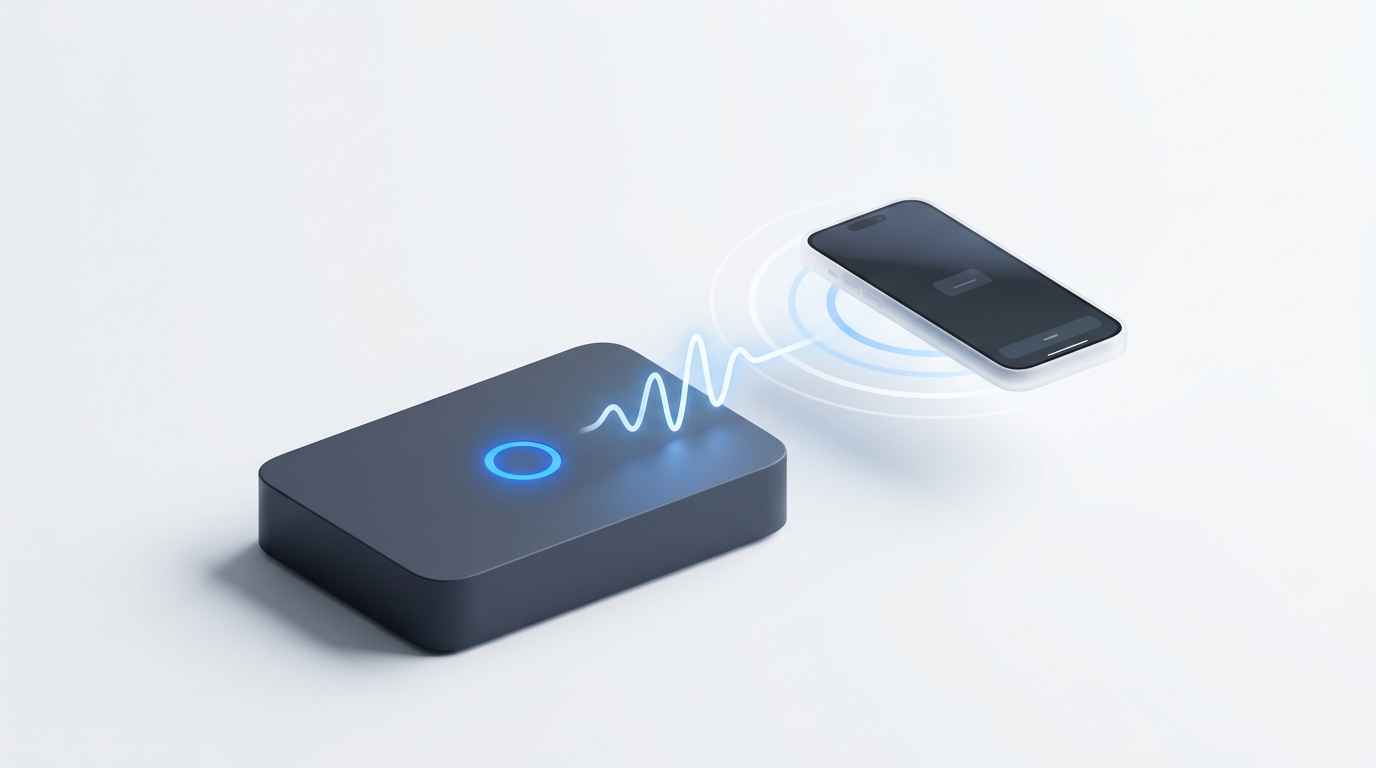
The Roku Ultra features a physical Lost Remote Finder button on the side of the console box (or via hands-free voice commands). However, if your remote battery is drained or the remote has dropped off your home Wi-Fi network, the beeper cannot sound. Install MotePal on your Android phone to regain instant control over Roku's native External Control Protocol (ECP port 8060) with zero ads, private listening support, and fast clipboard typing.
The Roku Ultra stands as Roku’s flagship streaming player, equipped with Dolby Vision, HDR10+, quad-core processing, and the advanced Roku Voice Remote Pro. One of its standout marketing features is the integrated Lost Remote Finder, designed to trigger an audio chime on the remote so you can locate it under cushions or beneath chairs.
However, many Roku Ultra owners discover a frustrating catch: when the remote battery dies completely or when RF interference severs the Wi-Fi Direct connection between the box and the remote, pressing the physical finder button does nothing.
If you are stuck looking at a dark television screen with a missing or unresponsive remote, here is how the remote finder works, why it fails, and how to use your phone for seamless control.
When physical remote batteries die and the finder beeper fails, MotePal provides immediate control over local Roku ECP port 8060.
How the Roku Ultra Remote Finder Works
The Roku Ultra console features a physical button located on the right or top edge of the streaming box:
- Pressing the physical button once sends an RF trigger packet across the local Wi-Fi Direct link to the paired Voice Remote.
- The remote’s internal piezo speaker plays your chosen chime (such as a whistle, sonar ping, or traditional beep) for up to 60 seconds.
- Pressing any button on the physical remote cancels the audio alert.
- On newer Roku Ultra models with hands-free voice, you can also say “Hey Roku, find my remote” within listening range of the box.
Why the Remote Finder Fails:
- Completely Drained Battery: The Voice Remote Pro contains an internal rechargeable lithium battery. If the battery is at 0 percent charge, the internal speaker has no electrical power to sound an alert.
- RF Wi-Fi Sleep State: To conserve battery, the remote drops into deep sleep after 10 minutes of inactivity. If the TV is powered down, the remote might fail to awaken when the finder command is broadcast.
- Out of Wireless Range: If the remote was inadvertently carried into another room or buried beneath metallic heat ducts, the signal cannot penetrate.
Step 1: Connect MotePal to Roku Ultra Over Wi-Fi
Roku players feature an open, local developer API called the External Control Protocol (ECP) operating over standard HTTP port 8060.
Unlike cloud apps, MotePal talks directly to your Roku Ultra over your local Wi-Fi network:
- Download MotePal on Google Play.
- Confirm your smartphone is connected to the same Wi-Fi router as your Roku Ultra.
- Open MotePal. The app scans your local network using SSDP and discovers your Roku Ultra automatically.
- Tap your Roku Ultra.
- The remote opens instantly. There are no pairing codes to type and no account registration screens.
You can preview the interface and layout right now on our interactive web remote simulator.
Step 2: Triggering Remote Finder Sounds from Settings
If you suspect your physical remote still has some battery life left but the physical button on the box is blocked behind an entertainment center, you can trigger the finder sound directly using MotePal on your phone:
- In MotePal, navigate to Settings > Remotes & Accessories > Remotes.
- Select your paired Voice Remote Pro.
- Select Find remote.
- Choose Change sound to cycle through whistle, chirp, or alarm sounds if the standard tone is difficult to hear.
Using MotePal, you can check the exact remaining battery percentage of your lost physical remote. Open Settings > Remotes & Accessories > Remotes > Voice Remote Pro > About. If the battery shows 0 percent or "Disconnected", stop searching with the audio finder and use MotePal while your remote charges on a micro-USB or USB-C cable.
Step 3: Fast Keyboard Input and Channel Launching
Using your phone to control the Roku Ultra offers major quality-of-life benefits over the physical remote:
- Instant Search Typing: Type passwords, usernames, and movie titles directly from your mobile keyboard rather than scrolling through on-screen letters.
- Channel Shortcuts: Launch Netflix, Disney+, Prime Video, Max, or YouTube directly without scrolling past sponsored home screen banners.
- 100 Percent Ad-Free Control: Generic remote apps from the Google Play store flood you with unskippable video commercials. MotePal contains absolutely zero advertising.
Frequently Asked Questions
Can I control my Roku Ultra if it is connected via Ethernet cable?
Yes. The Roku Ultra features an Ethernet port. As long as your phone is connected to the Wi-Fi broadcast of the same local home router, MotePal discovers and controls the Roku Ultra across Ethernet and Wi-Fi subnets seamlessly.
How do I re-pair my Roku Voice Remote Pro once found?
Slide the pairing switch on the back or bottom of the remote, or press and hold the pairing button for 5 seconds until the status LED pulses. Turn on the TV, and the Roku Ultra will automatically reconnect.
Why is MotePal better than the official Roku mobile app?
The official Roku app includes heavy social features, commercial promotions, and requires account sign-in. MotePal is an ultra-lightweight, private, and ad-free dedicated remote control focused solely on speed and responsive TV navigation.
Need an Instant TV Remote on Your Phone?
MotePal connects to your Google TV, Android TV, Roku, Samsung, or LG TV over Wi-Fi in seconds. 100% free with zero ads and no account required.
