


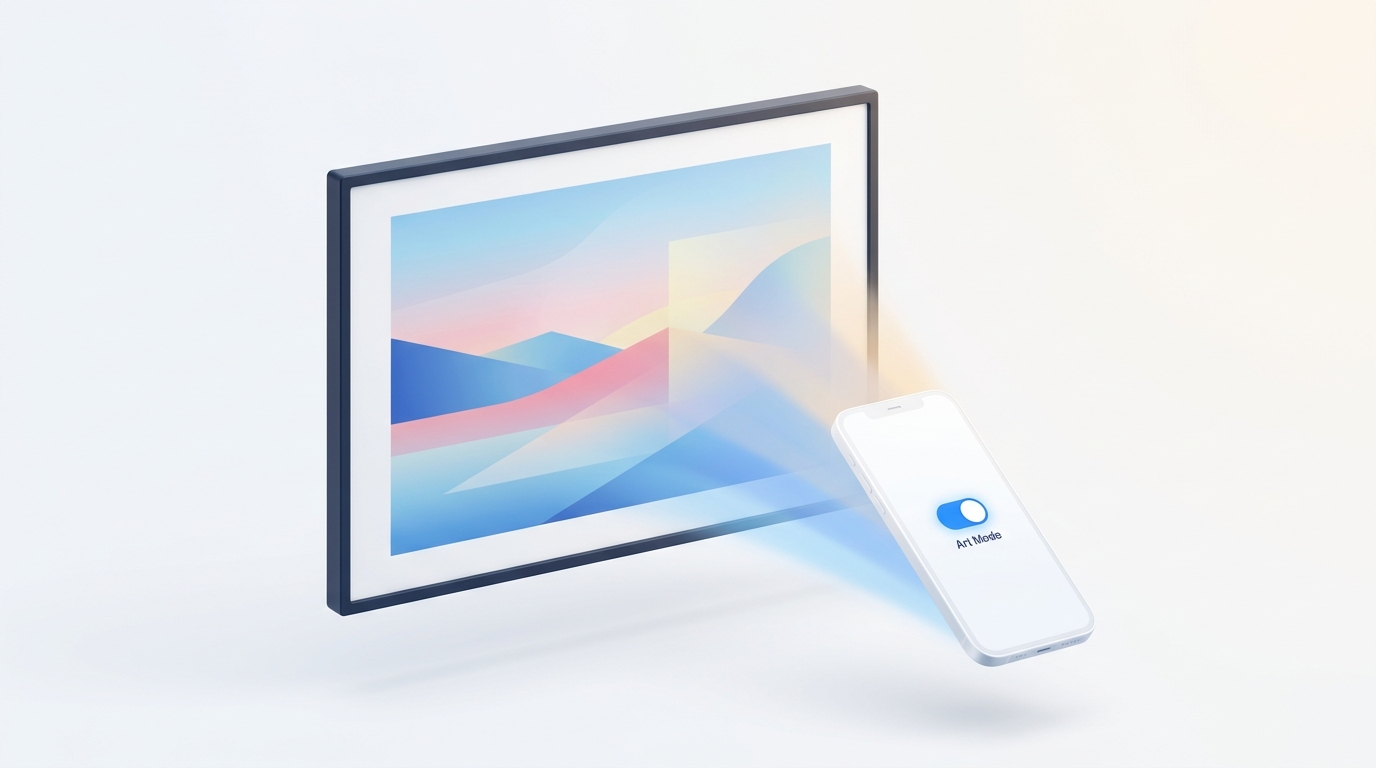
Samsung The Frame TV handles power differently than ordinary televisions: a brief press of the power button toggles Art Mode (matte painting display), while holding the button for 3 seconds turns the television off completely. If your solar OneRemote is unresponsive or you are tired of SmartThings cloud lag, install MotePal on your Android phone to control Art Mode, volume, inputs, and D-pad menus directly over local encrypted WebSocket (port 8002).
Samsung The Frame has earned a dedicated following for turning blank living room black screens into framed museum artwork. However, controlling The Frame TV often causes confusion because of its unique dual-state power architecture: TV Mode, Art Mode, and Full Standby Power Off.
When the slim Samsung OneRemote runs out of solar or USB-C battery charge, or when SmartThings app servers experience high latency, switching between watching movies and displaying artwork becomes frustrating.
Here is everything you need to know about navigating Samsung The Frame effectively and controlling it directly from your Android phone without cloud delays.
MotePal issues encrypted WebSocket requests directly to Samsung Tizen OS on your home network, triggering Art Mode instantly without cloud latency.
Understanding The Frame TV Power Logic
Traditional Samsung televisions turn completely off when you press the power key. Samsung The Frame operates with three distinct power tiers:
- TV Mode: The screen operates as a normal 4K television with full backlighting, high dynamic range, and active audio.
- Art Mode: Pressing the physical power button once briefly switches the screen into Art Mode. The TV dials back panel power, dims the backlight to match room lighting using ambient light sensors, and displays selected digital paintings or personal photography.
- Full Power Off (Deep Standby): Pressing and holding the power button for 3 to 4 seconds turns off both TV Mode and Art Mode, putting the television into deep standby consumption (less than 0.5W).
If your TV keeps switching to paintings when you want it completely off, you simply need to hold the power button down rather than tapping it once.
Step 1: Connecting MotePal to Samsung The Frame
While Samsung’s official SmartThings app can manage The Frame, it forces your commands to bounce through Samsung cloud servers. This frequently causes noticeable delay between tapping your phone screen and the TV responding.
MotePal eliminates cloud intermediaries by talking directly to Samsung Tizen OS on your local Wi-Fi:
- Download MotePal on Google Play.
- Confirm your smartphone is on the same local Wi-Fi network as your Frame TV.
- Open MotePal. The app will detect your Samsung TV within seconds.
- Tap your TV in the list.
- Look at the top corner of your Frame screen. Select Allow on the permission banner using the jog button on the TV chassis (or a plugged-in USB mouse).
- MotePal exchanges an authorization token with Tizen OS and saves it locally.
You can preview the interface and layout right now on our interactive web remote simulator.
Step 2: Navigating Art Mode and Ambient Settings
Once connected via MotePal, you can effortlessly manage The Frame TV features without dealing with missing plastic remotes:
- Instant Art Mode Switching: Tap the dedicated power control to transition smoothly between television watching and art gallery display.
- Tizen Home Navigation: Seamlessly glide through Samsung’s Tizen interface (including Netflix, Disney+, Prime Video, and Apple TV) with crisp directional buttons.
- Fast Keyboard Input: Instead of picking letters one by one across Samsung’s horizontal letter picker, type text directly on your Android keyboard into search bars. Learn more in our Samsung TV keyboard and touchpad navigation guide.
To ensure The Frame TV does not stay illuminated in an empty room, open Settings > All Settings > General & Privacy > Art Mode Options. Turn on Motion Detector and set the sleep timer to 15 minutes. Additionally, activate Night Mode so the TV automatically turns off completely when it detects that the room lights have been turned off.
What to Do When The Frame OneRemote Fails to Charge
The solar-powered OneRemote (models with solar panels on the rear) can occasionally lose charge if stored face-up in dark entertainment cabinets.
- USB-C Fast Recharge: Plug a standard USB-C phone charger into the port on the bottom edge of the OneRemote for 30 minutes. The small LED will indicate charge status.
- Re-Pairing Bluetooth: If the remote has battery power but does not respond, point the remote at the lower right sensor of The Frame TV from 1 foot away. Press and hold both the Return (Back) and Play/Pause buttons simultaneously for 5 seconds until a Bluetooth pairing animation appears on the television.
- Sensor Obstruction: The One Connect Box IR receiver and motion sensor are located at the bottom right corner of The Frame’s bezel. Ensure soundbars, decorations, or picture ledges do not block this sensor.
Frequently Asked Questions
Why does my Samsung Frame TV turn back on by itself?
The Frame is designed with an integrated motion sensor. If the sensor detects people walking into the room, pets moving, or curtains shifting near a fan, it automatically wakes up the screen to display artwork. You can reduce sensor sensitivity or disable motion wake-up under Art Mode Settings > Motion Sensor Sensitivity.
Can I turn off The Frame TV completely from my phone?
Yes. With MotePal, holding down the on-screen Power button sends the deep-standby power down packet to Tizen OS, switching the TV off completely without entering Art Mode.
Does MotePal work with all years of Samsung The Frame?
MotePal supports all generations of Samsung The Frame from 2017 through the latest 2024 to 2026 models with matte anti-reflection displays, including 32-inch, 43-inch, 50-inch, 55-inch, 65-inch, 75-inch, and 85-inch variants.
Need an Instant TV Remote on Your Phone?
MotePal connects to your Google TV, Android TV, Roku, Samsung, or LG TV over Wi-Fi in seconds. 100% free with zero ads and no account required.
