


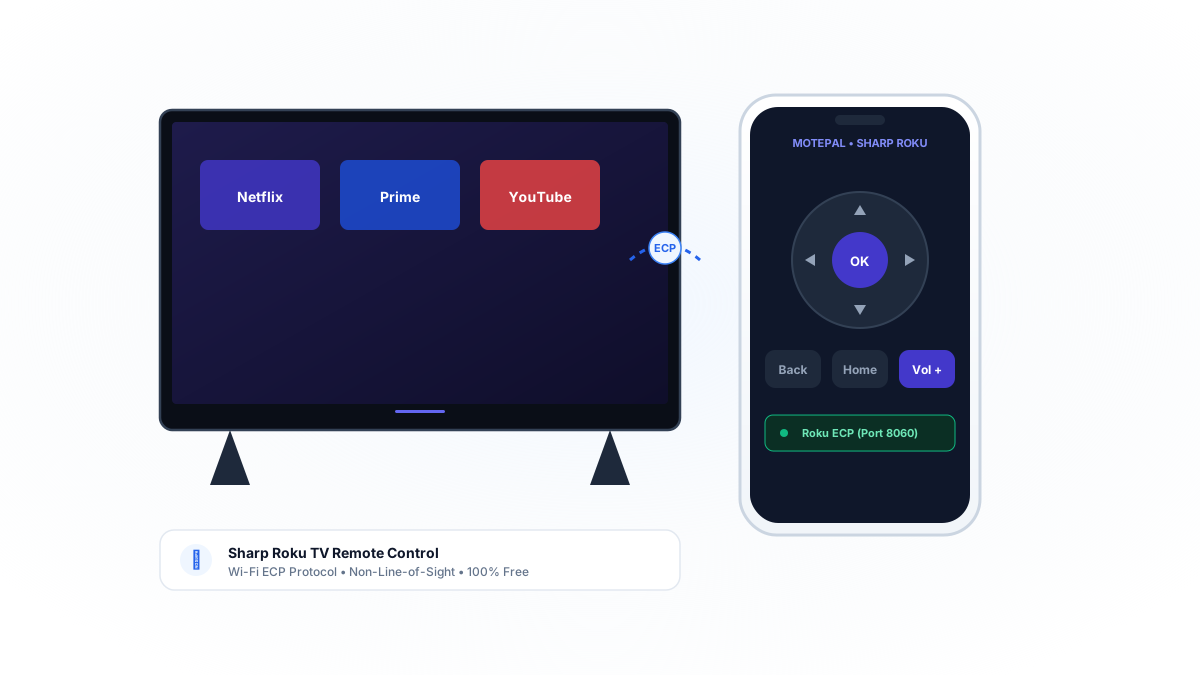
If your Sharp Roku TV remote suddenly stops responding: first, remove both batteries and press every button on the remote twice firmly to discharge static electricity. Second, if you have a Roku Voice Remote with a pairing button, press and hold it for 5 seconds until the status LED pulses. If the physical remote is dead or lost, install MotePal on your Android phone to regain instant Wi-Fi control over Roku's native External Control Protocol (ECP port 8060) with zero ads and no account required.
Sharp Roku smart televisions are popular choices for living rooms and bedrooms, integrating Roku’s intuitive streaming platform directly into Sharp’s reliable display hardware.
However, remote control unresponsiveness is a frequent issue for Sharp Roku TV owners. Depending on the model year, Sharp shipped televisions with either basic infrared (IR) remotes or enhanced wireless Voice Remotes.
When optical IR sensors are blocked, when AAA batteries dip below operational voltage, or when wireless RF pairing disconnects after a Roku OS update, navigating your streaming channels becomes impossible.
Here is how to diagnose and fix your physical Sharp Roku TV remote, or replace it permanently using your Android smartphone.
MotePal communicates directly with Sharp Roku TVs over local Wi-Fi port 8060 with zero pairing codes and no account registration.
Step 1: Identify Your Sharp Roku Remote Type
Before attempting to fix your remote, determine whether you have an Infrared (IR) remote or an Enhanced Wireless (RF) remote:
- Standard IR Remote: Open the rear battery door. If there is no small circular button beneath the batteries, you have an infrared remote. It requires clear line-of-sight pointing toward the lower left sensor of the Sharp TV.
- Enhanced Voice Remote: If you see a small circular pairing button with an adjacent green LED, or if your remote features a microphone button on the keypad, it communicates wirelessly via Wi-Fi Direct.
Step 2: Troubleshooting Physical Remote Failures
For Standard Sharp Infrared (IR) Remotes:
- Remove both AAA batteries.
- Hold down the physical Power button for 20 seconds to drain lingering residual charge from the logic board.
- Press every single button on the keypad firmly twice. This cleans dirt and oxidation from beneath the silicone membrane.
- Insert fresh 1.5V alkaline batteries (avoid rechargeable NiMH batteries).
- Point your smartphone camera at the top tip of the remote and press buttons. If you see a faint purple flashing light through your phone screen, the IR diode is firing correctly. If no light appears, the remote hardware has permanently failed.
For Enhanced Sharp Voice Remotes:
- Turn on the TV manually using the physical button on the TV frame.
- Open the remote battery compartment and locate the circular Pairing button.
- Press and hold the pairing button for 5 continuous seconds until the status LED begins flashing.
- Restart your Sharp Roku TV: unplug the power cord from the wall for 10 seconds, then plug it back in.
- During system startup, the TV will automatically detect and pair the remote.
Step 3: Use MotePal for Instant Wi-Fi Control
If your physical remote is lost, broken, or suffering from battery drain, your Android smartphone can control your Sharp Roku TV immediately over your home Wi-Fi.
All Roku televisions feature the open External Control Protocol (ECP) operating over port 8060:
- Download MotePal on Google Play.
- Confirm your Android smartphone is connected to the same Wi-Fi router as your Sharp Roku TV.
- Open MotePal. The discovery radar locates your Sharp TV automatically via SSDP.
- Tap your Sharp Roku TV in the list.
- Control opens immediately. You do not need to enter pairing codes or sign into any account.
You can preview the interface and test touch controls right now on our interactive web remote simulator.
To turn on your Sharp Roku TV from your phone while it is asleep, open Settings > System > Power > Fast TV Start and select Enable. This keeps the TV Wi-Fi module active in standby mode so MotePal can send a power-on packet over your local network.
Why Phone Control Outperforms Physical Remotes
- No Line-of-Sight Headaches: Control your Sharp Roku TV from anywhere in the room, even if soundbars or decorations block the TV’s lower bezel.
- Instant Clipboard Pasting: Typing complex Wi-Fi passwords, streaming logins, or search terms using on-screen D-pad letters takes minutes. MotePal allows you to paste text directly from your phone clipboard.
- 100 Percent Ad-Free Navigation: Generic TV remote apps from Google Play blast users with 30-second commercial videos. MotePal is completely ad-free.
Frequently Asked Questions
Where is the physical power button on Sharp Roku TVs?
On most Sharp Roku TV models, the physical control button is located underneath the center or lower left edge of the bottom frame. Press it once to turn on the TV or change inputs.
Can I control my Sharp Roku TV without home Wi-Fi?
If your home Wi-Fi changed and your physical remote is lost, you can configure your phone’s mobile hotspot to match your previous home network name (SSID) and password. The Sharp Roku TV will connect automatically to the hotspot. Then, use MotePal on a second phone connected to the same hotspot to update the TV’s Wi-Fi settings.
Does MotePal collect any data from my Sharp TV?
No. MotePal runs 100 percent locally on your home network and does not collect, track, or share any personal data, viewing history, or television telemetry.
Need an Instant TV Remote on Your Phone?
MotePal connects to your Google TV, Android TV, Roku, Samsung, or LG TV over Wi-Fi in seconds. 100% free with zero ads and no account required.
