


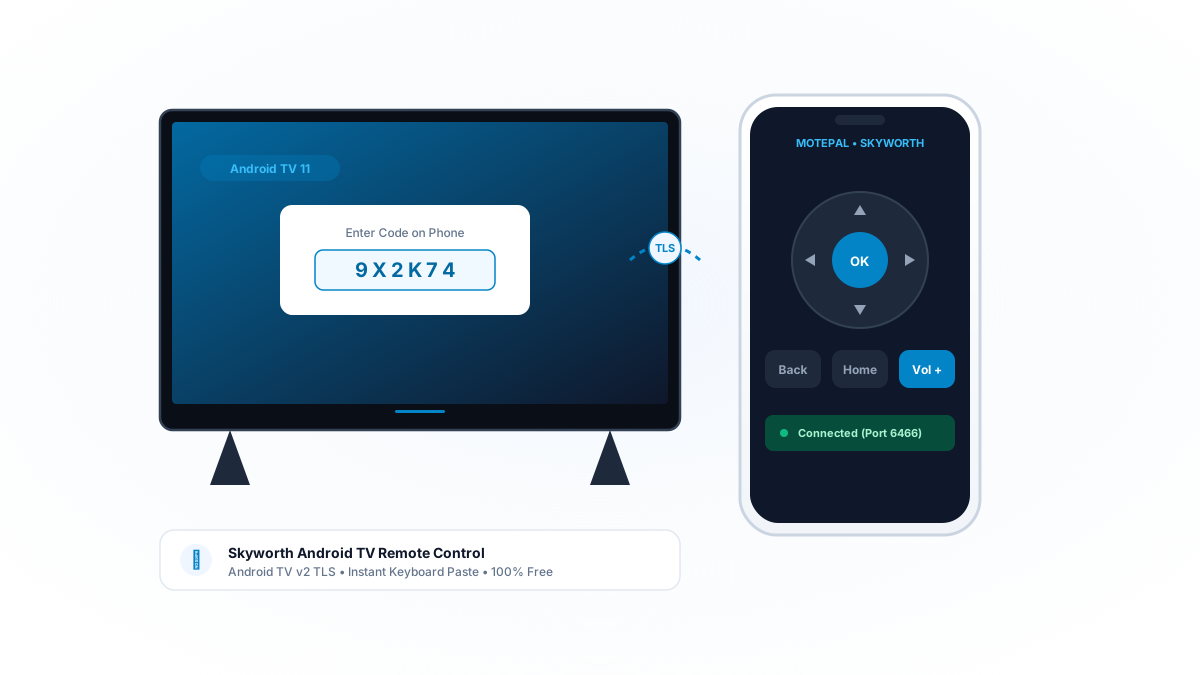
If your Skyworth Android TV or Google TV remote stops navigating menus: first, stand within 3 feet of the TV and hold both the Left Arrow and Home buttons (or on some models, Menu and Home) for 5 seconds until the LED light flashes rapidly to re-establish the Bluetooth link. If the physical remote is dead or lost, install MotePal on your Android phone to regain instant Wi-Fi control over secure Android TV TLS (port 6466) with zero ads and no account required.
Skyworth is one of the largest consumer electronics manufacturers in the world, producing popular budget and midrange smart displays powered by official Android TV and Google TV software.
Like many modern smart televisions, Skyworth employs a dual-radio remote controller: infrared (IR) for basic standby power commands, and Bluetooth Low Energy (BLE) for menu navigation, Google Assistant voice queries, and on-screen typing.
When Bluetooth pairing drops after an automatic Android system update, or when AAA batteries drop below operational voltage, owners frequently experience a frustrating symptom: the physical power button turns the screen on, but directional arrows and the OK button stop functioning completely.
Here is how to resolve Skyworth remote freezes and gain instant control using your Android smartphone.
MotePal connects directly to Skyworth Android TV over local Wi-Fi port 6466, providing reliable zero-latency control.
Step 1: Force Re-Pair the Skyworth Bluetooth Remote
If the remote turns the TV on and off but will not navigate channels:
- Turn on the television manually using the physical button beneath the Skyworth logo.
- Stand within 3 feet (1 meter) of the television frame.
- Press and hold both the Left Arrow (<) button and the Home button simultaneously for 5 to 7 seconds.
- On some Skyworth models, the combination is Menu and Left Arrow, or Home and OK.
- Watch the top indicator LED on the remote: it will flash rapidly.
- A pairing dialogue will appear on your Skyworth TV screen showing the remote connecting.
- Once “Pairing successful” flashes, test the directional pad.
Step 2: Electrical Discharge on the Remote
If the indicator LED fails to illuminate or buttons feel completely dead:
- Remove both AAA batteries.
- Hold down the Power button on the remote for 20 seconds to drain lingering residual charge from the logic board.
- Press all keypad buttons firmly twice to clear dust and stuck contacts.
- Insert two brand-new 1.5V alkaline batteries (such as Duracell or Energizer).
- Avoid rechargeable 1.2V NiMH batteries, as their lower voltage frequently triggers low-battery cutoffs on Skyworth Bluetooth controllers.
Step 3: Connect MotePal Over Local Wi-Fi
Because Skyworth televisions run official Android TV or Google TV platforms, you can control the television immediately from your Android phone without buying a replacement remote.
MotePal implements Google’s secure Android TV Remote v2 protocol directly:
- Download MotePal on Google Play.
- Ensure your smartphone is connected to the same Wi-Fi router as your Skyworth TV.
- Open MotePal. The app scans your local network and detects your Skyworth television.
- Tap your TV in the list.
- A 6-character alphanumeric pairing code will appear on your TV screen.
- Enter the pairing code in MotePal and tap Pair.
- The connection is authenticated with an encrypted local TLS certificate saved directly on your phone.
You can preview the interface and layout right now on our interactive web remote simulator.
If physical remotes disconnect repeatedly on your Skyworth TV, use MotePal to navigate to Settings > Apps > See all apps > Show system apps > Bluetooth. Select Clear Data and Clear Cache, then restart the TV from Settings > System > Restart.
Why Phone Control Beats Generic Remote Apps
- Fast Keyboard Typing: Typing complex movie titles, passwords, and search queries with a physical D-pad takes multiple minutes. MotePal allows you to type or paste text directly from your phone keyboard. Read more in our guide on typing and pasting passwords on Android TV.
- 100 Percent Ad-Free Navigation: Generic remote apps from the Google Play store bombard users with unskippable 30-second commercial videos. MotePal contains absolutely zero advertising.
- Zero Personal Tracking: MotePal runs 100 percent locally on your home network without cloud accounts or analytics scripts.
Frequently Asked Questions
Where is the physical power button on Skyworth Android TVs?
On modern Skyworth smart displays, the physical power button is located underneath the center Skyworth logo on the bottom edge of the frame, or on the lower left rear corner of the panel.
Can I control my Skyworth TV if Wi-Fi is disconnected?
If your Wi-Fi credentials changed and your remote is broken, plug a standard wired or wireless USB computer mouse into the USB port on the back of your Skyworth TV. A mouse pointer will appear on screen, allowing you to click into Settings > Network & Internet and reconnect your home Wi-Fi.
Does MotePal work with older Skyworth non-Android TVs?
MotePal is specifically designed for smart televisions communicating over local Wi-Fi networks (including all Skyworth Android TV and Google TV models). Older legacy displays without smart operating systems require infrared blasters.
Need an Instant TV Remote on Your Phone?
MotePal connects to your Google TV, Android TV, Roku, Samsung, or LG TV over Wi-Fi in seconds. 100% free with zero ads and no account required.
