


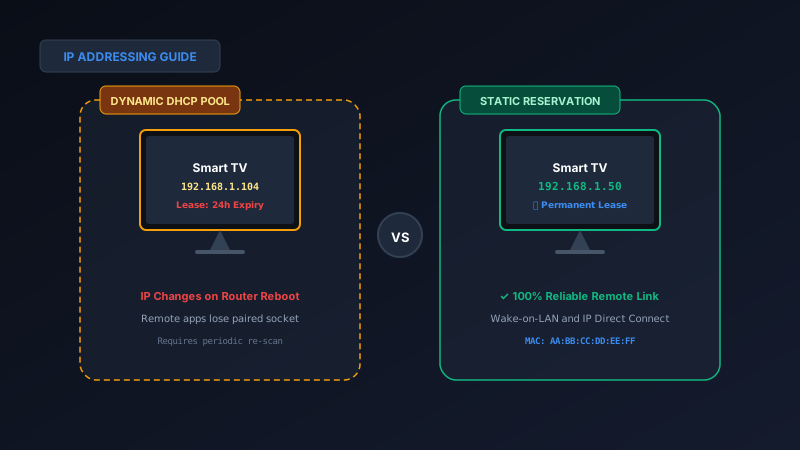
Yes, assigning a permanent IP address to your smart TV substantially improves remote control reliability and eliminates random disconnections. Rather than typing a manual static IP into your TV's network menu (which can cause IP conflict errors if other devices take the address), use a DHCP IP Reservation inside your router dashboard. By binding your television's physical MAC address to a fixed IP (such as 192.168.1.50), your router always gives your television the exact same address every time it boots. Once reserved, install MotePal or test the interactive web demo for instant connection.
Every device connected to your home Wi-Fi network requires an IP (Internet Protocol) address to send and receive digital data.
By default, your home router uses DHCP (Dynamic Host Configuration Protocol) to automatically lease IP addresses to smartphones, laptops, smart televisions, and IoT light bulbs. Under DHCP, addresses are temporary: they expire after 24 hours or whenever your router reboots.
For web browsing or streaming on Netflix, a changing IP address makes virtually no difference.
However, for local smart home controls, smartphone remote applications, and Wake-on-LAN (powering on your television from your phone), DHCP address churn is a leading cause of broken socket connections and “Device Offline” errors.
Here is the technical comparison between Static IP addressing and DHCP reservations, and how anchoring your television’s IP address guarantees uninterrupted remote control.
DHCP reservations bind your TV's MAC address to a fixed IP, ensuring your phone remote connects instantly without re-scanning.
The Problem with Dynamic DHCP for TV Remotes
When you install MotePal or any universal remote app, the application pairs with your television by recording its current local IP address and listening ports:
- Roku ECP: Port 8060
- Android TV / Google TV TLS: Port 6466
- Samsung Tizen WebSocket: Port 8001
- LG webOS WebSocket: Port 3000
When your television operates under basic dynamic DHCP, its IP address is leased from a rolling pool (for example, 192.168.1.100 to 192.168.1.250).
When your router reboots during an internet provider update, or when the television sits in deep standby mode past the 24-hour DHCP lease renewal window, the router flushes its lease table.
Upon wake-up, another household gadget (such as an iPad or smart speaker) may claim the television’s previous address (192.168.1.104). The router assigns your TV a new address (192.168.1.112).
When you launch your remote app:
- The app attempts to send directional clicks to
192.168.1.104. - The packet reaches an iPad rather than the TV, causing the command to drop silently.
- The remote app is forced to initiate a full multi-second network scan to re-discover the television’s new IP address.
Static IP vs DHCP Reservation: What Is the Difference?
Users frequently confuse a Manual Static IP configured on the television with a DHCP Reservation configured on the router. Understanding the technical distinction is critical:
| Metric | Manual Static IP (On Television) | DHCP Reservation (On Router) |
|---|---|---|
| Configuration Location | Inside the TV’s Network Settings menu | Inside the Router’s Administrative Dashboard |
| Risk of IP Address Conflict | High (if another device gets assigned the same IP) | Zero (router manages pool safely) |
| Setup Complexity | Requires manual subnet mask, gateway, and DNS entry | Simple one-click binding in client table |
| Survives Router Reboot | Yes | Yes |
| Recommended by Network Engineers | Discouraged on home networks | Strongly Recommended Industry Standard |
Why Manual Static IP on the TV Is Risky
If you go into your smart TV settings and manually assign 192.168.1.50, the television bypasses the router’s DHCP server completely.
If your router’s DHCP server does not know that .50 is reserved, it may accidentally lease 192.168.1.50 to a guest’s smartphone or smart thermostat next week. When two devices share the same IP address on a local network, a TCP/IP conflict occurs, causing both devices to drop offline repeatedly.
Why DHCP Reservation Is the Superior Approach
With a DHCP IP Reservation (sometimes called Static Lease or MAC Address Binding), the television continues to use standard automatic DHCP.
However, your router maintains a permanent rule: whenever it sees your smart TV’s unique hardware MAC address (such as 28:D0:EA:11:22:33), it assigns the exact same reserved IP address (192.168.1.50) every single time.
The router automatically excludes 192.168.1.50 from being handed to any other device, completely preventing IP conflicts.
Step-by-Step: Setting Up a DHCP Reservation on Your Router
Configuring a DHCP reservation takes less than two minutes on any modern router:
Step 1: Find Your Smart TV’s MAC Address
- Turn on your smart television.
- Navigate to Settings > Network > About or Connection Status.
- Note the 12-character physical MAC Address for your connection type (Wi-Fi MAC or Ethernet MAC, formatted like
AA:BB:CC:DD:EE:FF).
Step 2: Access Your Router Dashboard
- Open a browser on your smartphone or computer connected to your home Wi-Fi.
- Enter your router’s gateway IP into the URL bar (typically
192.168.1.1,192.168.0.1, or192.168.50.1). - Log in with your administrative credentials.
Step 3: Locate DHCP Address Reservation
Different router brands place this under slightly different menus:
- TP-Link Archer: Advanced > Network > DHCP Server > Address Reservation > Add.
- Netgear Nighthawk: ADVANCED > Setup > LAN Setup > Address Reservation > Add.
- Asus RT (Asuswrt): LAN > DHCP Server > Manually Assigned IP around the DHCP list > Yes.
- Amazon Eero: Settings > Network settings > Reservations & port forwarding > Add a reservation.
- Google Nest WiFi: Wi-Fi > Settings > Advanced networking > DHCP IP reservations.
Step 4: Assign the IP Address
- Select your smart TV from the list of connected clients (or manually paste its MAC address).
- Assign it a memorable, clean IP address outside your crowded DHCP pool (for example,
192.168.1.50or192.168.1.200). - Click Save or Apply.
- Reboot your smart television once to claim its new permanent IP address.
How a Fixed IP Improves MotePal Features
Once your television possesses a permanent reserved IP:
- Instant App Launch: MotePal connects immediately upon launch without requiring background discovery scans.
- Reliable Wake-on-LAN: Broadcast magic packets targeting your television’s fixed MAC and IP reliably wake the TV from deep sleep over port 9.
- Manual Direct Connect: If a guest network or router firmware bug ever prunes multicast discovery, you can connect directly by typing your reserved IP into MotePal’s manual connection prompt.
Frequently Asked Questions
Does assigning a static IP make my TV streaming faster?
No. An IP address is simply an identification number on your local network. It does not alter your internet bandwidth or wireless radio throughput. Streaming quality on Netflix or YouTube depends on your internet speed and Wi-Fi signal quality, not whether your IP address is static or dynamic.
What IP address range should I choose for my TV reservation?
Look at your router’s DHCP pool range in LAN settings. If your router hands out dynamic addresses between 192.168.1.100 and 192.168.1.250, pick a reserved IP in the lower unallocated range, such as 192.168.1.50. This cleanly separates permanent home appliances from mobile guest devices.
What happens if I switch my TV from Wi-Fi to Ethernet?
Smart televisions have two distinct network hardware chips: one for Wi-Fi and one for wired Ethernet. Each chip has its own unique MAC address. If you plug an Ethernet cable into a TV previously connected via Wi-Fi, you must create a new DHCP reservation for the TV’s wired Ethernet MAC address.
Can I set a DHCP reservation using my phone?
Yes. You can log into your router’s admin console via mobile Chrome or Safari, or use your router’s official companion app (such as the Eero, Google Home, or Deco app) to reserve an IP directly from your smartphone.
Need an Instant TV Remote on Your Phone?
MotePal connects to your Google TV, Android TV, Roku, Samsung, or LG TV over Wi-Fi in seconds. 100% free with zero ads and no account required.
