


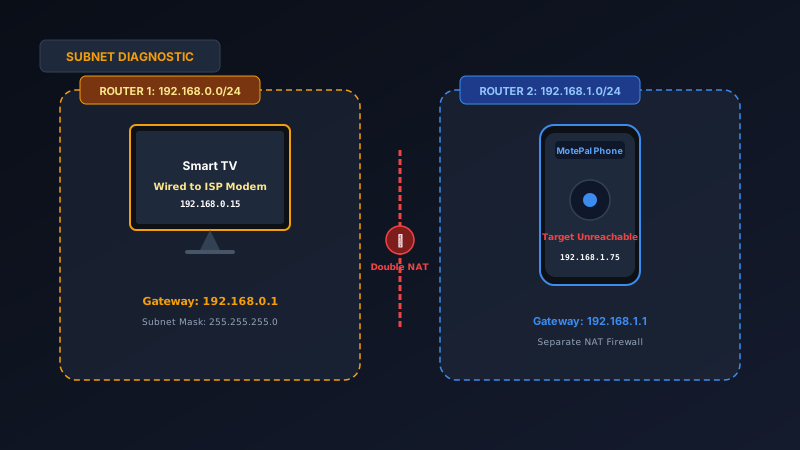
If your smartphone has an IP address starting with 192.168.1.x while your smart TV has an IP starting with 192.168.0.x (or vice versa), your home has two active routers running separate subnets (a Double NAT conflict). Because routers do not forward local broadcast discovery across different subnets, remote apps cannot find your television. To fix this: configure your secondary router into Access Point (AP) Mode, or configure your ISP modem into Bridge Mode. Once both devices share the same 3-digit subnet prefix, launch MotePal or test the interactive web demo for instant TV pairing.
In modern households, having more than one router is increasingly common.
Your internet service provider (such as Comcast, Spectrum, AT&T, or a fiber operator) provides an all-in-one modem/router gateway. To achieve better Wi-Fi coverage or gaming features, you plug a secondary Wi-Fi 6 router or mesh system (such as Asus, Netgear Nighthawk, or TP-Link Deco) directly into the back of the ISP box.
Both routers emit wireless signals. Both provide high-speed internet access. You can stream 4K movies on your television and browse social media on your phone without noticing any problems.
However, the moment you open a smartphone TV remote application, the app reports that no television exists on your local network.
Here is the networking architecture behind subnet conflicts, why having two routers breaks local TV remote protocols, and how to unify your home network into a single broadcast domain.
Devices on different subnets cannot exchange Layer 2 broadcast discovery packets because the secondary router's NAT firewall blocks incoming peer requests.
The Mechanics of Subnet Separation
Every standard IPv4 residential network uses a subnet mask of 255.255.255.0 (abbreviated in networking notation as /24).
The subnet mask tells your devices which portion of an IP address represents the Network ID (the neighborhood) and which portion represents the Host ID (the individual house):
- In
192.168.0.15, the network ID is192.168.0, and the host ID is.15. - In
192.168.1.75, the network ID is192.168.1, and the host ID is.75.
Because the network IDs are different, devices on 192.168.0.x and 192.168.1.x consider each other to be on completely separate foreign networks.
Why Local Discovery Fails Across Subnets
When you launch MotePal, it broadcasts discovery probes over two primary protocols:
- SSDP (Simple Service Discovery Protocol): Sent to UDP multicast address
239.255.255.250on port 1900 (used by Roku, LG webOS, and Samsung Tizen). - mDNS (Multicast DNS): Sent to UDP address
224.0.0.251on port 5353 (used by Android TV and Google TV).
By international Internet Engineering Task Force (IETF) networking standards, multicast and broadcast packets are strictly confined to their local Layer 2 broadcast domain.
Routers are specifically programmed never to forward multicast packets across different subnets. When your phone transmits a discovery probe on Subnet B (192.168.1.x), the secondary router stops the packet from crossing over to Subnet A (192.168.0.x).
Your television never hears the inquiry, and your smartphone reports that no television is available.
How to Check If Your Home Has a Subnet Conflict
Verifying whether your home suffers from a subnet conflict takes less than 60 seconds:
Step 1: Check Your Phone’s IP Address
- On your Android smartphone, open Settings > Network & internet > Wi-Fi.
- Tap the gear icon next to your connected Wi-Fi network.
- Note the IP address (for example:
192.168.1.75).
Step 2: Check Your Smart TV’s IP Address
- On your television, open Settings > Network > Status or About.
- Note the TV’s IP address (for example:
192.168.0.15).
Step 3: Compare the First Three Octets
- If both IP addresses begin with the exact same three numbers (e.g., both start with
192.168.1), they are on the same subnet. - If the third number is different (
192.168.1.xvs192.168.0.xor10.0.0.x), you have an active multi-router subnet conflict.
Two Ways to Fix Multi-Router Subnet Conflicts
To eliminate the conflict, you must unify your home under a single DHCP server and a single subnet.
Method 1: Set Your Secondary Router to Access Point (AP) Mode (Easiest)
If you bought a secondary router or mesh system for better Wi-Fi coverage, configure it to operate as an Access Point rather than a router:
- Open your secondary router’s administrative dashboard (e.g.,
192.168.1.1in your browser). - Navigate to Administration > Operation Mode (or Advanced Settings > System Mode).
- Select Access Point (AP) Mode (on mesh systems like Deco or Velop, select Bridge / AP Mode).
- Click Apply.
What this does: AP Mode turns off the secondary router’s internal DHCP server and NAT firewall. Your ISP modem now manages all IP assignments across your entire house.
Both your phone and your smart TV will receive IP addresses from the exact same pool (e.g., 192.168.0.x), restoring instant smart TV remote discovery.
Method 2: Set Your ISP Modem to Bridge Mode
If you prefer to use your high-end secondary router’s advanced features (parental controls, QoS, VPN server, or gaming prioritization):
- Access your ISP modem/gateway console (usually
192.168.0.1or192.168.1.254). - Navigate to Gateway Settings > WAN > Operation Mode.
- Enable Bridge Mode or IP Passthrough.
- Turn off the Wi-Fi antennas on the ISP modem.
- Move any wired Ethernet cables (including your television or switch) out of the ISP modem and plug them directly into the LAN ports of your secondary router.
What this does: The ISP modem becomes a silent broadband passthrough. Your secondary router becomes the sole master router for your home, managing all wired and wireless connections under one unified subnet.
Multi-Router Configuration Comparison
| Architecture | Subnet Setup | Smart TV Remote Compatibility | Streaming Performance |
|---|---|---|---|
| Double NAT (Default Mistake) | TV on 192.168.0.x, Phone on 192.168.1.x |
Broken (Remote apps cannot discover TV) | Good (but VoIP and gaming issues) |
| Secondary Router in AP Mode | All devices on unified 192.168.0.x |
100% Compatible (Instant Discovery) | Flawless |
| ISP Modem in Bridge Mode | All devices on unified 192.168.1.x |
100% Compatible (Instant Discovery) | Flawless |
Reconnecting with MotePal
Once your home operates on a single unified subnet:
- Open MotePal on your Android smartphone.
- Tap the TV selector at the top of the interface.
- MotePal dispatches local UDP discovery probes across the unified broadcast domain.
- Your Roku, Android TV, Google TV, Samsung, or LG television will appear in the device list within seconds. Tap it to enjoy instant control with zero ads and no account requirements.
Frequently Asked Questions
Can I control my TV by typing its IP address manually if we are on different subnets?
Generally, no. Even if you type the TV’s IP address directly into a remote app, your secondary router’s firewall blocks incoming unicast TCP and WebSocket connections originating from outside its immediate WAN interface, unless you configure complex port forwarding rules. Unifying the subnets in AP mode is vastly simpler and more reliable.
Why does internet streaming work when remotes fail?
Outbound internet connections (like opening YouTube or Netflix) travel downstream from your client device out to the public internet through NAT translation. Remote control apps, in contrast, require peer-to-peer inbound socket connections inside your home network. Double NAT allows outbound internet traffic while blocking internal peer-to-peer traffic.
What is the default subnet for major router brands?
Most residential routers use /24 subnets: Netgear and Linksys default to 192.168.1.x, TP-Link and D-Link default to 192.168.0.x, Asus defaults to 192.168.50.x, Amazon Eero defaults to 192.168.4.x, and Google Nest WiFi defaults to 192.168.86.x.
Does putting a router in AP mode disable its Wi-Fi 6 speeds?
No. AP Mode only disables the router’s software DHCP routing and firewall engines. The physical Wi-Fi radios continue operating at full Wi-Fi 6 or Wi-Fi 6E hardware speeds, providing identical wireless throughput and range.
Need an Instant TV Remote on Your Phone?
MotePal connects to your Google TV, Android TV, Roku, Samsung, or LG TV over Wi-Fi in seconds. 100% free with zero ads and no account required.
