


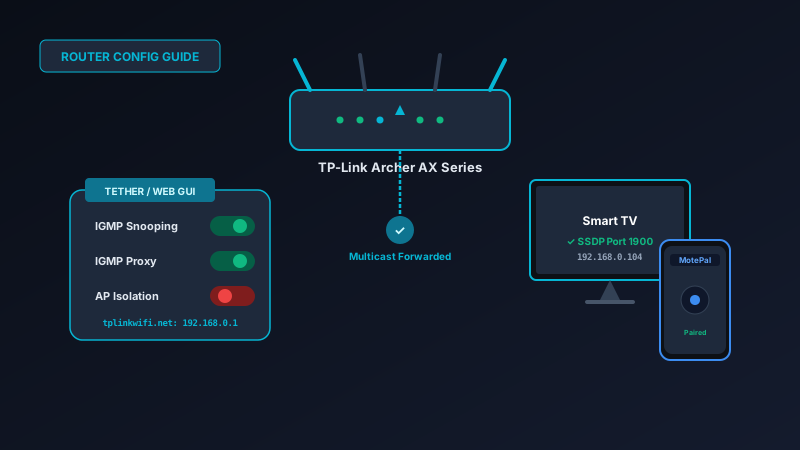
If your smart TV remote app cannot locate your television on a TP-Link Archer router, TP-Link's default multicast filtering is dropping discovery packets. To resolve this: log into your router dashboard at tplinkwifi.net (or 192.168.0.1), navigate to Advanced > Network > IPTV/VLAN, and set IGMP Snooping and IGMP Proxy to Enabled. Next, go to Advanced > Wireless > Wireless Settings and verify that AP Isolation is unchecked. Once saved, install MotePal or test the interactive web demo to pair your TV instantly over local Wi-Fi.
TP-Link Archer routers (such as the Archer AX21, AX55, AX73, and C7) are among the most popular Wi-Fi routers in homes worldwide, delivering exceptional speed and reliability for streaming and gaming.
However, many TP-Link owners experience a persistent issue when attempting to use smartphone remote applications: their phone and television are connected to the exact same Wi-Fi network, yet the remote app continuously reports “Scanning for TVs…” without ever finding the display.
The root cause lies in TP-Link’s aggressive default handling of Multicast Traffic and IGMP (Internet Group Management Protocol) packet filtering.
Here is why TP-Link firmware blocks smart TV discovery packets, and how to configure your router settings in under five minutes to restore instant TV control.
Enabling IGMP Snooping and Proxy on TP-Link Archer routers allows broadcast discovery packets to cross between wireless client radios.
Why TP-Link Archer Routers Drop TV Discovery Packets
Smart television remote apps communicate across your local network using multicast protocols:
- Simple Service Discovery Protocol (SSDP): Roku, LG webOS, and Samsung Tizen TVs listen for UDP broadcast packets sent to address
239.255.255.250on port 1900. - Multicast DNS (mDNS): Android TV and Google TV devices listen for UDP packets sent to
224.0.0.251on port 5353.
On standard computer networks, multicast packets can cause network congestion if forwarded blindly to every wireless device. To preserve wireless airtime, TP-Link implements strict multicast rate filtering in its router firmware.
If IGMP Snooping is disabled or misconfigured, the Archer router assumes that multicast discovery packets are unwanted background noise. Rather than forwarding the SSDP or mDNS query from your phone’s wireless interface to your television’s interface, the router discards the packet at the switch processor layer.
As a result, your television never hears the phone calling, and your phone never receives an IP response.
Step-by-Step Configuration on TP-Link Archer
To fix TV discovery on any modern TP-Link Archer or Deco router, access the router’s web-based management console from a computer or your phone’s mobile browser:
Step 1: Access the TP-Link Admin Dashboard
- Connect your device to your TP-Link Wi-Fi network.
- Open a web browser (Chrome, Firefox, or Safari).
- In the URL address bar, enter
http://tplinkwifi.netorhttp://192.168.0.1(some models use192.168.1.1). - Enter your administrator password. (If configuring for the first time, this is the administrative password you created during initial router setup).
Step 2: Enable IGMP Snooping and IGMP Proxy
- At the top of the management dashboard, click the Advanced tab.
- In the left-hand navigation column, click Network > IPTV/VLAN (or on some firmware versions, Network > Multicast).
- Locate the setting labeled IGMP Snooping and toggle it to Enable.
- Locate the setting labeled IGMP Proxy and toggle it to Enable.
- Set the IGMP Version to V3 (or V2 if you have older first-generation Roku or LG models).
- Click Save at the bottom of the page.
Step 3: Verify AP Isolation Is Turned Off
- While still under the Advanced tab, navigate to Wireless > Wireless Settings.
- Scroll down to expand Advanced Settings for both the 2.4 GHz and 5 GHz bands.
- Locate the checkbox labeled AP Isolation.
- Ensure that the AP Isolation checkbox is UNCHECKED for both frequency bands. If AP Isolation is checked, wireless devices cannot talk to one another even if multicast is enabled.
- Click Save.
Step 4: Enable UPnP (Universal Plug and Play)
- In the left-hand sidebar, navigate to Advanced > NAT Forwarding > UPnP.
- Ensure the UPnP toggle switch is set to Enable.
- While remote apps do not rely directly on UPnP for button presses, enabling UPnP allows TP-Link’s internal routing table to automatically create transient port mappings for media streaming and TV status events.
- Click Save and reboot the router if prompted.
Recommended Settings for TP-Link Archer Routers
| Setting Menu | Recommended State | Function for Smart TV Control |
|---|---|---|
| Network > IPTV/VLAN > IGMP Snooping | Enabled | Monitors multicast groups and forwards discovery packets to subscribed TVs |
| Network > IPTV/VLAN > IGMP Proxy | Enabled | Routes IGMP memberships across the router’s internal bridge |
| Wireless > Advanced > AP Isolation | Disabled (Unchecked) | Permits wireless devices to communicate directly over the local LAN |
| NAT Forwarding > UPnP | Enabled | Allows dynamic port discovery for media services and status callbacks |
| Wireless > Smart Connect | User Preference | If discovery drops persist, disable Smart Connect and split 2.4G / 5G bands |
What If You Are Using the TP-Link Tether Mobile App?
The TP-Link Tether smartphone app is convenient for basic tasks like checking connected devices or changing Wi-Fi passwords, but it hides advanced multicast and IPTV settings.
To access the IGMP Snooping and AP Isolation toggles described above, you must use a standard web browser (such as Chrome on your phone) to open tplinkwifi.net. You cannot configure IGMP Snooping through the simplified Tether mobile app interface.
Pairing with MotePal After Router Configuration
Once your TP-Link Archer router completes saving its multicast tables:
- Open MotePal on your Android smartphone.
- Tap the TV selector at the top of the interface.
- MotePal dispatches high-speed local discovery pings over ports 8060, 6466, 8001, and 3000.
- Your television will appear in the device list within 1 to 2 seconds. Tap it once to initiate instantaneous control with zero advertisements and zero tracking.
Frequently Asked Questions
Does enabling IGMP Snooping slow down my Wi-Fi speed on TP-Link?
No. In fact, enabling IGMP Snooping improves overall network performance. Without IGMP Snooping, multicast packets are flooded to every single wireless device on your network, consuming battery life on phones and laptops. IGMP Snooping intelligently filters multicast packets so they are only delivered to the specific devices listening for them (such as your smart TV and phone).
Why does my TP-Link router keep losing connection to my TV after a reboot?
When a router reboots, its DHCP server assigns IP addresses to devices as they reconnect. If your smart TV gets assigned a different IP address, some remote apps get confused. To prevent this, go to Advanced > Network > DHCP Server > Address Reservation in your TP-Link settings and reserve a permanent static IP for your television’s MAC address.
Can I control my TV if my TP-Link router is in Access Point (AP) mode?
Yes. When a TP-Link Archer router is configured in Access Point mode rather than Router mode, its internal firewall and NAT routing are disabled. All routing is handled by your primary modem/gateway. As long as your primary gateway supports multicast bridging, MotePal will discover your smart TV normally.
Which TP-Link Archer models support IGMP Snooping?
Virtually all modern TP-Link Archer models support IGMP Snooping, including the Archer AX10, AX20, AX21, AX50, AX55, AX73, AX90, Archer C6, C7, C80, and the entire Deco mesh lineup. The setting is located under Advanced > Network > IPTV/VLAN across modern firmware.
Need an Instant TV Remote on Your Phone?
MotePal connects to your Google TV, Android TV, Roku, Samsung, or LG TV over Wi-Fi in seconds. 100% free with zero ads and no account required.
