


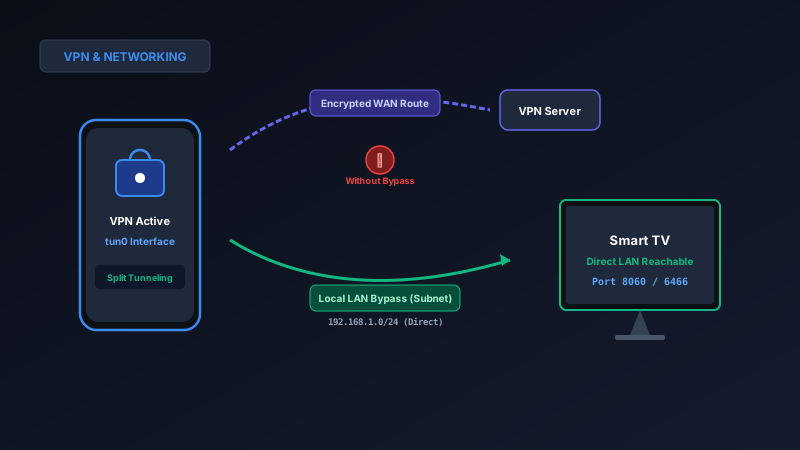
If your smart TV remote app works fine normally but immediately disconnects or reports "TV Not Found" whenever your VPN is turned on, your VPN is routing all network traffic into an encrypted tunnel away from your local Wi-Fi. To fix this without turning off your VPN: open your VPN app settings and enable Allow Local Network Traffic (or Invisibility on LAN: Off). Alternatively, navigate to your VPN's Split Tunneling menu and exclude MotePal from the VPN. Once excluded, MotePal sends discovery packets directly across your local LAN while your other internet traffic remains encrypted.
Virtual Private Networks (VPNs) have become essential privacy tools on smartphones. Millions of users keep an active VPN connection running 24/7 on Android to encrypt cellular browsing, protect public Wi-Fi sessions, and prevent internet service provider tracking.
Yet having an active VPN is one of the most common reasons smart TV remote apps abruptly stop functioning.
You tap the power button or volume controls, and nothing happens. You open the TV device list, and your television has vanished. The moment you disconnect your VPN, your remote app starts working immediately.
Here is an engineering explanation of why VPN routing tables break smart TV protocols, and how to configure your VPN app so your television remote works seamlessly without sacrificing your online privacy.
Without split tunneling, all outbound packets leave via the encrypted VPN tunnel. Enabling local LAN bypass routes TV packets directly across your home subnet.
The Networking Physics: Why VPNs Break Local TV Discovery
When you connect to a VPN on your Android smartphone, the operating system’s VpnService creates a virtual network interface (typically named tun0).
To ensure that your internet data does not leak unencrypted across your home Wi-Fi network, the VPN modifies your phone’s internal routing table. It sets the default gateway (0.0.0.0/0) to point exclusively into the encrypted tun0 tunnel.
This architecture causes two distinct problems for smart TV remotes:
1. Broadcast and Multicast Suppression
Smart TV remote applications discover televisions by transmitting discovery datagrams across the local network:
- SSDP (UDP port 1900) to multicast address
239.255.255.250(Roku, Samsung, LG). - mDNS (UDP port 5353) to multicast address
224.0.0.251(Android TV, Google TV).
Standard VPN tunnels are strictly point-to-point Layer 3 IP tunnels. They do not encapsulate or forward Layer 2 multicast and broadcast frames. When your remote app broadcasts for devices, the packets are either dropped outright by the smartphone’s VPN driver or sent hundreds of miles away to the VPN company’s data center server, which promptly discards them.
2. Subnet IP Isolation
Even if a remote app attempts a direct unicast connection to your TV’s known IP address (such as 192.168.1.88), the phone’s operating system checks its routing rules. Because all traffic is forced down tun0, the request to 192.168.1.88 is sent into the VPN tunnel.
The remote VPN server on the other end has no knowledge of your home living room network and drops the packet. Your television never receives the command.
Fix 1: Enable “Local Network Sharing” in Your VPN App
Fortunately, modern VPN client applications provide a native setting specifically designed to allow local communication with home printers, Chromecast devices, and smart TVs without disconnecting the VPN.
Here is how to enable local LAN access across the most popular Android VPN clients:
NordVPN
- Open the NordVPN app on your phone.
- Tap your Profile icon in the bottom right corner, then tap the Gear icon (Settings).
- Scroll down to the Connection or Advanced section.
- Locate the toggle named Invisibility on LAN.
- Set the toggle to OFF (when “Invisibility on LAN” is turned off, your phone is visible and able to communicate with local devices on your Wi-Fi).
Surfshark
- Open the Surfshark app.
- Tap Settings (gear icon) in the bottom right.
- Select VPN Settings.
- Scroll to Advanced Settings.
- Locate Invisibility on LAN and toggle it to OFF, or locate Allow LAN traffic and toggle it to ON.
ExpressVPN
- Open the ExpressVPN app.
- Tap the Options tab (three horizontal lines).
- Tap Settings > Network Protection.
- Check the box for Allow access to devices on local network (such as printers and smart TVs).
ProtonVPN
- Open ProtonVPN.
- Tap the Settings gear icon.
- Scroll down to Advanced.
- Toggle Allow alternative routing and ensure LAN connections is enabled.
Mullvad VPN
- Open the Mullvad app.
- Tap the Gear icon in the top right.
- Tap VPN settings.
- Toggle Local network sharing to ON.
Once local network sharing is enabled, the VPN client automatically creates an exception in the Android routing table for private RFC 1918 subnets (192.168.0.0/16, 10.0.0.0/8, and 172.16.0.0/12). Your phone can now talk directly to your TV over Wi-Fi while all public internet traffic remains fully encrypted.
Fix 2: Use Split Tunneling to Exclude MotePal
If your VPN provider does not have a general “Local Network Sharing” toggle, or if you prefer an airtight configuration that guarantees your remote traffic never touches the VPN stack, use Split Tunneling.
Split tunneling allows you to specify which individual applications use the encrypted VPN tunnel and which applications connect directly through your physical Wi-Fi network interface (wlan0).
How to configure Split Tunneling on Android:
- Open your VPN app and navigate to Settings.
- Select Split Tunneling (sometimes labeled App Exclusions or Bypass VPN).
- Ensure Split Tunneling mode is set to Do not allow selected apps to use the VPN (Exclusion Mode).
- Scroll through your installed applications list and find MotePal.
- Tap the checkbox or plus icon next to MotePal to add it to the exclusion list.
- Disconnect and reconnect your VPN once to apply the new routing policy.
When you open MotePal, Android routes all discovery probes and socket connections directly through your physical home Wi-Fi adapter. The remote communicates with your television with zero latency and zero dropped packets, while your web browsers, email clients, and streaming apps continue through the secure VPN tunnel.
Comparison: Split Tunneling vs Disabling VPN
| Method | Remote Responsiveness | Web Browsing Privacy | Setup Effort |
|---|---|---|---|
| Split Tunneling (Excluding MotePal) | Immediate, 100% reliable | Fully protected by active VPN | 30 seconds (one-time setup) |
| Local Network Sharing Toggle | Immediate, 100% reliable | Fully protected by active VPN | 10 seconds (one-time setup) |
| Disconnecting VPN Manually | Works, but leaves phone exposed | Zero protection while watching TV | Tedious (must toggle on/off repeatedly) |
Frequently Asked Questions
Does MotePal collect any data while bypassed through Split Tunneling?
No. Unlike ad-heavy universal remote apps that transmit your viewing data, IP address, and advertising identifiers to third-party ad networks, MotePal collects zero user telemetry and includes zero advertisement SDKs. Bypassing the VPN for MotePal carries zero privacy risk because MotePal communicates strictly between your phone and your television across your internal local network.
Why do some VPNs still block smart TVs even with Local Sharing enabled?
Some VPN protocols (such as OpenVPN with strict redirect-gateway flags) overwrite the host routing table aggressively. If “Local Network Sharing” does not immediately restore communication, switch your VPN protocol to WireGuard or IKEv2 inside your VPN app settings, or rely on Split Tunneling instead.
Can I install a VPN on my smart TV itself?
Yes. Both Android TV and Google TV support installing VPN apps directly from the Google Play Store. However, installing a VPN on your television will often isolate the TV from the local network in the same way, preventing phone remote apps from reaching it. If you run a VPN on your TV, enable “Local Network Sharing” inside the TV’s VPN client as well.
What ports does my VPN need to unblock for smart TV control?
Smart TV remotes require communication across: UDP port 1900 (Roku/LG SSDP), UDP port 5353 (Android TV mDNS), TCP port 8060 (Roku ECP), TCP ports 6466/6467 (Android TV TLS), TCP ports 8001/8002 (Samsung WebSocket), and TCP ports 3000/3001 (LG webOS). Enabling local network sharing unblocks all of these private ports simultaneously.
Need an Instant TV Remote on Your Phone?
MotePal connects to your Google TV, Android TV, Roku, Samsung, or LG TV over Wi-Fi in seconds. 100% free with zero ads and no account required.
