


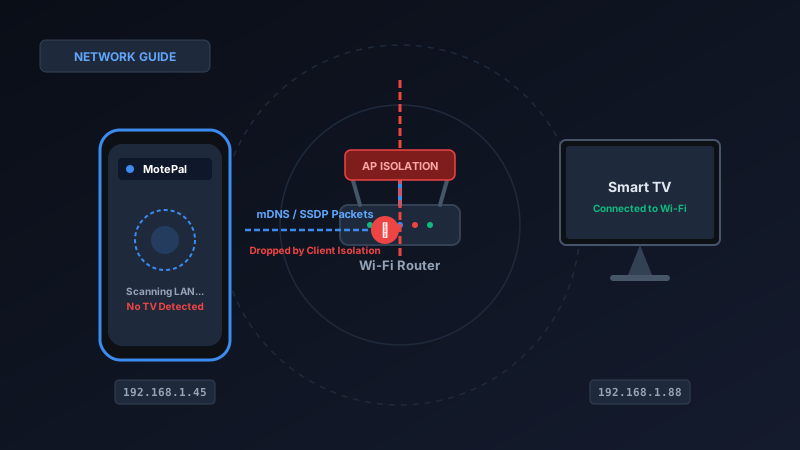
If your smart TV remote app cannot find your television despite both devices showing strong Wi-Fi signals on the same router, AP Isolation (also called Client Isolation or Station Isolation) is almost certainly enabled. AP Isolation is a security feature that prevents wireless devices from communicating with one another. To fix it, log into your router's admin portal (typically 192.168.1.1 or 192.168.0.1), navigate to Wireless > Advanced Settings, and switch AP Isolation to Disabled. Once disabled, launch MotePal or test the interactive web demo to pair instantly over local broadcast ports.
Few network glitches are more baffling than having your phone and smart TV connected to the exact same Wi-Fi router, having full internet access on both, and yet watching your TV remote app report “No TV Found on Local Network.”
You restart your TV. You toggle airplane mode on your smartphone. You verify that your YouTube stream loads on both devices. Yet the remote application acts as if your television does not exist.
The invisible culprit behind this roadblock is a router security feature known as AP Isolation (Access Point Isolation), frequently referred to across different router brands as Client Isolation, Station Isolation, or Guest Mode Isolation.
Understanding how this feature operates at Layer 2 of the network stack, why routers enable it, and how to safely adjust your configuration will permanently resolve your connection dropped packets.
When AP Isolation is active, your router forwards internet traffic to the WAN but drops all Layer 2 frames between local Wi-Fi stations.
How AP Isolation Works Under the Hood
In a standard residential home network, your Wi-Fi router acts as both a network switch and a wireless access point. When two devices connect to your Wi-Fi, the router allows them to communicate freely over the local area network (LAN).
For example, when you launch MotePal, the app broadcasts discovery probes across your subnet:
- Roku Devices: Sends SSDP M-SEARCH multicast packets to UDP port 1900 targeting address
239.255.255.250. - Android TV & Google TV: Multicasts mDNS queries on UDP port 5353 looking for the
_androidtvremote2._tcp.localservice. - Samsung Tizen & LG webOS: Dispatches SSDP discovery packets and opens direct WebSocket handshakes on ports 8001/8002 and 3000/3001.
When AP Isolation is disabled (normal home behavior), the router’s internal bridge forwards these multicast packets to every connected station. Your TV receives the probe and replies directly with its IP address, model name, and open control ports.
When AP Isolation is enabled, the router creates a virtual wall between wireless clients. Each wireless device is placed in its own private sandbox. The router allows the smartphone to communicate outward to the internet gateway (WAN), and it allows the TV to communicate outward to Netflix or YouTube servers. However, station-to-station (peer-to-peer) Layer 2 traffic is blocked at the wireless MAC layer.
Because the router intercepts and discards the Address Resolution Protocol (ARP) requests and multicast datagrams before they can cross from your phone to your TV, neither device knows the other exists.
Why Do Routers Have AP Isolation Enabled?
If AP Isolation breaks local device discovery, why does the feature exist at all? There are three primary reasons:
- Public and Guest Wi-Fi Security: AP Isolation is mandatory in hotels, coffee shops, airports, and university dormitories. Without AP Isolation, any malicious laptop connected to the public Wi-Fi could scan the network, sniff unencrypted traffic, or attempt exploit payloads on other guests’ phones, laptops, and tablets.
- ISP Default Guest Networks: Many Internet Service Providers (such as Comcast Xfinity, AT&T, Spectrum, and Verizon) automatically enable client isolation on their secondary “Guest” networks or community Wi-Fi hotspots.
- Accidental Toggle in Firmware Updates: Some consumer routers inadvertently enable station isolation during automatic firmware updates, especially on older dual-band models attempting to isolate legacy 802.11b devices from newer 802.11ac hardware.
If you are trying to control a hotel television or a dorm room TV with your smartphone, AP Isolation is almost certainly enforced by the facility network administrators and cannot be disabled from your phone. In private homes, however, you have complete administrative access to turn it off.
How AP Isolation Differs from Other Router Features
Different router manufacturers use different naming conventions for this setting. Here is a quick reference table:
| Manufacturer / Platform | Setting Name in Firmware | Typical Location |
|---|---|---|
| Asus (Asuswrt / Merlin) | Client Isolation / AP Isolation | Wireless > Professional > Set AP Isolated to No |
| TP-Link (Archer / Deco) | AP Isolation / Client Isolation | Advanced > Wireless > Wireless Settings |
| Netgear (Nighthawk) | Wireless Isolation | Wireless > Advanced Wireless Settings |
| D-Link | User Isolation | Settings > Wireless > Advanced |
| Linksys | AP Isolation | Wireless > Advanced Wireless Settings |
| Mesh Systems (Eero / Nest) | Guest Network Mode | Guest Network settings (isolated by design) |
Step-by-Step: How to Disable AP Isolation on Your Router
To allow your smartphone remote app to discover and control your smart TV, follow these steps to access your router administrative dashboard:
Step 1: Find Your Router’s Gateway IP Address
On your Android phone:
- Open Settings > Network & internet > Wi-Fi.
- Tap the gear icon next to your connected Wi-Fi network.
- Scroll down to expand Advanced or view network details.
- Note the IP address listed under Gateway (most commonly
192.168.1.1,192.168.0.1, or10.0.0.1).
Step 2: Log into the Admin Interface
- Open Chrome or any mobile browser on your smartphone.
- Enter the Gateway IP address into the URL bar and press enter.
- Enter your router administrative username and password. If you have never changed this, check the physical sticker on the underside of your router (often
admin/adminoradmin/password).
Step 3: Locate Wireless Advanced Settings
- Navigate to the Wireless, Wi-Fi, or WLAN menu tab.
- Look for submenus labeled Advanced Settings, Professional, or Security.
- Locate the setting named AP Isolation, Client Isolation, or Station Isolation.
- Set the toggle or dropdown menu to Disabled or No.
- If your router has separate tabs for 2.4 GHz and 5 GHz bands, verify that AP Isolation is turned off for both frequencies.
- Click Apply or Save. Your router will take approximately 15 to 30 seconds to restart its wireless interfaces.
What If You Are on a Guest Wi-Fi Network?
If you connected your phone or smart TV to a network named Home_Guest or MyNetwork_Guest, AP isolation is almost always permanently active by definition.
Guest networks are engineered specifically to provide internet browsing while blocking access to local devices like printers, NAS drives, and smart televisions.
To resolve this issue immediately:
- Go to your smart TV’s network settings and connect to your primary private Wi-Fi network.
- Go to your smartphone’s Wi-Fi settings and ensure it is connected to that exact same primary network.
- Avoid connecting either device to the guest network SSID.
Verify Connection with MotePal
Once AP isolation is disabled, test your local discovery:
- Open MotePal on your Android smartphone.
- Tap the TV selector at the top of the remote interface.
- MotePal dispatches high-speed local discovery pings over ports 8060, 6466, 8001, and 3000.
- Your television will appear in the device list within 1 to 2 seconds. Tap it once to initiate instantaneous control with zero advertisements and zero tracking.
Frequently Asked Questions
Does disabling AP Isolation make my home network insecure?
In a private home setting where only trusted family members and personal devices connect to the Wi-Fi password, disabling AP Isolation is completely safe and is the standard industry default. It allows your smart TVs, gaming consoles, wireless printers, and phones to communicate locally. AP Isolation should only be kept active on public networks or secondary guest networks created for outside visitors.
Can I still use MotePal if my router does not allow disabling AP Isolation?
If your router firmware does not expose an AP Isolation toggle (common on some locked ISP rental gateways), you can bypass discovery by entering your smart TV’s static local IP address directly into MotePal’s manual connection prompt. While multicast discovery packets are filtered, some basic routers permit direct unicast TCP traffic once the IP is explicitly targeted.
Why does YouTube casting work even when AP Isolation is turned on?
YouTube and Netflix casting frequently rely on Google DIAL protocol or cloud relay servers. When your phone taps the cast button in YouTube, it can communicate through Google’s cloud servers over the internet to trigger playback on your TV’s YouTube app. Local TV remote apps, in contrast, require direct, low-latency LAN communication over local ports without relying on third-party cloud servers.
Do mesh Wi-Fi nodes have AP Isolation between pods?
On reputable mesh systems like Eero, Google Nest WiFi, and TP-Link Deco, devices connected to different mesh pods exist within the same unified Layer 2 bridge. However, if your mesh system is operating in a “Double NAT” configuration behind an ISP router that has isolation active, devices on different nodes may fail to communicate. Placing your ISP gateway into Bridge Mode resolves this problem.
Need an Instant TV Remote on Your Phone?
MotePal connects to your Google TV, Android TV, Roku, Samsung, or LG TV over Wi-Fi in seconds. 100% free with zero ads and no account required.
