


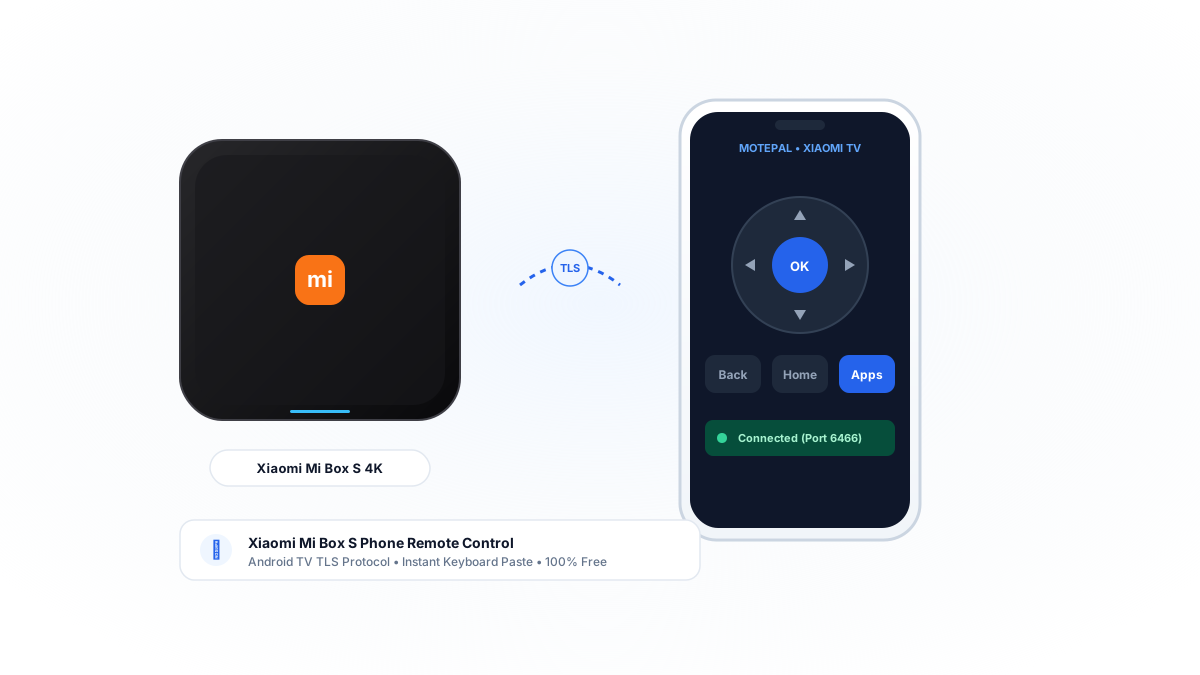
The Xiaomi Mi Box S (and Mi TV Stick 4K) runs Google's official Android TV platform, allowing complete wireless control over local Wi-Fi without needing the original Bluetooth remote. Download MotePal on your Android smartphone, connect to the same Wi-Fi router as your Mi Box, tap your device in the list, and enter the 6-character pairing code shown on screen. You get immediate zero-latency D-pad controls, volume keys, and full keyboard typing without ads.
The Xiaomi Mi Box S (1st and 2nd Gen) and Mi TV Stick are among the best-selling standalone streaming devices internationally. Offering pure 4K HDR playback, Google Cast built-in, Dolby Audio, and Google Play Store support at an affordable price point, they turn any HDMI monitor or older television into a modern smart entertainment hub.
However, Xiaomi’s physical Bluetooth voice remote is slim, lightweight, and prone to issues. Battery compartment contacts can loosen when dropped, and firmware updates occasionally sever the Bluetooth bond, leaving users stranded on the Android TV home screen.
Because the Mi Box S is an official Android TV device, your phone can connect directly to the system’s local control daemon over Wi-Fi in under 60 seconds.
MotePal pairs directly to Xiaomi Mi Box S over encrypted local TLS on port 6466 without commercials or subscriptions.
Step 1: Pair MotePal to Xiaomi Mi Box S
The Xiaomi Mi Box S implements Google’s official Android TV Remote v2 specification, communicating via encrypted local TCP sockets:
- Download MotePal on Google Play.
- Confirm your Android smartphone is on the same local Wi-Fi network as your Mi Box S.
- Open MotePal. The discovery radar locates your Xiaomi media player within seconds.
- Tap your Mi Box S in the list.
- Look at your television screen. A 6-character alphanumeric pairing code will appear.
- Enter the 6 characters in MotePal and tap Pair.
- Your phone is now securely authenticated with a cryptographic certificate stored locally on your device.
You can preview the responsive buttons and layout on our interactive web remote simulator.
Step 2: How to Re-Pair the Physical Xiaomi Remote
If you locate your physical Xiaomi remote and want to re-synchronize it:
- Stand within 1 foot (30 cm) of the Mi Box S.
- Press and hold both the Apps button (icon with 9 squares) and the Home button simultaneously for 5 to 10 seconds.
- Keep holding until the remote beeps or the indicator LED blinks rapidly.
- Release the buttons once the TV screen displays “Connected”.
- If the remote fails to pair, remove the batteries and press all buttons twice to drain static electricity before trying again.
If your Mi Box S lost its Wi-Fi configuration and your physical remote is broken, plug any standard USB wired mouse or wireless dongle into the full-sized USB port on the back of the Mi Box S. A mouse cursor will appear on screen, allowing you to click into Settings > Network & Internet and reconnect your home Wi-Fi.
Why Phone Control Beats Generic Remote Apps
- Fast Keyboard Typing: Entering movie titles on Stremio, Kodi, YouTube, or Netflix using an on-screen D-pad keyboard is painfully slow. MotePal synchronizes your mobile keyboard directly into Android TV text input fields. Read our guide to typing and pasting passwords on Android TV.
- 100 Percent Ad-Free Control: Generic remote apps from the Google Play store bombard users with unskippable 30-second commercial videos before buttons register. MotePal contains absolutely zero advertising.
- No Account Required: MotePal runs 100 percent locally on your home network without cloud accounts or data telemetry.
Frequently Asked Questions
Does MotePal work with both Mi Box S 4K and Mi TV Stick?
Yes. MotePal supports all Xiaomi television products, including the original Mi Box, Mi Box S 4K (1st and 2nd Gen), Mi TV Stick, Xiaomi TV Stick 4K, and all Xiaomi smart televisions running Android TV or Google TV.
Can I control Mi Box S volume if connected to a PC monitor?
Yes. If your Mi Box S is plugged into a computer monitor without HDMI-CEC audio processing, navigate in Android TV to Settings > Device Preferences > Sound > Volume Control and select digital volume control. MotePal can then raise and lower the stream volume directly.
What should I do if MotePal cannot discover my Xiaomi Mi Box S?
Ensure your phone is not connected to a guest network or active VPN. Additionally, verify that your router does not have AP Client Isolation enabled. Read our guide on why TV remote apps fail to find smart TVs for detailed router configuration steps.
Need an Instant TV Remote on Your Phone?
MotePal connects to your Google TV, Android TV, Roku, Samsung, or LG TV over Wi-Fi in seconds. 100% free with zero ads and no account required.
